> For the complete documentation index, see [llms.txt](https://docs.infotopics.com/llms.txt). Markdown versions of documentation pages are available by appending `.md` to page URLs; this page is available as [Markdown](https://docs.infotopics.com/writebackextreme/features/management-console/new-ai-platform/model-configuration.md).
# Model configuration
Model configurations are used to connect WriteBackExtreme to an AI provider such as OpenAI, Anthropic, Azure OpenAI, or a custom OSS endpoint. A model configuration stores the provider default model, and generation parameters in one place.
You only need to create a model configuration once. After creation, the configuration can be reused by multiple features such as AI Summaries, Generative Fill or other agents.
### Create a new model configuration
The steps below describe how to create a new AI model configuration. In this example, we create a configuration using **OpenAI** as the provider. You can use any of the available providers, and the steps will be nearly identical.
#### Step 1 – Open the AI Platform
1. Open the **WriteBackExtreme Management Console**.
2. Navigate to **AI configuration** in the left-hand menu.
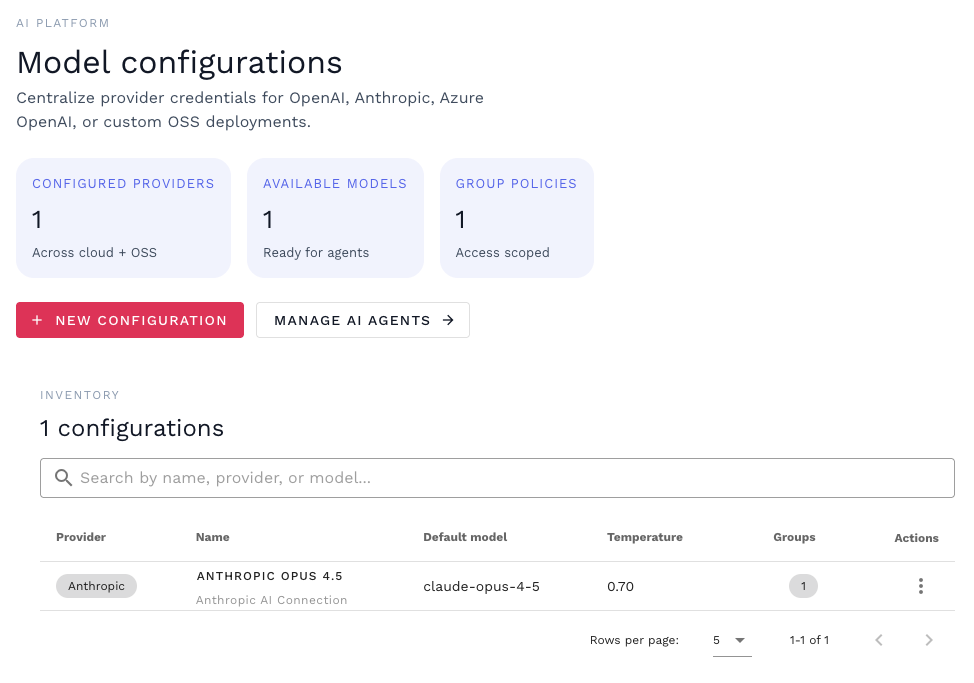
3. You will land on the **Model configurations** overview page, which shows all existing AI configurations.
4. Click **+ New configuration** to start creating a new model configuration.
***
#### Step 2 – Select a provider
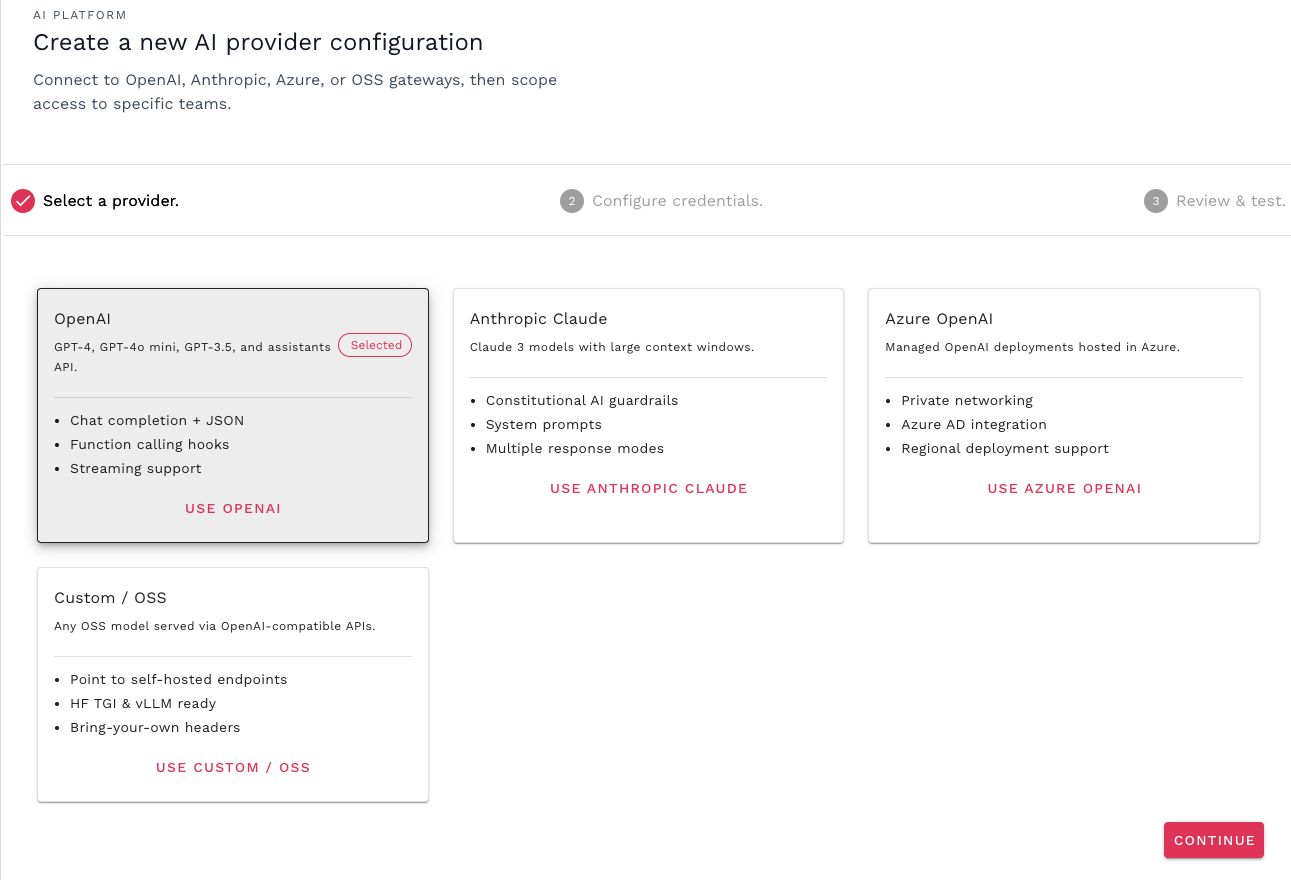
In the first step of the wizard, select the AI provider you want to connect to. The following providers are available:
* **OpenAI** – GPT-4, GPT-4o mini, GPT-3.5, and Assistants API
* **Anthropic Claude** – Claude models with large context windows
* **Azure OpenAI** – Managed OpenAI deployments hosted in Azure
* **Custom / OSS** – Self-hosted or OpenAI-compatible endpoints
In this example we will select **OpenAI** and click **Continue**.
***
#### Step 3 – Configure credentials and settings
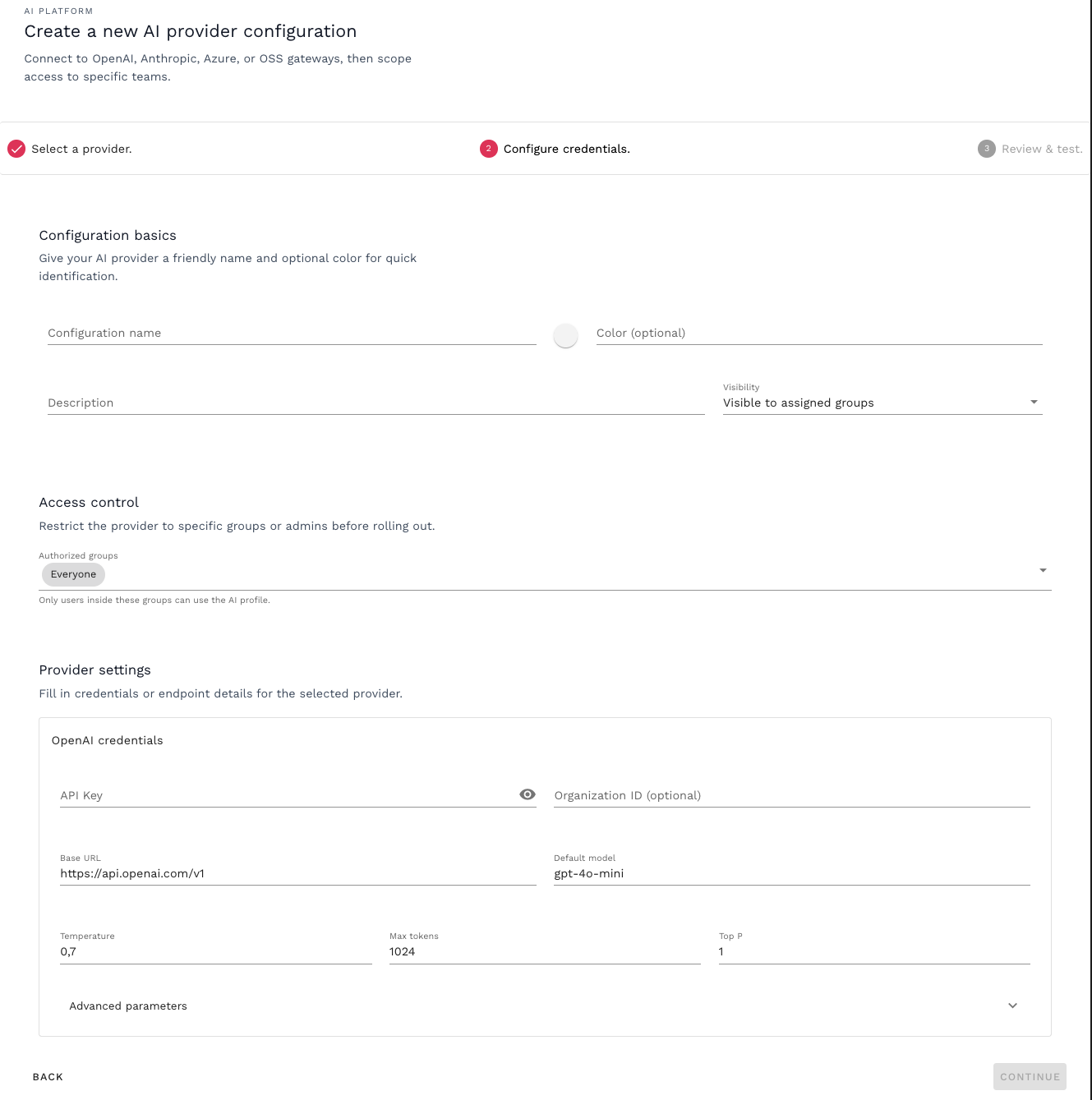
After selecting a provider, configure the model configuration details.
**Configuration basics**
* **Configuration name**\
A name to identify this AI configuration (for example: `OpenAI`).
* **Color (optional)**\
Optional color to visually distinguish this configuration.
* **Description**\
Optional description explaining the purpose of this configuration.
* **Visibility**\
Defines who can see this configuration, can be set to administrators only
**Access control**
Use **Authorized groups** to restrict which users are allowed to use this AI configuration.
* Users must belong to one of the authorized groups to access AI functionality using this configuration. By default, the configuration can be assigned to **Everyone.**
**Provider settings**
The fields shown under **Provider settings** depend on the selected AI provider. Open the provider-specific dropdown that is applicable to your setup to view and configure the available options.
Below is an overview of the available settings per provider.
{% tabs %}
{% tab title="Open AI" %}
When **OpenAI** is selected, the following fields are available:
* **API key**\
Your OpenAI API key. This key is stored securely and encrypted in the back-end.
* **Organization ID (optional)**\
Optional OpenAI organization identifier.
* **Base URL**\
The OpenAI API endpoint. In most cases this remains `https://api.openai.com/v1`.
* **Default model**\
The model used by default, for example `gpt-4o-mini`.
**Generation parameters**
* **Temperature** – Controls creativity.
* **Max tokens** – Maximum number of tokens returned in the response.
* **Top P** – Controls output randomness and predictability.
**Advanced parameters**
* **Frequency penalty** – Reduces repetition in responses.
* **Presence penalty** – Encourages introducing new topics.
* **Request timeout (seconds)** – Maximum allowed response time.
* **Response format** – Output format such as Text or JSON.
* **Default system instructions** – Optional system prompt applied to all requests.
{% hint style="info" %}
For detailed information about these parameters, check the [documentation of openAI](https://platform.openai.com/docs/api-reference/responses)
{% endhint %}
{% endtab %}
{% tab title="Anthropic Claude" %}
When **Anthropic Claude** is selected, the following fields are available:
* **API key**\
Your Anthropic API key.
* **API version**\
The Anthropic API version to use.
* **Base URL**\
Anthropic API endpoint, typically `https://api.anthropic.com`.
* **Default model**\
The Claude model used by default (for example `claude-3.5-sonnet`).
**Generation parameters**
* **Temperature** – Controls creativity.
* **Max output tokens** – Maximum number of tokens returned.
* **Top P** – Controls output randomness and predictability.
**Advanced parameters**
* **Top K** – Limits token sampling to the top K options.
* **Request timeout (seconds)** – Maximum allowed response time.
* **System prompt** – Default system prompt applied to all requests.
{% endtab %}
{% tab title="Azure OpenAI" %}
When **Azure OpenAI** is selected, the configuration reflects Azure-hosted deployments:
* **API key**\
Primary Azure OpenAI API key.
* **Secondary API key (optional)**\
Optional secondary key for key rotation.
* **Endpoint**\
The Azure OpenAI endpoint URL.
* **Deployment name**\
The name of the Azure OpenAI deployment.
* **API version**\
Azure OpenAI API version.
**Generation parameters**
* **Temperature** – Controls creativity.
* **Max tokens** – Maximum response length.
**Advanced parameters**
* **Streaming request timeout (seconds)** – Timeout for streaming responses.
* **Enable Azure AD authentication** – Use Azure Active Directory instead of API keys.
* **Resource group tag (optional)** – Optional Azure resource tagging.
{% endtab %}
{% tab title="Custom / OSS" %}
The **Custom / OSS** option allows connecting to self-hosted or OpenAI-compatible APIs.
* **Authentication**\
Authentication method, can be Bearer token, Custom Header or No Authentication
* **Header name**\
HTTP header used for authentication (for example `Authorization`).
* **API key / token**\
Authentication token for the endpoint.
* **Base URL**\
Base URL of the custom or open-source endpoint.
* **Model identifier**\
Identifier of the model exposed by the endpoint.
**Generation parameters**
* **Temperature** – Controls creativity.
* **Max tokens** – Maximum response length.
**Advanced parameters**
* **Default payload template (JSON)** – Custom request payload template.
* **Extra headers (JSON)** – Additional HTTP headers.
* **Timeout (seconds)** – Request timeout.
* **Use streaming responses** – Enable streamed responses if supported.
{% endtab %}
{% endtabs %}
***
#### Step 4 – Review and test
Before saving the configuration, you can validate the connection:
1. Click **Test configuration**.
2. A lightweight request is sent to the provider to verify the credentials.
3. When successful, a confirmation message is shown and you can continue with saving the configuration.
The new configuration will now appear in the **Model configurations** overview and can be used by AI features in WriteBackExtreme and Supertables.
---
# Agent Instructions
This documentation is published with GitBook. GitBook is the documentation platform designed so that both humans and AI agents can read, navigate, and reason over technical content effectively. Learn more at gitbook.com.
## Querying This Documentation
If you need additional information that is not directly available in this page, you can query the documentation by asking a question.
Perform an HTTP GET request on the following URL with the `ask` and `goal` query parameters:
```
GET https://docs.infotopics.com/writebackextreme/features/management-console/new-ai-platform/model-configuration.md?ask=&goal=
```
`ask` is the immediate question: it should be specific, self-contained, and written in natural language.
`goal` is what the user is ultimately trying to achieve, the reason they need the answer. Sharing it helps GitBook give you a better, more relevant answer. A goal is most helpful when it describes the outcome the user wants rather than restating the question. For example, with `ask=how do I create an API token`, a goal like `automate deployments from our CI pipeline` lets GitBook tailor the answer to that use case.
The response will contain a direct answer to the question and relevant excerpts and sources from the documentation.
Use this mechanism when the answer is not explicitly present in the current page, you need clarification or additional context, or you want to retrieve related documentation sections.