> For the complete documentation index, see [llms.txt](https://docs.infotopics.com/llms.txt). Markdown versions of documentation pages are available by appending `.md` to page URLs; this page is available as [Markdown](https://docs.infotopics.com/writebackextreme/features/management-console/new-ai-platform/agent-configuration.md).
# Agent configuration
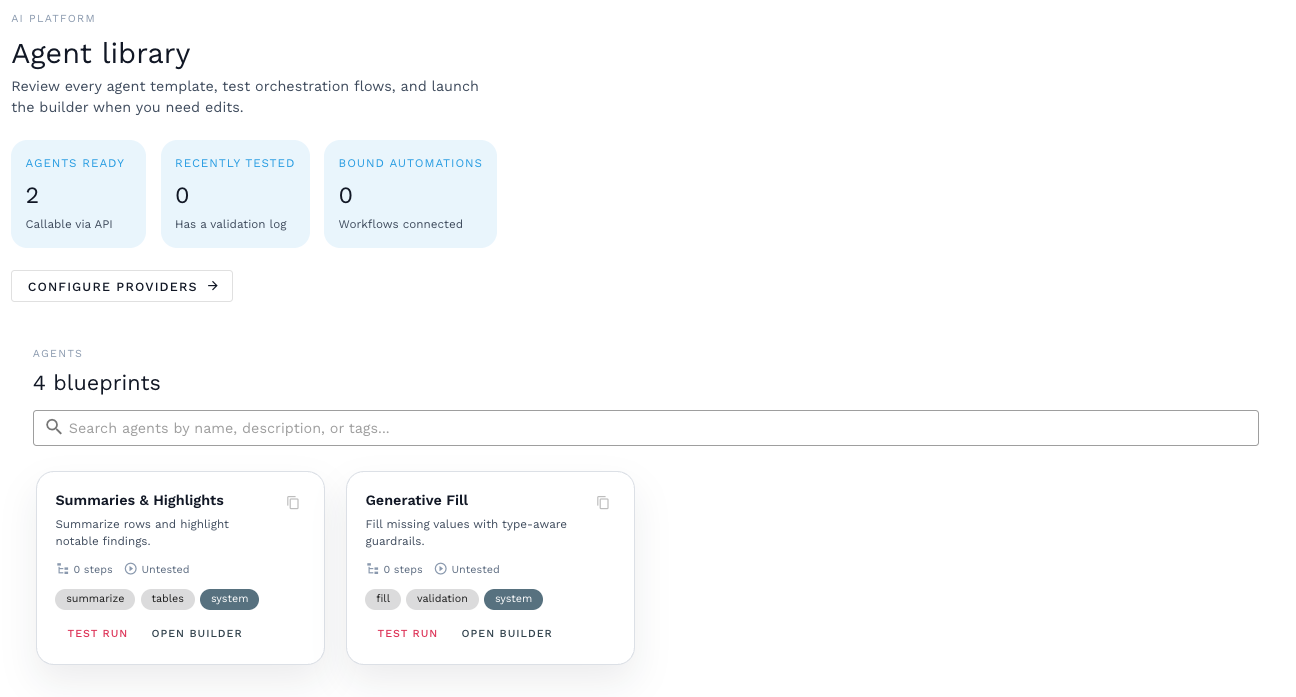
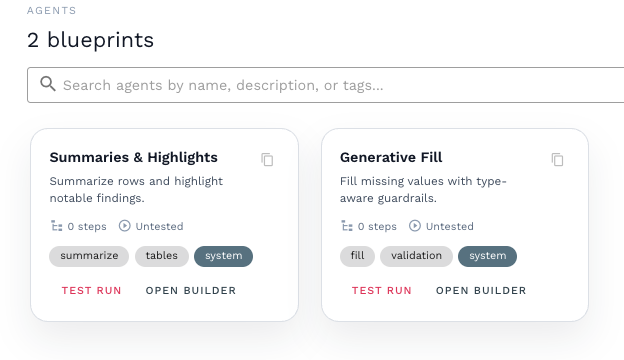
The AI Platform provides built-in AI functionality for 2 predefined AI agents that can be configured to work with your selected AI model.
The AI Platform exposes two default agents:
* **Summaries & Highlights** – Generates summaries and highlights notable findings from table data.
* **Generative Fill** – Generates or fills missing values based on schema-aware rules.
### Configure AI agents
The steps below describe how to configure AI agents. In this example, we configure the **Summaries & Highlights** agent. The same steps apply to **Generative Fill**, with the only difference being that Generative Fill contains two AI actions instead of one.
#### Step 1 – Open the Agent library
1. Open the **WriteBackExtreme Management Console**.
2. Navigate to **AI configuration** in the left-hand menu.
3. On the **Model configurations** page, click **Manage AI agents**.
4. The **Agent library** page opens, showing the available system agents.
***
#### Step 2 – Open the agent builder
1. In the **Agent library**, locate the agent you want to configure.
2. Click **Open builder**.
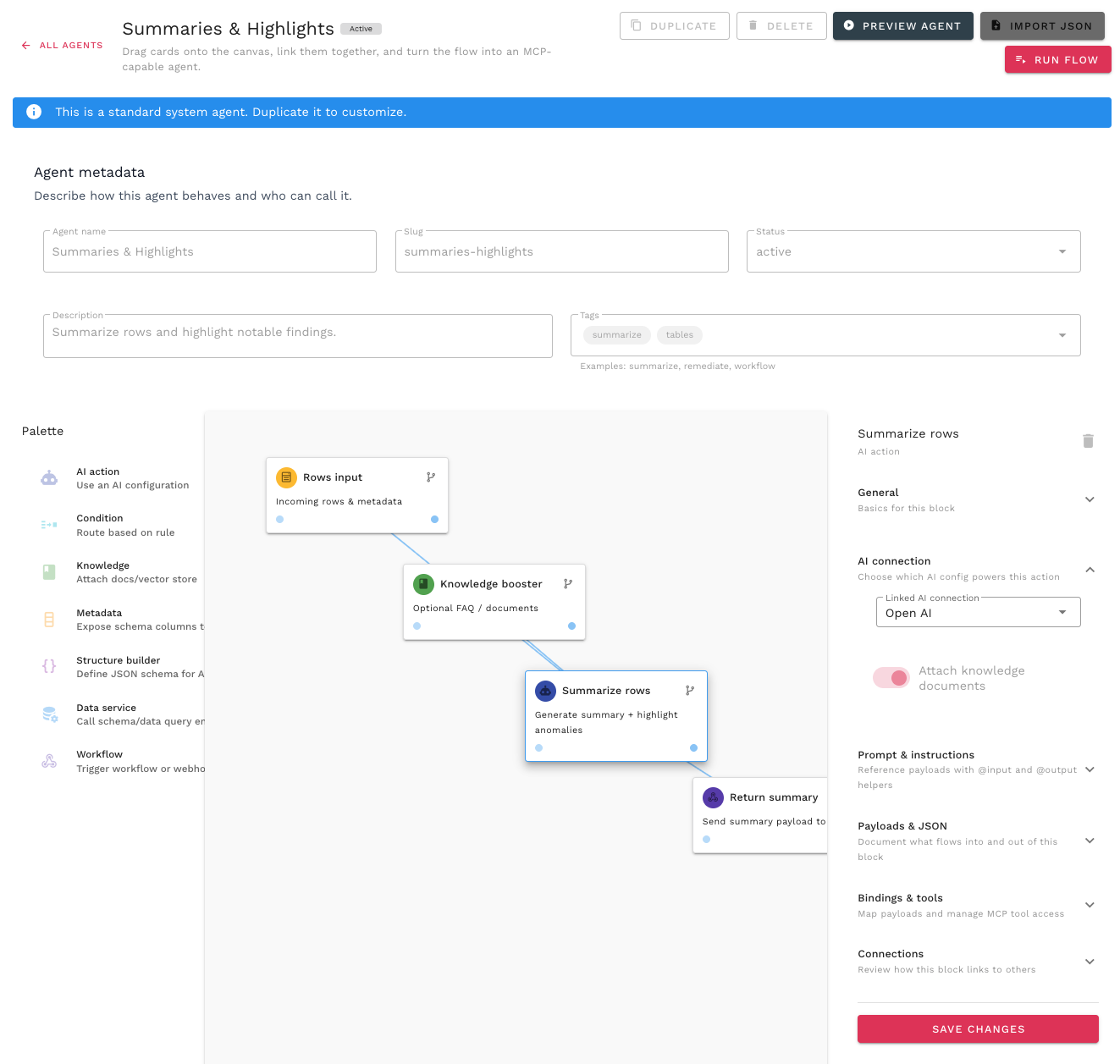
The agent builder opens and displays a predefined workflow with multiple blocks. No changes to the workflow structure are required.
***
#### Step 3 – Link a model configuration
Each AI action in an agent must be linked to a model configuration.
{% tabs %}
{% tab title="Summaries & Highlights" %}
For **Summaries & Highlights**, only one AI action needs to be configured.
1. In the workflow canvas, double-click the **Summarize rows** block, this is an AI action.
2. The configuration panel opens on the right-hand side.
3. Expand the **AI connection** section.
4. From the dropdown, select one of the previously created **model configurations**.
5. Click **Save changes**.
Once saved, the Summaries & Highlights agent is fully configured and ready for use.
{% endtab %}
{% tab title="Generative Fill" %}
The AI actions in Generative Fill have different purposes and therefore appear as separate blocks in the workflow.
1. Open **Generative Fill** from the **Agent library**.
2. In the workflow canvas, locate the two AI action blocks:
* **Preview fill** – Generates sample values for preview purposes.
* **Full fill** – Generates the final values that will be applied.
3. For each AI action block:
* Double-click the block
* Expand the **AI connection** section
* Select a configured **model configuration**
* Click **Save changes**
Both AI actions must be configured. If only one of the two actions is linked to a model configuration, Generative Fill will not function correctly.
{% endtab %}
{% endtabs %}
*Example picture of the Summaries & Highlights builder with the AI action configured and the model set to OpenAI.*
---
# Agent Instructions
This documentation is published with GitBook. GitBook is the documentation platform designed so that both humans and AI agents can read, navigate, and reason over technical content effectively. Learn more at gitbook.com.
## Querying This Documentation
If you need additional information that is not directly available in this page, you can query the documentation by asking a question.
Perform an HTTP GET request on the following URL with the `ask` and `goal` query parameters:
```
GET https://docs.infotopics.com/writebackextreme/features/management-console/new-ai-platform/agent-configuration.md?ask=&goal=
```
`ask` is the immediate question: it should be specific, self-contained, and written in natural language.
`goal` is what the user is ultimately trying to achieve, the reason they need the answer. Sharing it helps GitBook give you a better, more relevant answer. A goal is most helpful when it describes the outcome the user wants rather than restating the question. For example, with `ask=how do I create an API token`, a goal like `automate deployments from our CI pipeline` lets GitBook tailor the answer to that use case.
The response will contain a direct answer to the question and relevant excerpts and sources from the documentation.
Use this mechanism when the answer is not explicitly present in the current page, you need clarification or additional context, or you want to retrieve related documentation sections.