> For the complete documentation index, see [llms.txt](https://docs.infotopics.com/llms.txt). Markdown versions of documentation pages are available by appending `.md` to page URLs; this page is available as [Markdown](https://docs.infotopics.com/writebackextreme/features/management-console/schemas.md).
# Schemas
A schema is the collection which contains everything about your use-case. The schema will contain information about the selected database, module, user groups and the configuration of the structure of the write-back table. Whenever you create a new schema you have to choose one of our modules first. Depending on the selected module the setup of your schema will be different.
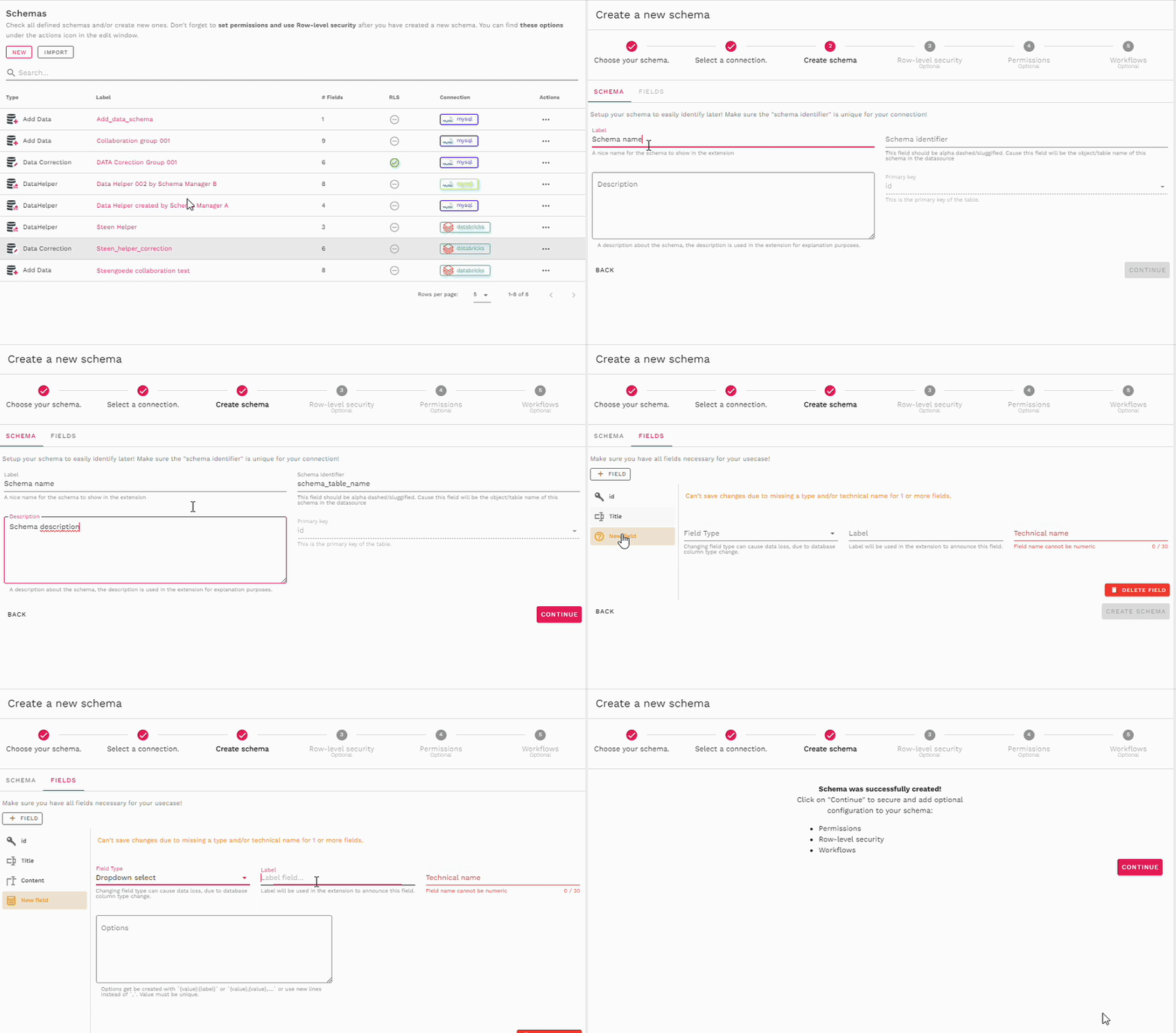
### Create a new schema
To create a schema:
1. Go to the **Schemas** section in the Management Console
2. Click **Create New Schema**
3. Follow the steps in the guided wizard:
* Choose a **module**
* Select a **database connection**
* Define whether you're using a **new or existing table**
* Add the fields to your schema
How to create a new Schema
### 🧩 Supported field types
When adding fields to your schema form, you can choose from the following input types:
* **Single Line Text** – For short entries like names or codes
* **Paragraph Text** – For longer free-text comments
* **Number** – For numerical values
* **Boolean (Yes/No)** – For binary selections
* **Dropdown Select** – For predefined options
* **Date/Datetime** – For selecting dates or timestamps
### 🧹 Choosing the right module
Each module has its own purpose. Here's how to choose the right one for your use case:
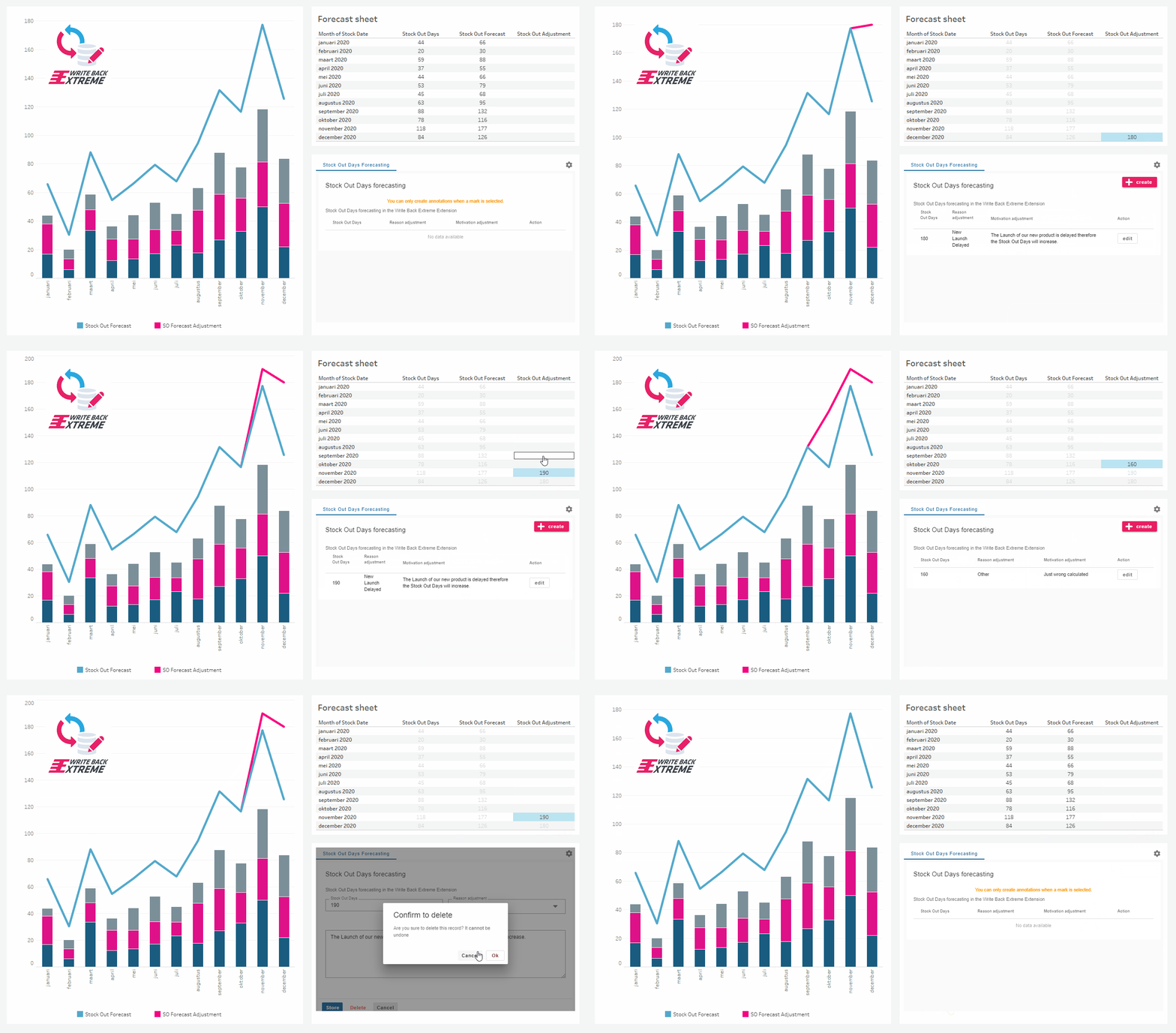
Add Data Module
Add data to visuals on a summary data level.
📝 **Description:**\
Use this module to allow users to enter new records, such as targets or what-if scenarios. Ideal for dashboards where you don’t need to edit existing data but want to append new insights.
👉 Works well with Tableau Relationships or Blends.
🔍 **Use Cases:**
* Add targets or goals
* Forecasting & budgeting
* What-if analysis
* Add commentary at summarized data levels
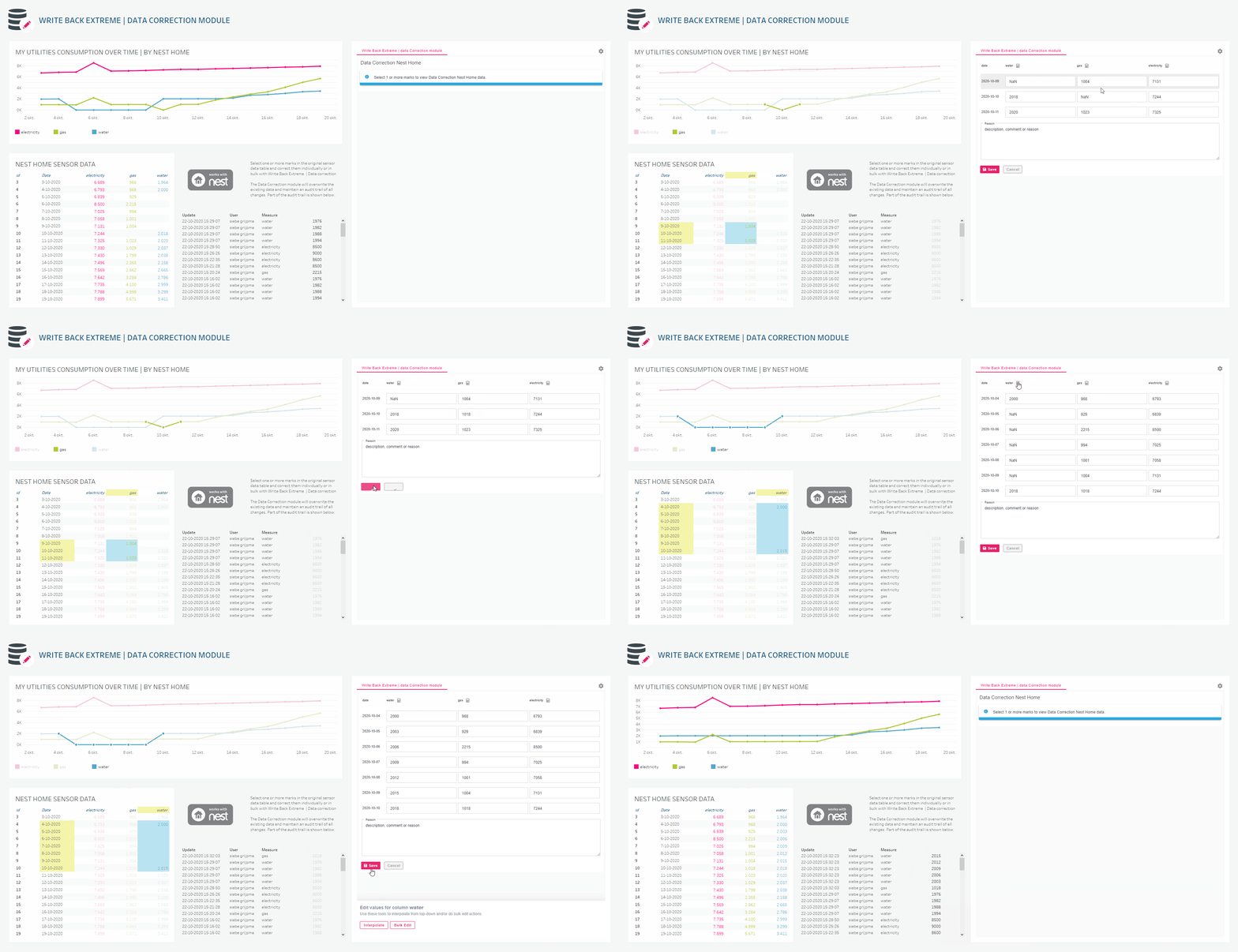
Data Correction Module
Display an inline editable table with powerful tools.
📝 **Description:**\
Best used when correcting existing records in your dataset. Supports powerful features like bulk edit and interpolation.
> ⚠️ Requires a **1:1 relationship** between Tableau data and the database table (i.e., a unique key like an ID field).
🔍 **Use Cases:**
* Edit typos or incorrect values
* Fill missing sensor data
* Bulk-edit or interpolate ranges of records
* Maintain high data quality by cleaning directly in Tableau
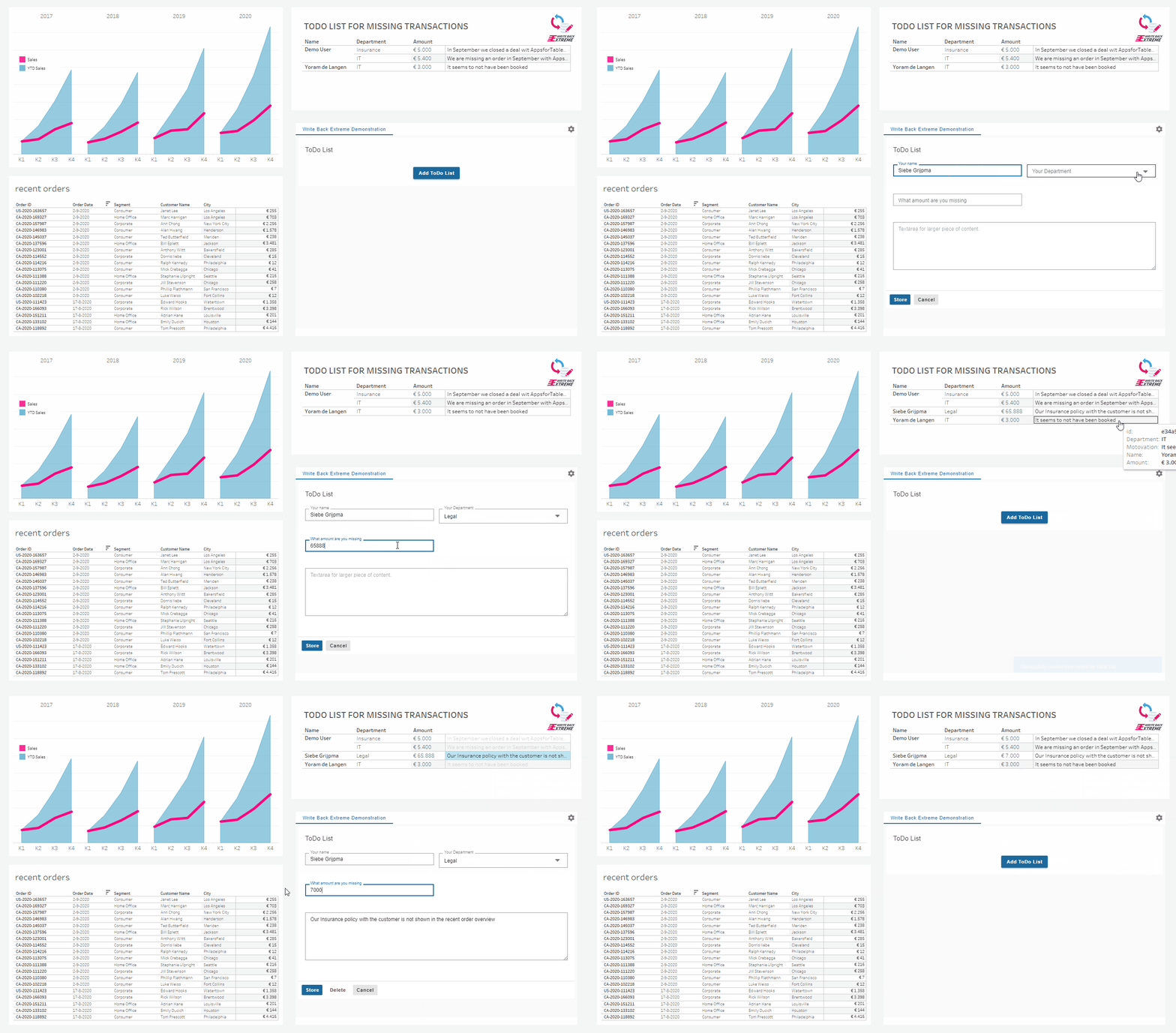
Data Helper Module
Add helper tables in Tableau and use them as optional datasets.
📝 **Description:**\
Use this module to manage structured data inside Tableau that doesn't directly impact the primary dataset — like code lists, mappings, or task lists.
🔍 **Use Cases:**
* Store internal codes for filters
* Manage survey options
* Maintain a to-do list
* Replace Excel-based helper tables
* Use as a join or relationship source in dashboard
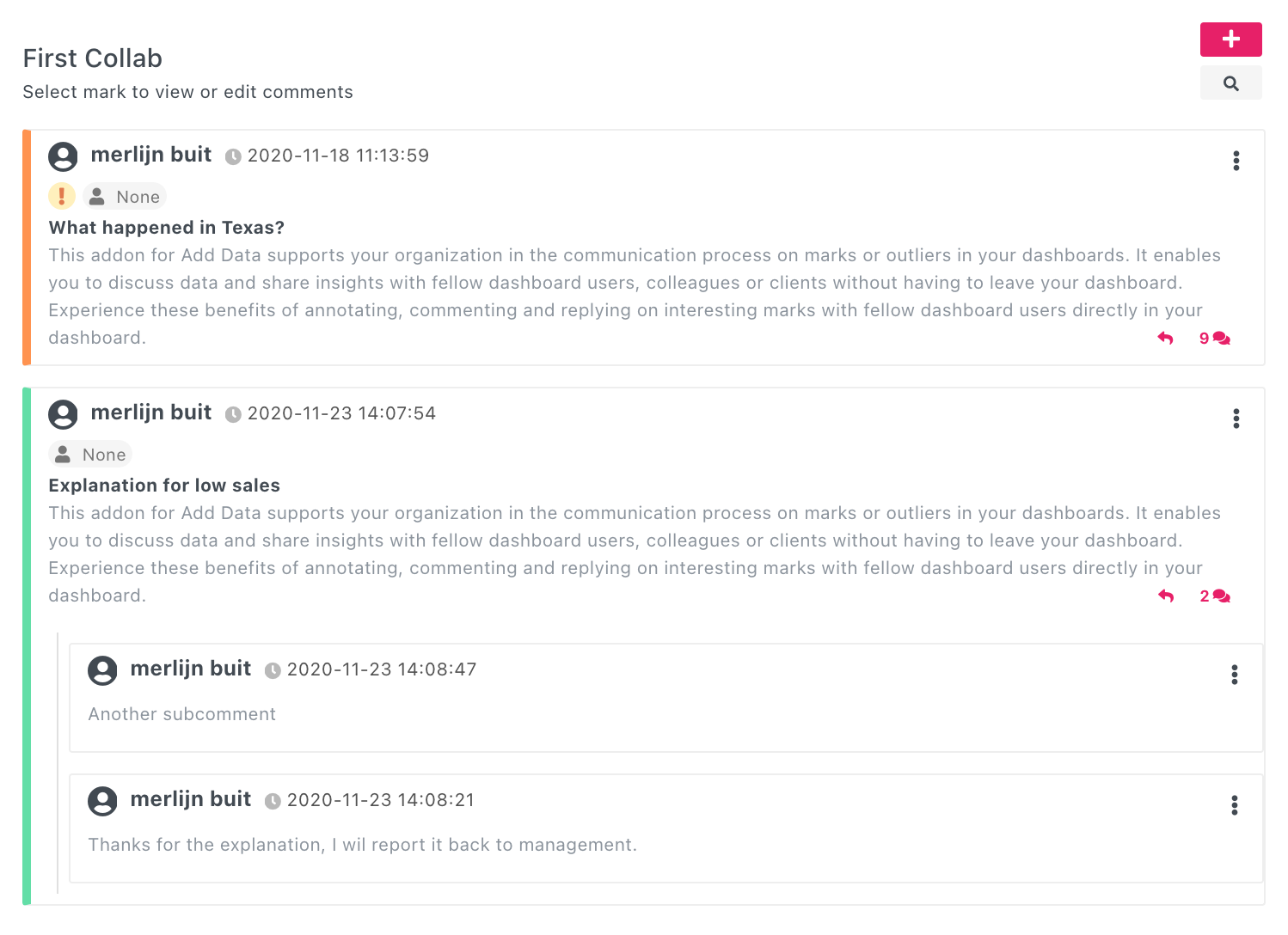
Collaboration (Addon for Add Data Module)
Collaborate, annotate, and comment within your Tableau dashboards.
📝 **Description:**\
This is an addon for **Add Data**, not a separate module. It lets users exchange comments, reply to feedback, and annotate insights without leaving Tableau.
🔍 **Use Cases:**
* Collaborate on data points
* Start discussions and track changes
* Add context and insights for decision-making
* Enable threaded commenting workflows in dashboards
### Create schema based on an existing schema
For a data correction schema it is possible to connect to a database table that already exists in your database. The only requirement is that the table has ONE primary key. (Compound keys are not allowed)
To create a schema from an existing table follow these steps:
1. Create new schema
2. Select `Data correction` module
3. Select `Use existing schema`
4. Select the connection which connects to the database where the table is located
5. A list of all tables will be presented, Select your table. (when the list is to large, just use Ctrl+F to actiate the search function in your browser)
6. The new schema wizard will show with all detected columns matched to the field types that WriteBackExtreme uses.
{% hint style="warning" %}
For best compatibility make sure the ID column of the table is a UUID column for example CHAR(36). An example statement for a table could look like:
create or replace MY\_TABLE(\
ID CHAR(36) NOT NULL,\
COLUMN\_1 VARCHAR(16777216),\
constraint MY\_TABLE\_ID primary key (ID)\
);
{% endhint %}
{% hint style="info" %}
When the management console shows an error about a missing primary key, the best way to verify this is by getting the `DDL statement` or `Create table` statement from a third party database management tool like DBeaver. This is the easiest way since every database has it's own way of retrieving the primary key information.

{% endhint %}
{% hint style="info" %}
This `Create schema from existing schema` feature can be disabled by an administrator via the advanced settings page.
{% endhint %}
{% hint style="info" %}
When there is an error in retrieving the tables or the details of a table, the error log will probably show the true cause. Go to Info & license -> Click on system logs and click the laravel log of today to see the details of the error.
{% endhint %}
---
# Agent Instructions
This documentation is published with GitBook. GitBook is the documentation platform designed so that both humans and AI agents can read, navigate, and reason over technical content effectively. Learn more at gitbook.com.
## Querying This Documentation
If you need additional information that is not directly available in this page, you can query the documentation by asking a question.
Perform an HTTP GET request on the following URL with the `ask` and `goal` query parameters:
```
GET https://docs.infotopics.com/writebackextreme/features/management-console/schemas.md?ask=&goal=
```
`ask` is the immediate question: it should be specific, self-contained, and written in natural language.
`goal` is what the user is ultimately trying to achieve, the reason they need the answer. Sharing it helps GitBook give you a better, more relevant answer. A goal is most helpful when it describes the outcome the user wants rather than restating the question. For example, with `ask=how do I create an API token`, a goal like `automate deployments from our CI pipeline` lets GitBook tailor the answer to that use case.
The response will contain a direct answer to the question and relevant excerpts and sources from the documentation.
Use this mechanism when the answer is not explicitly present in the current page, you need clarification or additional context, or you want to retrieve related documentation sections.