

Troubleshooting
Logging
WriteBackExtreme keeps track of errors in log files. These log files can be viewed in the management console and are also visible in the file storage on the machine.
In the management console, Click on
Info & Licensein the menu and click the pinkSystem logsbutton. At the left there is a list of log files. The left part of the page shows the lines in the log files. Clicking on a line will open the details of the log item. There is also a download logs button that will compress all log files into a zip file for easy sending.In the directory where WriteBackExtreme.exe is installed, there is a directory .app-runtime/storage/logs which contains all log files. (On linux this will be at /usr/local/share/writebackextreme/.wbe-runtime/storage/logs)
When you encounter an error in the application, it is always helpful to send the logs with the support ticket so we can directly start investigating.
Application startup
When the application does not start, the cause can probably be found in the log files. they are located in <installation_path>/.wbe-runtime/storage/logs/*.log. When opening a support ticket, please provide these files.
Could not startup server, Contact Apps For Tableau support when the problem persists
The app server is unable to start. This can have multiple causes, such as:
The application is configured as administrator but is currently not running with administrator privileges.
Another WriteBackExtreme process might be running in the background. Open Task manager and select the
Detailstab. You should have only one process called WriteBackExtreme.Other processes might be running on the port that is configured in WriteBackExtreme. You can do that with this command in cmd:
netstat -aonOpen Powershell and navigate to the directory where WriteBackExtreme.exe is located. run this command to manually trigger the application server:
./WriteBackExtreme.exe serveThis command might give more details about what went wrong.
Check the error logging in
./wbe-runtime/storage/logs/This will probably show the underlying reason. We have a page of common error messages you might see that will help you solve the problems.
listen tcp :443: bind: Only one usage of each socket address (protocol/network address/port) is normally permitted
When this error appears in your wbe-application.log, the WriteBackExtreme server can't start, because the port you have configured is already in use by another program.
WriteBackExtreme is slow or unresponsive
A typical reason of a slow experience is the database connection itself. Especially databases that are not running in the same network can be slower.
When the management console for example is also slow you can take a look at the application performance. Open Powershell and navigate to the directory where WriteBackExtreme.exe is located. Run this command to see the statistics of the internal workers:
./WriteBackExtreme.exe workers --interactiveThis will generate an interactive statistics table like so:

Note: The amount of rows (workers) is dependent on the amount of processor cores available on the machine.
When this shows a lot of Memory or CPU consumption it could be a good idea to increase the number of workers. Alter the wbe.config.toml configuration file in the installation directory, and add a num_workers option to the http part like so:
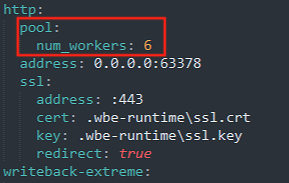
Note: Indentation in the wbe.config.toml file matters! Always use 2 spaces as indentation.
Warning: Increasing the amount of workers to more than 30 will not increase performance, and can lead to unwanted behavior.
WriteBackExtreme does not start after rebooting server even though it is running as a service
This can have two causes:
The WriteBackExtreme application could have experienced an unexpected shutdown. The service is not able to restore the correct configuration files. A common fix for this is to open WriteBackExtreme.exe manually and close it. After closing the application manually, the configuration files are reset and the service should be able to start again.
Another common cause of this is when the repository database is mysql, postgresql or sql server on the same machine it could be that WriteBackExtreme is started before the database is started. When this happens you will see database connection errors in the log files. This can be resolved by adding a delayed start in the service configuration.
Linux
Add a sleep to the service file (typically located at /etc/systemd/system/WriteBackExtreme.service)
ExecStartPre=/bin/sleep 15
Windows
Open services.
Look for WriteBackExtreme service
Right click and select properties
On the general tab, select Automatic (delayed start) as startup type.
SSL/TLS certificate validation errors when connecting to databases
Symptoms
During installation or configuration, the extension cannot establish a database connection. Error messages may mention SSL/TLS, certificate trust, or “the certificate chain was issued by an authority that is not trusted.”
Error message example:
Cause The database requires SSL encryption, but the certificate presented cannot be validated. This often occurs when:
A self-signed certificate is being used, and its authority certificate is not trusted on the machine running the extension.
The full certificate chain (including intermediate certificates) is not installed.
The client is enforcing encryption, but cannot verify the server’s certificate.
Solution
If possible, use a certificate signed by a trusted Certificate Authority (CA).
If using a self-signed certificate, import the authority certificate into the Trusted Root Certification Authorities store of the machine running the extension.
Ensure the full certificate chain (including intermediates) is installed.
If issues persist during installation, you can try resetting the setup:
Stop the extension service.
Delete the
runtimeandconfigfolders to reset the installation.Restart the installation and re-enter database details.
As a last resort, tick Disable SSL certificate validation to bypass the validation check.
Extension
How to debug the extension in general
When the extension shows unexpected results, the best starting point is to inspect the debug tools in the browser to find out if there is an error or maybe an unexpected result in the network. This only works in the browser so it is necessary to publish the dashboard first.
In chrome press
Control + Shift + J(or click on the 3 vertical dots in the top right corner of the browser and select More tools->Developer tools)Reload the page to make sure developer tools is recording properly
First look at the console tab to see if there are any error messages (generally displayed in red). Tableau also generates messages/warnings so sometimes it seems a bit cluttered.
The next interesting page is the network tab. This displays all network traffic that is generated by the dashboard. To get a good overview of the communication of WriteBackExtreme, filter on the requests on Fetch/XHR and put your WriteBackExtreme domain into the search box:

If there is any error in the communication you will see it there.
When you cannot find any problems as described above you can also download the information by clicking the download icon (last icon in the screenshot above) And send us the result. Then we can start an investigation on it.
The tableau Extension does not show any schemas
The most common cause is that your user account does not have the correct permissions to view schemas. First, check in the management console whether the user belongs to any groups. Then, on the Connections page, verify that there are connections assigned to those groups.
If so, proceed to check whether any schemas are attached to those connections. Finally, open the permissions tab of each schema and confirm that the groups the user belongs to have the required permissions enabled.
The tableau extension does not show (all) data
A cause of this could be Row level Security (RLS). RLS restricts the data shown based on policies set on the schema. Check in the management console if RLS is active.
Check in the management console in the
Datatab if the data you are looking for is there. When RLS is active you can simulate what the extension should display by selecting a user.Extension configuration can limit the data based on the `Show data when` setting.
Too many attempts
When the extension displays the message “Too many attempts”, you have reached the limit of the built-in rate limiter. This limiter controls network traffic per user to ensure the extension remains stable.
This error usually indicates that the database table contains too much data. The extension loads data in chunks of 1,000 rows, which means a user can load a maximum of 60,000 rows at once.
While it is possible to increase these limits, doing so comes with drawbacks—such as hitting memory limits or impacting performance. The recommended solution is to reduce the amount of data being loaded.
If you do want to increase the pagination size, alter the 'Chunk Size' setting in the advanced settings of the Management console:

Log states: Allowed memory size of xxx bytes exhausted
When this happens, WriteBackExtreme is attempting to load too much data. The extension retrieves records in batches of 1,000 until all rows are fetched. If each row contains a large amount of data or the table has many columns, this process can exhaust the available memory.
The best solution is to limit the amount of data being queried. Ask yourself: Do I really need to load this much data? Often, a slimmer table can serve the same purpose—and will perform significantly better than a large table packed with heavy rows.
If reducing the dataset is not an option, there are two alternatives:
Decrease the number of records loaded per batch (default is 1,000). Note: This setting applies to all schemas.
You can do this by navigating to the 'Chunk Size' setting within the advanced configuration, and lowering it:

Increase the memory limit by altering the
wbe.config.tomlfile like so:
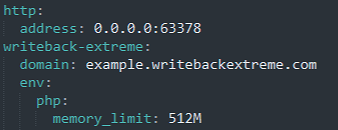
Note that the indentation in wbe.config.yaml matters! To apply the new memory limit, please restart WriteBackExtreme.
Malformed UTF-8 characters. Possibly incorrectly encoded
WriteBackExtreme only supports data in UTF-8 Encoding. When your database table has characters other than UTF-8 this error message may be displayed.
Databricks Users:
If you are using DataBricks this issue may happen when you are using Paragraph fields (long text fields). The default max string length of the ODBC driver is 255 characters. When you use the Paragraph field in WriteBackExtreme you can go up to 4000 characters and this will break the ODBC driver.
You can fix this by adding the following setting to your ODBC configuration:
Windows see section K: https://docs.infotopics.com/writebackextreme/product-guide/database-connections/databricks/windows
Linux see DefaultStringColumnLength: https://docs.infotopics.com/writebackextreme/product-guide/database-connections/databricks/linux
If above does not work you can also add it in the Management Console:
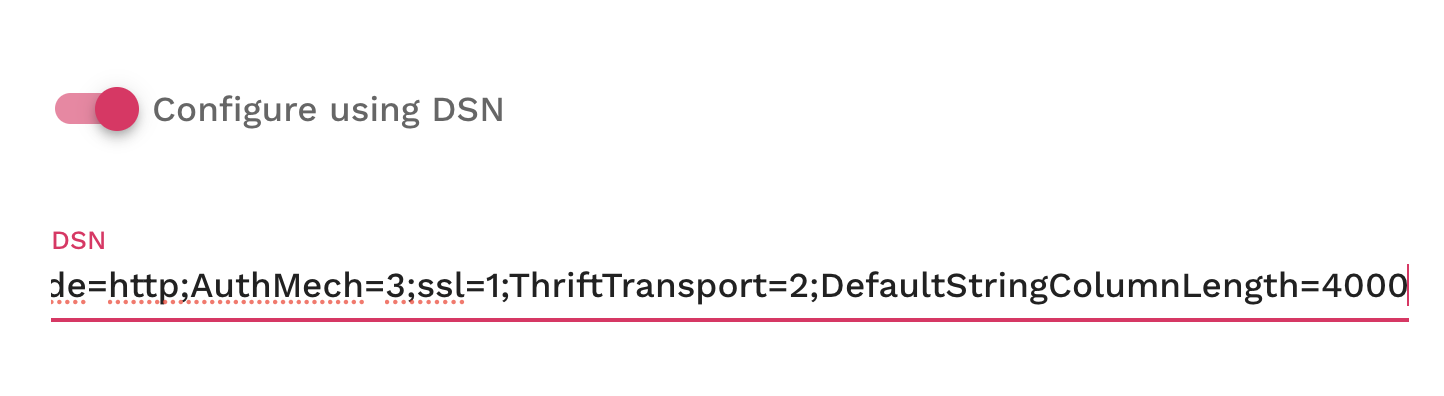
WriteBackExtreme not working on tableau desktop or tableau cloud (Local machines)
If you are experiencing issues using WriteBackExtreme on Tableau Desktop or Tableau Cloud from your local machine, while it works fine on other systems, the most likely cause is missing root certificates on your device. These certificates are required to establish a secure connection between Tableau and the WriteBackExtreme extension.
Installing the required root certificates on your machine normally resolves this issue immediately. To avoid connection problems in the future, make sure the correct root certificates are installed on all business user machines. When you encounter connection issues, always check for certificate-related errors or run a certificate validation step.
This applies to Tableau Desktop, Tableau Cloud, and both the Enterprise and SaaS versions of WriteBackExtreme.

WriteBackExtreme appears slow when performing actions (e.g., Submitting data or loading tables) especially with Amazon Redshift or other cloud hosted databases:
In many cases, slowness is caused by the performance of the underlying database rather than the extension itself. If the same SQL query that WriteBackExtreme executes also performs poorly when you run it directly in your database management tool, this confirms the bottleneck is in the database.
To verify this, enable SQL logging for WriteBackExtreme through the advanced settings in the management console. Then run those same queries manually in your preferred database tool and compare the performance.
If the queries are also slow outside of WriteBackExtreme, the issue is database-related. If they run quickly elsewhere but are slow only within WriteBackExtreme, please contact support and include your logs so we can help you resolve the issue.
Why can’t I see any data in WriteBackExtreme?
Description: Users report that no data is showing in WriteBackExtreme when opening the extension.
Root Cause: WriteBackExtreme relies on Tableau’s summary data being available. If the Tableau permissions don’t allow summary data to be downloaded, the extension cannot access the data.
Resolution: Ensure that the Tableau administrator grants the affected user (or group) permission to Download Summary Data on the workbook or view. Without this, WBE cannot display the data.
Example Tableau permission setting:

Single Sign On (SAML)
Authentication method by which the user authenticated with the service doesn't match requested authentication method
Whenever you suddenly get an error with Single Sign On related to the authentication method Password Protected does not match the .... with Microsoft please follow this link:
Solution 1:
Logout from your Edge browser and login again to reset the user profile in the browser.
Solution 2:
Set the requestedAuthnContext to false by adding the following lines to your wbe.config.yaml:
Note: Environment variables defined in the config will be automatically be uppercased when starting the application.
Username casing in IDP does not match the casing in tableau
WriteBackExtreme verifies the username from the SSO provider with the username property of the user. When the casing is different (e.g. IDP returns [email protected] and the username in WriteBackExtreme is set to [email protected]) it will fail authorisation.
This needs to be fixed on the IDP side. All major IDP providers have a way of transforming properties for SAML requests.
In Azure for example you can add a transformation claim.
In Okta you can use Okta expression language in the Attribute Statements like this: toLowerCase(user.email)
Management console
Given table name xxx already exists for given connection
This generally happens with Snowflake connections. This is due to a driver setting called NoExecuteInSQLPrepare. Read here how to configure the driver properly: https://docs.infotopics.com/writebackextreme/product-guide/database-connections/snowflake/using-odbc/windows#important
Last updated
Was this helpful?