Adding an extension to a dashboard

Add an extension to the dashboard

  1. Start Tableau and open a workbook that has a dashboard, or open a workbook and create a new dashboard.

  2. In the dashboard, under Objects, select Extensionand drag it on to the dashboard.
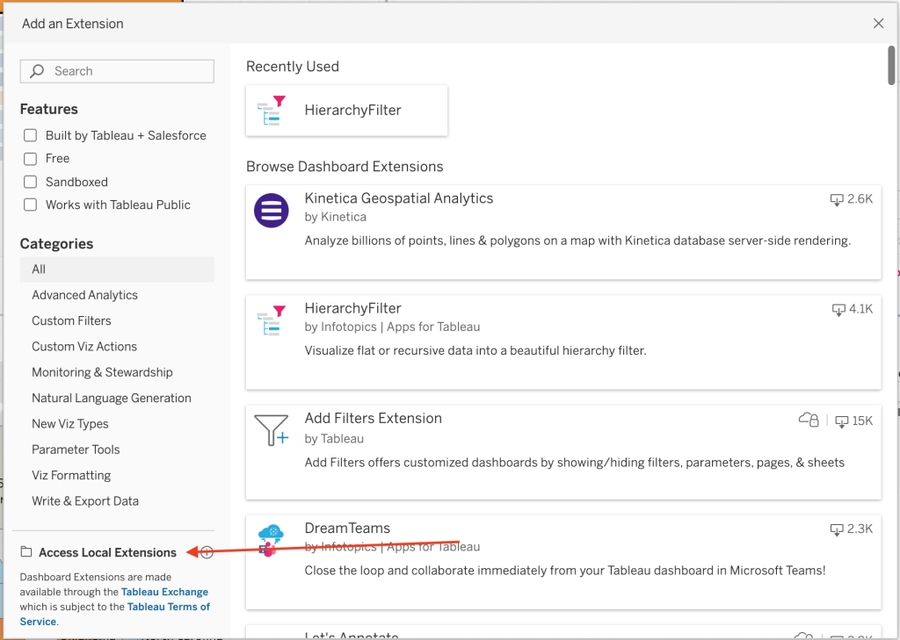
  3. In the popup select the ‘Access Local Extensions’ on the bottom right.

  4. Every Tableau extension has a manifest file (.trex) that describes the extension and identifies the location of the web application.

  5. If prompted, allow or deny the dashboard extension access to the data in the workbook. All extensions have access to the summary data in the dashboard (this is the visible data). Some dashboard extensions might request access to full data, which includes the underlying data in the view, and information about the data sources, such as the names of the connection, fields, and tables. For more information, Data security and dashboard extensionsarrow-up-right.If access is granted, the dashboard extension appears and runs through the initialization sequence. Follow any on screen instructions for configuring and running the extension with your dashboard.

Configure a dashboard extension

Some dashboard extension provide a configuration option that allows you to select the settings to apply. If the extension provides configuration option, you can access the settings from the shortcut menu in the dashboard zone.

  1. Select the extension zone in the dashboard, and click More Options from the drop-down menu in the upper-right corner.

  2. Click Configure….Tableau Desktop Creator Extensions  tableau extensionsFollow the on-screen instructions for configuring the extension.

Reload a dashboard extension

If the dashboard extension becomes unresponsive or in some unworkable state, you might need to reload it. Reloading the extension is similar to refreshing a web page in a browser.

  1. Select the extension zone in the dashboard, and click More Options from the drop-down menu in the upper-right corner

  2. Click Reload. The dashboard extension is refreshed and should be set to its original starting state. If reloading the extension fails to restore it to a useable state, you can try removing the extension and adding it to the dashboard again.

Remove a dashboard extension

You can remove a dashboard extension from the dashboard just like you can remove any other dashboard object.

  1. Select the extension zone in the dashboard, and click Remove from Dashboard from the drop-down menu in the upper-right corner.

Last updated

Was this helpful?