

Tableau Server & Tableau Cloud support
On Tableau Server and Tableau Cloud, dashboard extensions are governed by server and site administrators.
Admins control:
Whether extensions are allowed
Which extensions can run
What data extensions can access
Whether users see permission prompts
Before you run extensions on Server or Cloud
Dashboard extensions are web applications and could be running on any computer set up as a web server. This includes local computers, computers in your domain, and third-party websites. Because extensions could be hosted on third-party sites and could have access to the data in the dashboard, you want to only allow the extensions you trust. See Test extensions for security.
For security, the default settings for dashboard extensions on Tableau Server and Tableau Online limit the dashboard extensions that are allowed to run.
By default, only extensions that use the HTTPS protocol are allowed, which guarantees an encrypted channel for sending and receiving data (the only exception is for
http://localhost).By default, when extensions are enabled on the server, only extensions that require summary data (the aggregated data) from the view are allowed.
If the extension requires full data (access to the underlying data) the extension will not be able to run on Tableau Server or Tableau Online unless you explicitly add the extension to the safe list and grant the extension access to full data.
Controlling extension access to data
Server administrators can control a global setting to allow extensions for all sites on the server. Server administrators can also put extensions on a global block list to prevent them from running. By default, extensions are enabled on the server (with the constraints previously described). To change this setting for the server, go to Manage All Sites > Settings > Extensions. If the server just has a single site, the global controls appear on the settings page for the site.
Server administrators can control whether to enable extensions for the site and whether to enable the default behavior (or policy) for extensions. That is, the default policy is that only extensions that request summary data are allowed to run on the site, and that all users will see prompts asking for permission to run. To change these settings for the site, go to Settings > Extensions.
Server administrators can add or remove extensions from the safe list for a site. When you add an extension to the safe list, you can control whether to allow the extension to have access to full data.
Safe list (Allow list)
To ensure that users can use extensions that are trusted, you can add them to the safe list for the site.
On the safe list, you can control whether to grant the extension full data access. You can also control whether users will see a prompt asking them to allow the extension access to data. If the extension does not require full data access, you don’t need to add it to the safe list. You might want to add an extension to the safe list just so that you can configure whether or not users see the prompts.
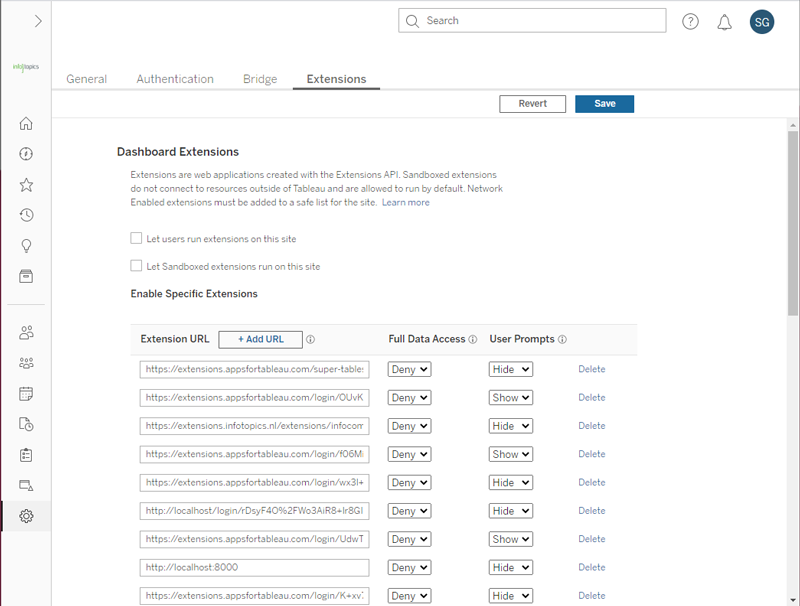
Go to Settings > Extensions.
Under Enable Specific Extensions, add the URL of the extension. See Identifying an extension.
Since version 2024.2, you can whitelist a wildcard URL. To whitelist all Apps for Tableau Cloud extensions at once: https://extensions-appsfortableau.infotopics.com/.* The .* means everything after the URL is whitelisted.
Choose to Allow or Deny the extension Full Data Access. Full data access is access to the underlying data in the view, not just the summary or aggregated data. Full data access also includes information about the data sources, such as the names of the connections, fields, and tables. In most cases, if you are adding an extension to the safe list you will also be allowing it to have access to full data.
Choose to Show or Hide the User Prompts. Users see the prompts by default when they are adding an extension to a dashboard, or when they are interacting with a view that has an extension.
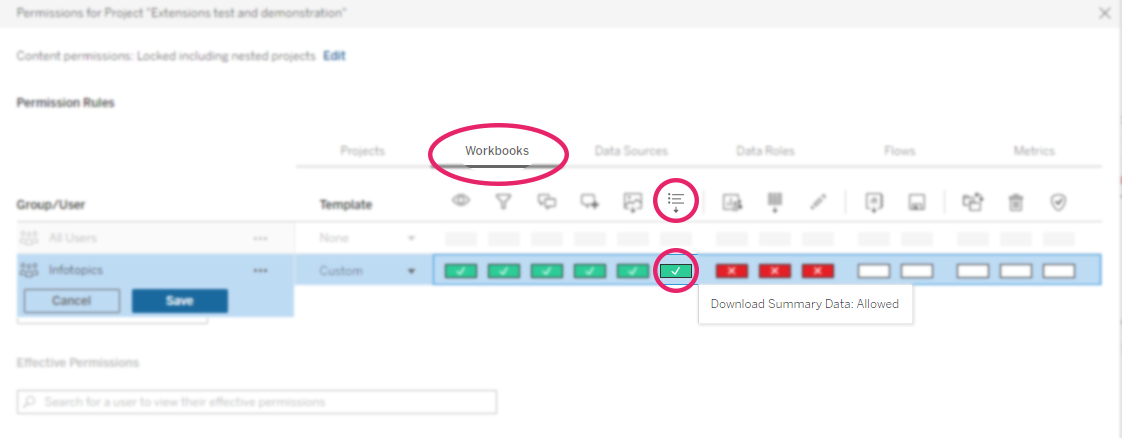
Assigning permissions: Download Summary Data
To allow extensions to operate properly, the users must have permissions to “Download Summary data”.
You can set permissions as a Tableau Server Administrator, and you have to set the permissions on every project/workbook where you want your Tableau users to view dashboards with extensions.
Blocking specific extensions
The default global policy allows unknown extensions to run, provided that they only access summary data. Server administrators can keep specific extensions from running by adding them to the block list for the server. If an extension is on the global block list, it overrides any settings for the extension on the safe list for a site.
To add an extension to the blocked list for the server, go to Manage All Sites > Settings > Extensions. On single-site installations, the block list is on the site Extensions settings page.
Under Block Specific Extensions, add the URL of the extension. See above “Identifying an extension”.
Blocked extensions:
Cannot run
Override allow list settings
This is useful for enforcing organisational security policies.
Last updated
Was this helpful?