

URL & SSL Certificate
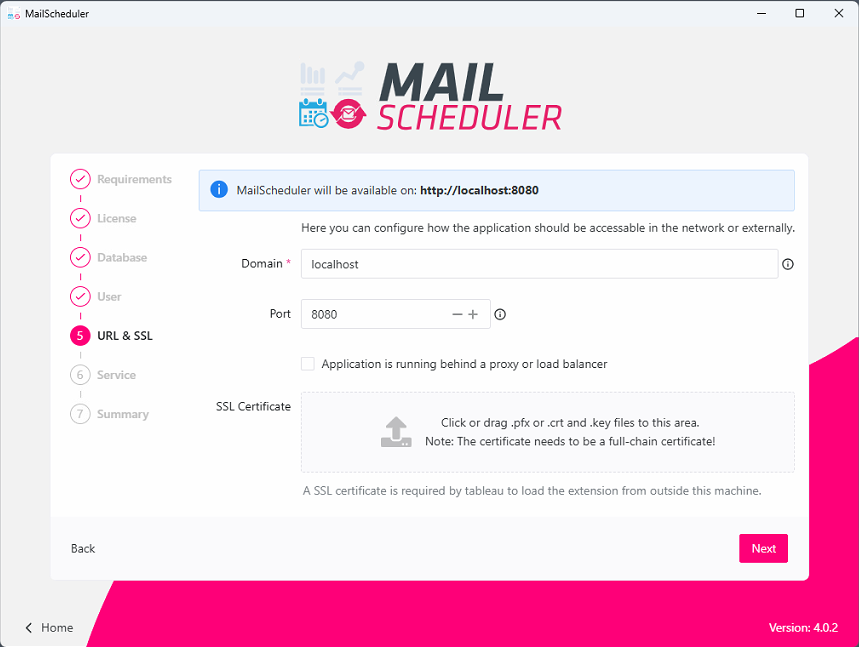
The final step is the configuration of the domain the application will be running on. There are 2 possible setups:
Configured with direct access from the Internet
This indicates that the application or server is not functioning behind a reverse proxy or load balancer.
The protocol (e.g. http:// or https://) should be omitted in the domain field.
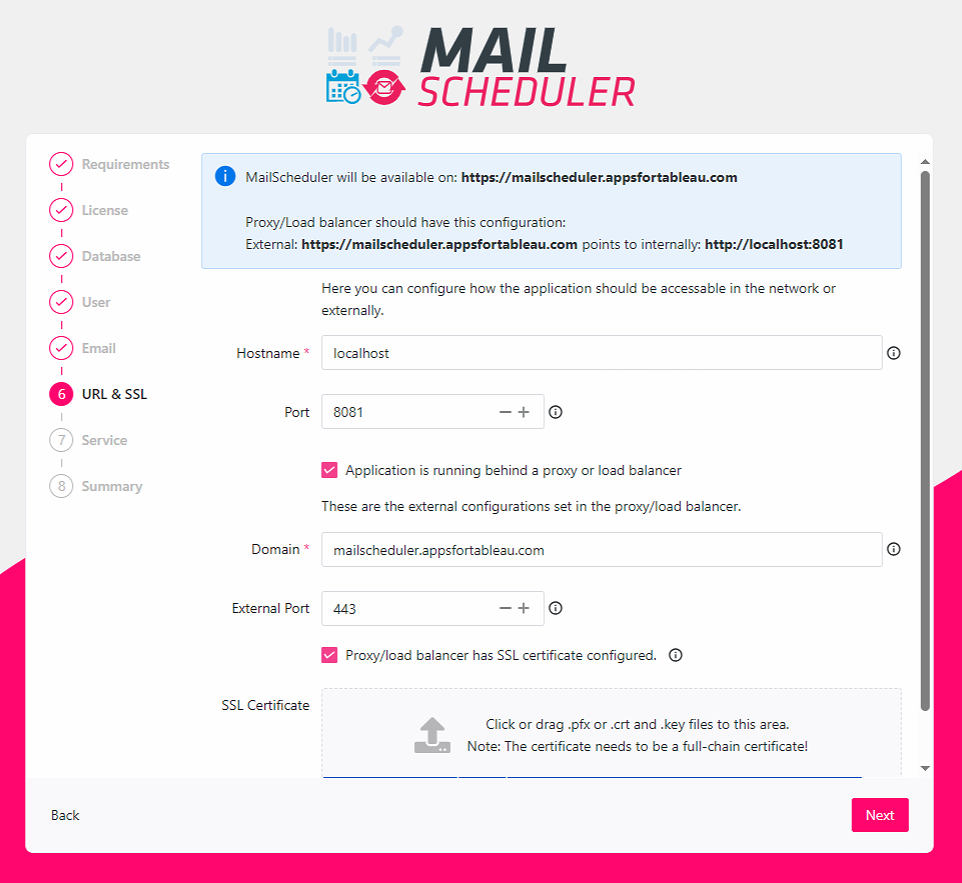
Configured behind Reverse Proxy/Load Balancer
Setting up a reverse proxy can be done by checking Application is running behind a load balancer option. The message on the top indicates how it should be configured at the load balancer side.
The protocol (e.g. http:// or https://) should be omitted in the domain and hostname field.
Troubleshooting SSL Certifications
Sometimes the application does not like the provided ssl certificates. These error could occur:
Failed to decode PEM block containing private key
Open keyfile and check if it starts with -----BEGIN PRIVATE KEY-----
If there is something above this line, delete it. (Same applies to certificates!)
Open your keyfile and check if it is encrypted. (Encrypted private keys start with -----BEGIN ENCRYPTED PRIVATE KEY-----) When it is encrypted, you need to decrypt it. You can do that via openssl (if installed on your machine) in your terminal using the following command:
openssl rsa -in <encrypted_private.key> -out <decrypted_private.key>
Server startup problems
Could not startup server, Contact Apps For Tableau support when the problem persists
The app server is unable to start. This can have multiple causes like:
Application is configured as administrator but is currently not running with administrator previleges.
Check if there is no other MailScheduler proces running in the background. Open Task manager and select the
Detailstab. You should have only one process called MailScheduler.Check if there is no other process running on the port that is configured in MailScheduler. You can do that with this command in cmd:
Check is the application log. This log file is located at <path>/.app-runtime/storage/logs/go-application.log
Open powershell and navigate to the directory where MailScheduler.exe is located. run this command to manually trigger the application server:
This command might give more details about what went wrong.
Was this helpful?