> For the complete documentation index, see [llms.txt](https://docs.infotopics.com/llms.txt). Markdown versions of documentation pages are available by appending `.md` to page URLs; this page is available as [Markdown](https://docs.infotopics.com/writebackextreme/features/tableau-extension/getting-started.md).
# Getting started
#### Dashboard Extension: Front end overview
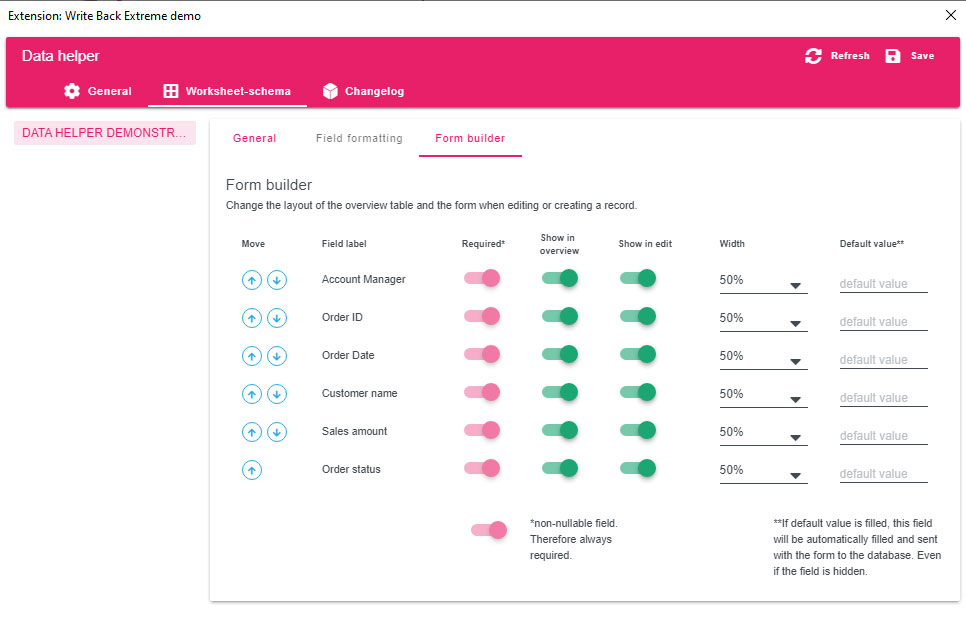
The front end of our dashboard extension is where the actual interaction takes place. It serves as the primary interface for both those who design dashboards and those who use them. Designed with a focus on usability and adaptability, it allows dashboard designers to tailor the appearance and functionality according to their specific requirements. Through an intuitive form builder, the customization of user entry forms is straightforward, ensuring a seamless experience for all users.
The behavior of the instance of the WriteBackExtreme extension in the dashboard can be configured in multiple ways. For example, you can choose between an extension as a tiled dashboard container (classic) or you can display the extension in a floating ([pop-up](https://appsfortableau.infotopics.com/support/documentation/writebackextreme-product-guide-front-end-dashboard/#frontend-popup)) container and toggle it automatically with a button or mark selection. Whatever nature of your use-case, WriteBackExtreme has got it covered!
#### Dashboard requirements
There are 2 requirements for the dashboard in order for the extension to work depending on the security settings of your WriteBackExtreme installation.
1. The extension needs a worksheet which contains the username of the [logged in user](https://appsfortableau.infotopics.com/support/documentation/writebackextreme-product-guide-front-end-dashboard/#loggedinuser). Only applicable if you are not using SSO.
2. Depending on the module you are using the extension needs a worksheet which acts as a trigger for the extension. Username can also be within this worksheet.
Both requirements are prompted to the dashboard designer when using the extension on the first occasion in the dashboard. The sections below will explain how to use the WriteBackExtreme extension in your dashboard (once you have configured at least one schema in the [Management Console](https://appsfortableau.infotopics.com/support/documentation/writebackextreme-product-guide-front-end-dashboard/#managementconsole)).
---
# Agent Instructions
This documentation is published with GitBook. GitBook is the documentation platform designed so that both humans and AI agents can read, navigate, and reason over technical content effectively. Learn more at gitbook.com.
## Querying This Documentation
If you need additional information that is not directly available in this page, you can query the documentation by asking a question.
Perform an HTTP GET request on the following URL with the `ask` and `goal` query parameters:
```
GET https://docs.infotopics.com/writebackextreme/features/tableau-extension/getting-started.md?ask=&goal=
```
`ask` is the immediate question: it should be specific, self-contained, and written in natural language.
`goal` is what the user is ultimately trying to achieve, the reason they need the answer. Sharing it helps GitBook give you a better, more relevant answer. A goal is most helpful when it describes the outcome the user wants rather than restating the question. For example, with `ask=how do I create an API token`, a goal like `automate deployments from our CI pipeline` lets GitBook tailor the answer to that use case.
The response will contain a direct answer to the question and relevant excerpts and sources from the documentation.
Use this mechanism when the answer is not explicitly present in the current page, you need clarification or additional context, or you want to retrieve related documentation sections.