> For the complete documentation index, see [llms.txt](https://docs.infotopics.com/llms.txt). Markdown versions of documentation pages are available by appending `.md` to page URLs; this page is available as [Markdown](https://docs.infotopics.com/writebackextreme/features/database-connections/databricks/windows-old.md).
# Windows old
Before you start, be sure to read the [Databricks ODBC page](https://docs.databricks.com/en/integrations/jdbc-odbc-bi.html)
There are multiple ways to authenticate. We will describe the username/password authentication in this example.
This setup is to configure Databricks with DSN in WriteBackExtreme.
\
You can also configure Databricks without using DSN. For this follow step **1** and move on to step **n.**
> ⚠️ **Important (WriteBackExtreme 6.x and later)**\
> When using DSN-based connections on Windows, you must configure a **System DSN** instead of a User DSN.
>
> User DSNs are not accessible to the WriteBackExtreme service and will result in connection errors such as:\
> *“Data source name not found and no default driver specified”*
>
> For WriteBackExtreme 5.x, User DSN was supported.
1. Be sure you have the latest [Simba Spark ODBC driver](https://docs.databricks.com/en/integrations/odbc/download.html#download-and-install-the-odbc-driver-for-windows) installed. (2.8.2 or higher, release from June 4th 2024)
2. In ODBC Administrator, Go to the \`User DSN\` tab and press the \`Add\` button.
3. Select the Simba Spark ODBC Driver
4. 
5. Fill in at least these fields:
1. Data source (this is the key you define to identify your connection, this is the DSN name you need when creating the connection in the management console)
2. Host(s)
3. Port: 443
4. Database
5. Mechanism: User Name and Password
6. User Name: token
7. Password (this would be your [personal access token](https://docs.databricks.com/en/integrations/jdbc-odbc-bi.html#authentication-pat))
8. Thrift Transport: HTTP
9. Select the HTTP Options button
1. Fill in your HTTP Path\

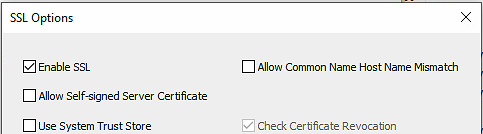
10. Click the SSL Options button
1. Check the Enable SSL Option
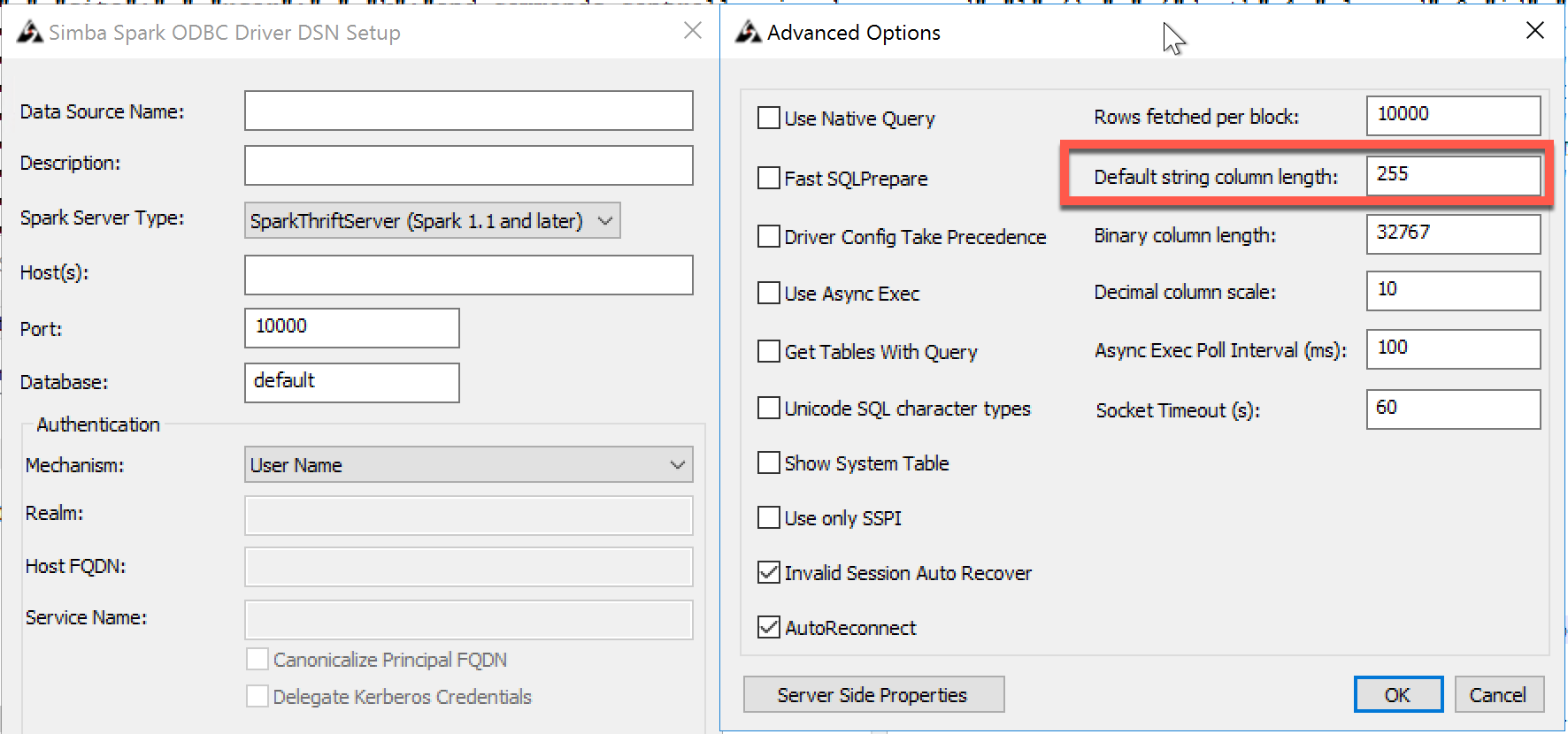
11. Go to Advanced options and set the Default String Column length to **4000**\
12. Click the Test button to confirm that connection is successful.
13. Click the OK Button to save the changes
14. Now it is time to create a connection in the management console.
15. Create a new connection in the management console and select Databricks
16. Select use DSN.
17. If you don't use DNS? You have to fill the driver name.Use the name found in the odbc manager drivers. Most of the times the driver is: Simba Spark ODBC Driver.
18. the DSN name is the name you set in 5a
19. Fill the other fields as well
20. Username: Token
21. Hit Test connection
22. Hit Save connection
23. Done!
---
# Agent Instructions
This documentation is published with GitBook. GitBook is the documentation platform designed so that both humans and AI agents can read, navigate, and reason over technical content effectively. Learn more at gitbook.com.
## Querying This Documentation
If you need additional information that is not directly available in this page, you can query the documentation by asking a question.
Perform an HTTP GET request on the following URL with the `ask` and `goal` query parameters:
```
GET https://docs.infotopics.com/writebackextreme/features/database-connections/databricks/windows-old.md?ask=&goal=
```
`ask` is the immediate question: it should be specific, self-contained, and written in natural language.
`goal` is what the user is ultimately trying to achieve, the reason they need the answer. Sharing it helps GitBook give you a better, more relevant answer. A goal is most helpful when it describes the outcome the user wants rather than restating the question. For example, with `ask=how do I create an API token`, a goal like `automate deployments from our CI pipeline` lets GitBook tailor the answer to that use case.
The response will contain a direct answer to the question and relevant excerpts and sources from the documentation.
Use this mechanism when the answer is not explicitly present in the current page, you need clarification or additional context, or you want to retrieve related documentation sections.