> For the complete documentation index, see [llms.txt](https://docs.infotopics.com/llms.txt). Markdown versions of documentation pages are available by appending `.md` to page URLs; this page is available as [Markdown](https://docs.infotopics.com/trulyp/writebackextreme-old/troubleshooting-and-faq/troubleshooting.md).
# Troubleshooting
## Extension
How to debug the extension in general
When the extension shows unexpected results, the best starting point is to inspect the debug tools in the browser to find out if there is an error or maybe an unexpected result in the network. This only works in the browser so it is necessary to publish the dashboard first.
1. In chrome press `Control + Shift + J`(or click on the 3 vertical dots in the top right corner of the browser and select More tools->Developer tools)
2. Reload the page to make sure developer tools is recording properly
3. First look at the console tab to see if there are any error messages (generally displayed in red). Tableau also generates messages/warnings so sometimes it seems a bit cluttered.
4. The next interesting page is the network tab. This displays all network traffic that is generated by the dashboard. To get a good overview of the communication of WriteBackExtreme, filter on the requests on Fetch/XHR and put your WriteBackExtreme domain into the search box:

If there is any error in the communication you will see it there.
5. When you cannot find any problems as described above you can also download the information by clicking the download icon (last icon in the screenshot above) And send us the result. Then we can start an investigation on it.
The tableau Extension does not show any schemas
The most common cause is that your user account does not have the correct permissions to view schemas. First, check in the management console whether the user belongs to any groups. Then, on the Connections page, verify that there are connections assigned to those groups.
If so, proceed to check whether any schemas are attached to those connections. Finally, open the permissions tab of each schema and confirm that the groups the user belongs to have the required permissions enabled.
The tableau extension does not show (all) data
1. A cause of this could be Row level Security (RLS). RLS restricts the data shown based on policies set on the schema. Check in the management console if RLS is active.
2. Check in the management console in the `Data` tab if the data you are looking for is there. When RLS is active you can simulate what the extension should display by selecting a user.
3. Extension configuration can limit the data based on the \`Show data when\` setting.
Too many attempts
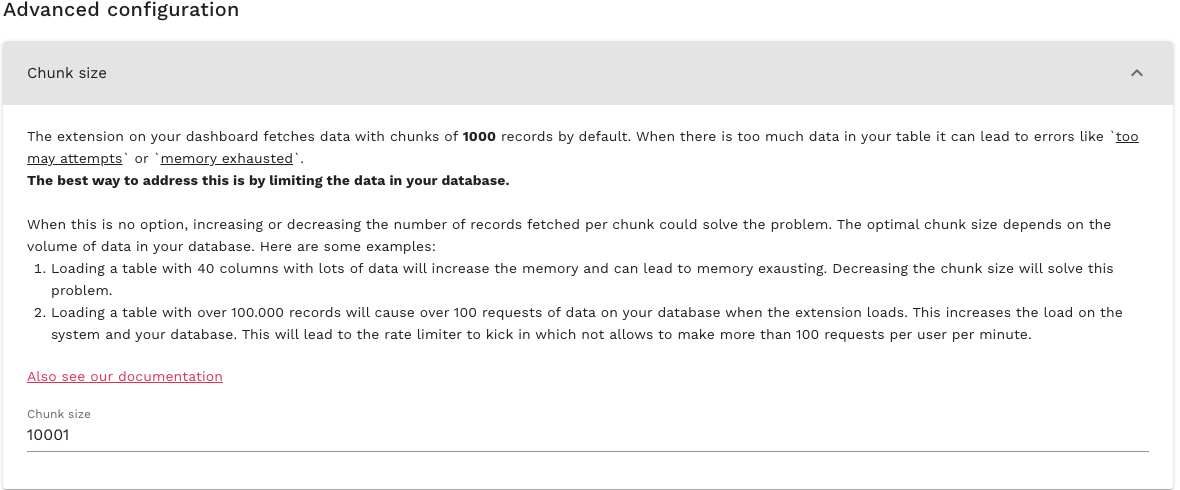
When the extension displays the message **“Too many attempts”**, you have reached the limit of the built-in rate limiter. This limiter controls network traffic per user to ensure the extension remains stable.
This error usually indicates that the database table contains too much data. The extension loads data in chunks of 1,000 rows, which means a user can load a maximum of 60,000 rows at once.
While it is possible to increase these limits, doing so comes with drawbacks—such as hitting memory limits or impacting performance. The recommended solution is to reduce the amount of data being loaded.
If you **do** want to increase the pagination size, alter the **'Chunk Size'** setting in the advanced settings of the Management console:
Log states: Allowed memory size of xxx bytes exhausted
When this happens, WriteBackExtreme is attempting to load too much data. The extension retrieves records in batches of 1,000 until all rows are fetched. If each row contains a large amount of data or the table has many columns, this process can exhaust the available memory.
The best solution is to limit the amount of data being queried. Ask yourself: *Do I really need to load this much data?* Often, a slimmer table can serve the same purpose—and will perform significantly better than a large table packed with heavy rows.
If reducing the dataset is not an option, there are two alternatives:
1. **Decrease the number of records loaded per batch** (default is 1,000).\
**Note:** This setting applies to *all* schemas.
You can do this by navigating to the 'Chunk Size' setting within the advanced configuration, and lowering it:
2. Increase the memory limit by altering the `wbe.config.toml` file like so:

Note that the indentation in wbe.config.yaml matters! To apply the new memory limit, please restart WriteBackExtreme.
Malformed UTF-8 characters. Possibly incorrectly encoded
WriteBackExtreme only supports data in UTF-8 Encoding. When your database table has characters other than UTF-8 this error message may be displayed.
#### Databricks Users:
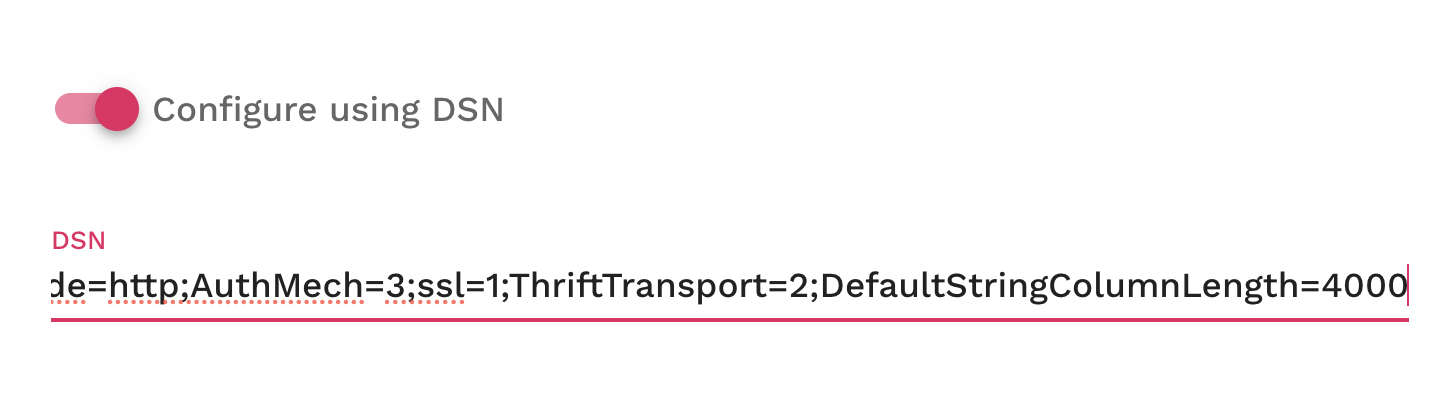
If you are using DataBricks this issue may happen when you are using Paragraph fields (long text fields). The default max string length of the ODBC driver is 255 characters. When you use the Paragraph field in WriteBackExtreme you can go up to 4000 characters and this will break the ODBC driver.
You can fix this by adding the following setting to your ODBC configuration:
Windows see **section K**:
Linux see **DefaultStringColumnLength**:
If above does not work you can also add it in the Management Console:
WriteBackExtreme not working on tableau desktop or tableau cloud (Local machines)
***
If you are experiencing issues using WriteBackExtreme on Tableau Desktop or Tableau Cloud from your local machine, while it works fine on other systems, the most likely cause is missing **root certificates** on your device. These certificates are required to establish a secure connection between Tableau and the WriteBackExtreme extension.
Installing the required root certificates on your machine normally resolves this issue immediately.\
To avoid connection problems in the future, make sure the correct root certificates are installed on all business user machines. When you encounter connection issues, always check for certificate-related errors or run a certificate validation step.
This applies to Tableau Desktop, Tableau Cloud, and both the Enterprise and SaaS versions of WriteBackExtreme.
WriteBackExtreme appears slow when performing actions (e.g., Submitting data or loading tables) especially with Amazon Redshift or other cloud hosted databases:
In many cases, slowness is caused by the performance of the underlying database rather than the extension itself. If the same SQL query that WriteBackExtreme executes also performs poorly when you run it directly in your database management tool, this confirms the bottleneck is in the database.
To verify this, enable SQL logging for WriteBackExtreme through the advanced settings in the management console. Then run those same queries manually in your preferred database tool and compare the performance.
If the queries are also slow outside of WriteBackExtreme, the issue is database-related. If they run quickly elsewhere but are slow only within WriteBackExtreme, please contact support and include your logs so we can help you resolve the issue.
Why can’t I see any data in WriteBackExtreme?
**Description:**\
Users report that no data is showing in WriteBackExtreme when opening the extension.
**Root Cause:**\
WriteBackExtreme relies on Tableau’s ***summary data*** being available. If the Tableau permissions don’t allow summary data to be downloaded, the extension cannot access the data.
**Resolution:**\
Ensure that the Tableau administrator grants the affected user (or group) permission to **Download Summary Data** on the workbook or view. Without this, WBE cannot display the data.
Example Tableau permission setting:
## Single Sign On (SAML)
Authentication method by which the user authenticated with the service doesn't match requested authentication method
Whenever you suddenly get an error with Single Sign On related to the authentication method Password Protected does not match the .... with Microsoft please follow this link:
#### Solution 1:
Logout from your Edge browser and login again to reset the user profile in the browser.
#### Solution 2:
Set the `requestedAuthnContext` to false by adding the following lines to your `wbe.config.yaml or wbe.config.toml`:
```yaml
# yaml
writeback-extreme:
env:
# ..other environment variables
portal:
saml:
xml_validation: true
requested_auth: false
```
```toml
# toml
[writeback-extreme.env]
# .. other values
portal.saml.xml_validation = false
portal.saml.requested_auth = false
```
Note: Environment variables defined in the config will be automatically be uppercased when starting the application.
Username casing in IDP does not match the casing in tableau
WriteBackExtreme verifies the username from the SSO provider with the username property of the user. When the casing is different (e.g. IDP returns and the username in WriteBackExtreme is set to ) it will fail authorisation.
This needs to be fixed on the IDP side. All major IDP providers have a way of transforming properties for SAML requests.
* In [Azure](https://learn.microsoft.com/en-us/entra/identity-platform/saml-claims-customization#special-claims-transformations) for example you can add a transformation claim.
* In Okta you can use [Okta expression language](https://developer.okta.com/docs/reference/okta-expression-language-in-identity-engine/) in the Attribute Statements like this: toLowerCase(user.email)
## Others
Given table name xxx already exists for given connection
This generally happens with Snowflake connections. This is due to a driver setting called `NoExecuteInSQLPrepare`. Read here how to configure the driver properly: [https://docs.infotopics.com/writebackextreme/product-guide/database-connections/snowflake/using-odbc/windows#important ](https://docs.infotopics.com/writebackextreme/product-guide/database-connections/snowflake/using-odbc/windows#important)
---
# Agent Instructions
This documentation is published with GitBook. GitBook is the documentation platform designed so that both humans and AI agents can read, navigate, and reason over technical content effectively. Learn more at gitbook.com.
## Querying This Documentation
If you need additional information that is not directly available in this page, you can query the documentation dynamically by asking a question.
Perform an HTTP GET request on the current page URL with the `ask` query parameter, and the optional `goal` query parameter:
```
GET https://docs.infotopics.com/trulyp/writebackextreme-old/troubleshooting-and-faq/troubleshooting.md?ask=&goal=
```
`ask` is the immediate question: it should be specific, self-contained, and written in natural language.
`goal` is optional and describes the broader end goal you are ultimately trying to accomplish on behalf of the user. GitBook uses it to tailor the answer towards what is most useful for that goal.
The response will contain a direct answer to the question and relevant excerpts and sources from the documentation.
Use this mechanism when the answer is not explicitly present in the current page, you need clarification or additional context, or you want to retrieve related documentation sections.