> For the complete documentation index, see [llms.txt](https://docs.infotopics.com/llms.txt). Markdown versions of documentation pages are available by appending `.md` to page URLs; this page is available as [Markdown](https://docs.infotopics.com/trulyp/settings/tableau-sync.md).
# Sync members & teams
Already have your users and groups in Tableau? Sync them into Trulyp, so members and teams stay up to date automatically. Tableau sync works with Tableau Cloud and Tableau Server, and can run on a schedule.
You find it in **Settings** › **Sync members & Teams**. Only administrators can open this page.
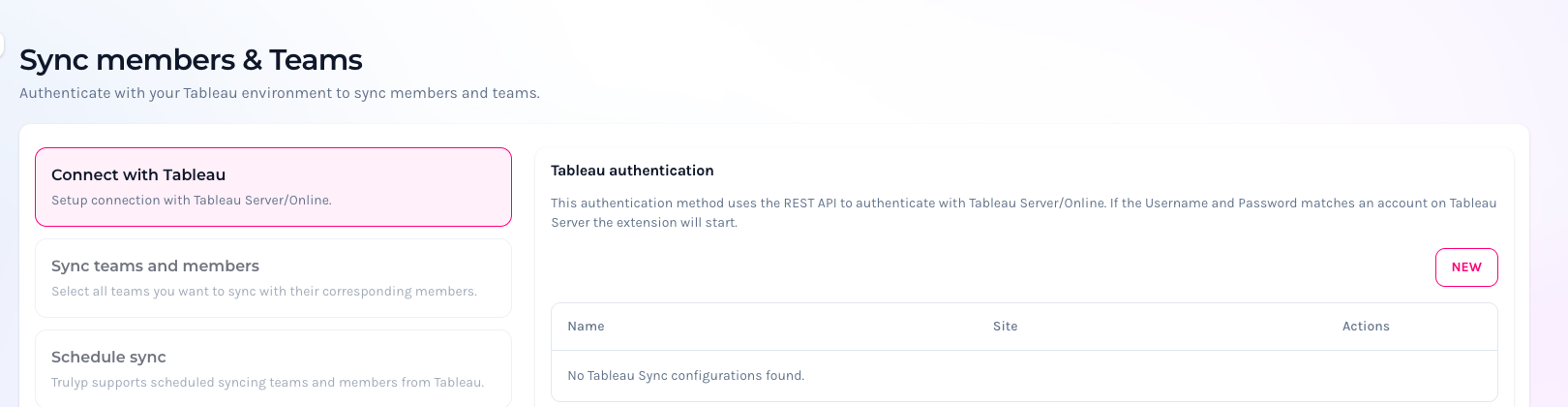
Settings › Sync members & Teams
### What a sync does
* **Members are matched by username.** A Tableau user becomes the Trulyp member with the same platform username. If that member already exists, Trulyp takes it over: its active status follows Tableau from then on.
* **New members are created** for Tableau users that don't exist yet. They're created **blocked** when they're **Unlicensed** in Tableau, or when no license seat is available.
* **Members are added to their team and to Everyone**, and get the team's [automatic roles](/trulyp/settings/members-teams-roles-and-access/teams.md#automatic-role-synchronisation). Roles are only added, never removed.
* **Extension viewers** who match a synced member are removed from the extension viewers list, so they no longer use a seat of their own.
{% hint style="warning" %}
**Synced members and teams are deleted** when they're no longer returned by Tableau: for example when a user is removed from Tableau, or when you deselect their group. Members and teams you created yourself in Trulyp aren't deleted, unless a synced user has the same username.
{% endhint %}
{% hint style="info" %}
New synced members only get access to the extensions. To let them work in Trulyp itself, give them roles, for example through their team's automatic roles.
{% endhint %}
### Step 1: Connect with Tableau
Under **Tableau authentication**, click **New**:
* **Tableau deployment**: **Tableau Cloud (Online)** or **Tableau Server (self-hosted)**.
* For **Tableau Cloud**: choose the **Tableau Online region** (for example **US West - Oregon (10ax)**) and enter the site under **Authenticate for the following site**. For `https://dub01.online.tableau.com/#/site/salescompany`, that's `salescompany`.
* For **Tableau Server**: enter the **Tableau Server domain**. After testing, choose the sites to sync under **Select the sites you want to sync**.
* **Tableau API version**: `3.15` by default.
* **Authentication**: **PAT (Personal Access Token)** (recommended), with a **Token name** and **Token secret**, or **Username & Password**. Use an account with administrator rights in Tableau.
A new Tableau Sync for Tableau Cloud
Click **Test authentication**, and when that works, **Save**. Trulyp never shows the token secret again; leave it empty when you edit the connection later to keep it.
{% hint style="info" %}
**Personal access tokens** expire when they're not used for 15 consecutive days. Used regularly, they expire after a year, depending on your Tableau site settings.
{% endhint %}
### Step 2: Sync teams and members
Under **Sync groups and users**, tick the Tableau groups to sync and click **Save**. Then click **Sync groups** to run the sync right away. The groups appear in **Settings** › **Teams** and their users in **Settings** › **Members**.
### Step 3: Schedule sync
Keep everything up to date automatically: choose the **Days of week**, a **Start time**, an **Interval** (every 3, 6, 12 or 24 hours) and your **Time Zone**, and click **Save**. The sync then runs from the start time, every interval, on the selected days. Select no days to turn the schedule off.
### Several Tableau sites
When the same person exists on several sites or servers, Trulyp keeps one member for them. Team names are prefixed with the site name (for example `sales | Marketing`) to keep them unique.
---
# Agent Instructions
This documentation is published with GitBook. GitBook is the documentation platform designed so that both humans and AI agents can read, navigate, and reason over technical content effectively. Learn more at gitbook.com.
## Querying This Documentation
If you need additional information that is not directly available in this page, you can query the documentation by asking a question.
Perform an HTTP GET request on the following URL with the `ask` and `goal` query parameters:
```
GET https://docs.infotopics.com/trulyp/settings/tableau-sync.md?ask=&goal=
```
`ask` is the immediate question: it should be specific, self-contained, and written in natural language.
`goal` is what the user is ultimately trying to achieve, the reason they need the answer. Sharing it helps GitBook give you a better, more relevant answer. A goal is most helpful when it describes the outcome the user wants rather than restating the question. For example, with `ask=how do I create an API token`, a goal like `automate deployments from our CI pipeline` lets GitBook tailor the answer to that use case.
The response will contain a direct answer to the question and relevant excerpts and sources from the documentation.
Use this mechanism when the answer is not explicitly present in the current page, you need clarification or additional context, or you want to retrieve related documentation sections.