> For the complete documentation index, see [llms.txt](https://docs.infotopics.com/llms.txt). Markdown versions of documentation pages are available by appending `.md` to page URLs; this page is available as [Markdown](https://docs.infotopics.com/trulyp/settings/identity-and-access.md).
# Identity and Access
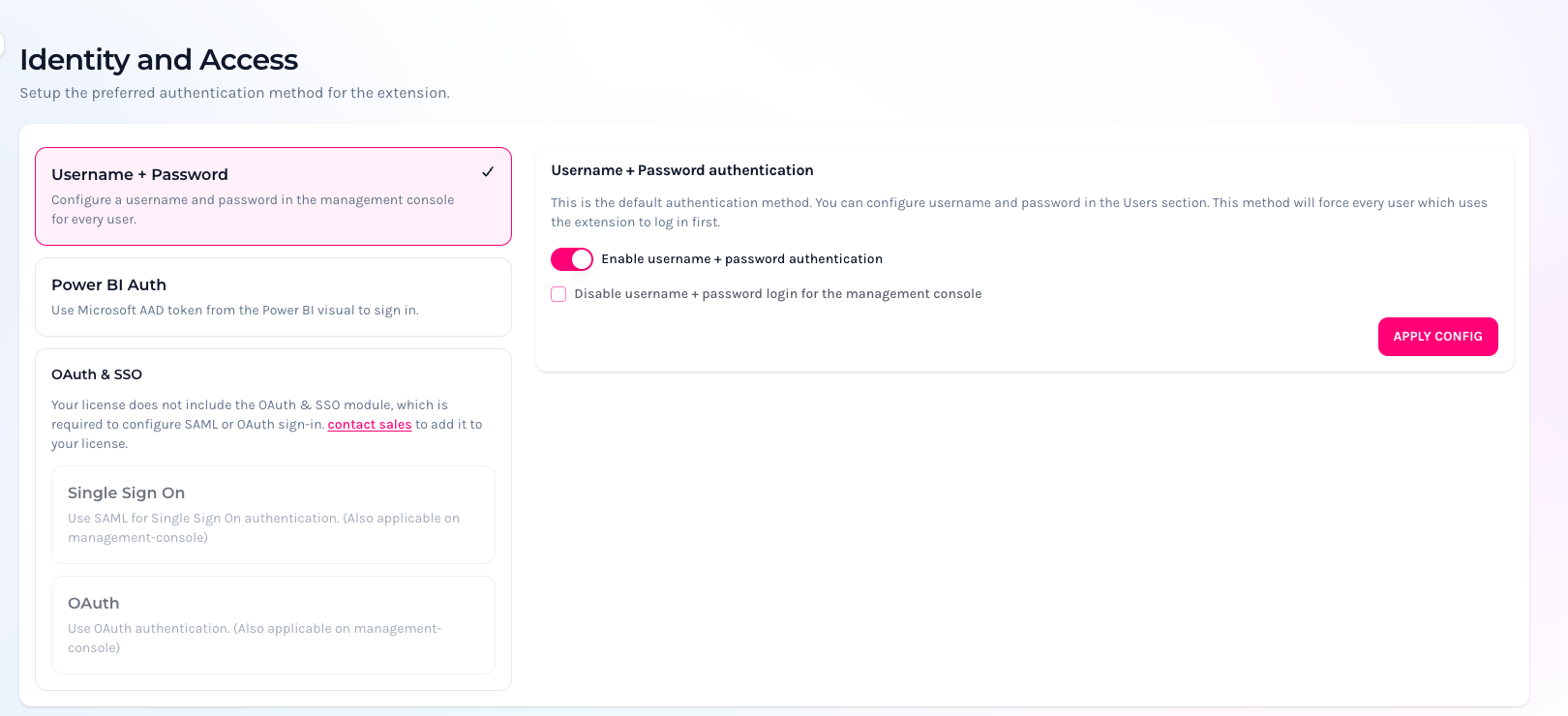
How do people sign in to Trulyp and its extensions? In **Settings** › **Identity & Access** you choose: with a username and password, with single sign-on (SAML), with OAuth (for example Microsoft Entra or Google), or with their Power BI account. You can turn on several methods at once.
Only administrators can open this page. Each method has its own card; a tick shows which methods are on. Changes to a method are saved with its **Apply config** button.
Settings › Identity & Access
{% hint style="info" %}
**Single Sign On** and **OAuth** need the **OAuth & SSO** module in your license. Without it, these cards are greyed out with a link to contact sales.
{% endhint %}
**How members are matched.** With SSO, OAuth and Power BI, Trulyp matches the person to a member by username or email. If there's no such member yet, Trulyp creates one, unless you turned off **Auto-create user on SSO / OAuth login** in [Advanced settings](/trulyp/settings/advanced-settings.md). Blocked members can't sign in. To use the Trulyp workspace (not just the extensions), members also need a [role](/trulyp/settings/members-teams-roles-and-access/roles.md).
## Username + Password
The default method: members sign in with their platform username and the password you set in [Members](/trulyp/settings/members-teams-roles-and-access/members.md).
* **Enable username + password authentication**: on by default. If you turn every method off, Trulyp falls back to this one.
* **Disable username + password login for the management console**: once you use SSO or OAuth, you can stop password sign-in to the Trulyp workspace. Only available when username and password authentication is turned off.
{% hint style="warning" %}
Make sure SSO or OAuth works for your own account **before** you disable password sign-in for the workspace, or you can lock yourself out.
{% endhint %}
When you also use Tableau sync, set a password for every member who needs to sign in this way.
## Single Sign-On
Trulyp supports single sign-on with SAML, so it works with any SAML identity provider: Microsoft Entra (Azure), Okta, PingOne and more.
#### What you need
* An app for Trulyp in your identity provider, with the right users and groups assigned.
* From that app: the **IdP Identifier (Entity ID)**, the **Login URL** and the **IdP Certificate (base64)**.
#### Set up single sign-on
1. In your identity provider, create an app for Trulyp and assign the users and groups that need access.
2. Choose a **Service Provider Entity ID (SP Entity ID)** for Trulyp, without special characters such as `%`, and enter it in the app (Azure calls it *Identifier*, Okta *Audience URI*).
3. Copy both **Return/Reply URLs** from the **Saml - Single Sign-on** card in Trulyp into the app. They look like this:
* `https:///auth/saml/login-return` (for the extensions)
* `https:///auth/admin/saml/login-return` (for the Trulyp workspace)
4. Set the attributes in the app: see the examples below.
5. In Trulyp, turn on **Enable SAML Authentication** and fill in:
* **Login button label**: the text on the sign-in button, `Login` by default.
* **Service Provider Entity ID (SP Entity ID)**: from step 2.
* **IdP Identifier (Entity ID)**: from your identity provider (Azure: *Microsoft Entra Identifier*, Okta: *Identity Provider Issuer*).
* **Login URL**: from your identity provider (Azure: *Login URL*, Okta: *Identity Provider Single Sign-On URL*).
* **IdP Certificate (base64)**: the X.509 certificate from your identity provider.
6. Click **Test SAML/SSO**. A sign-in window opens; sign in with your identity provider.
7. When the test works, click **Apply config**.
Under **Advanced configuration** you find **Disable XML verification.**, **Disable match on authentication method.**, **Login binding** and **Logout binding**. Only change these when your identity provider needs it, or when [Troubleshooting SSO](/trulyp/settings/identity-and-access/sso/troubleshooting-sso.md) tells you to.
{% hint style="info" %}
Trulyp never shows a saved certificate again. When you change the SAML settings later, paste the certificate again.
{% endhint %}
Examples for common identity providers:
{% content-ref url="/pages/PCGiAD74ejeooqCUqxjZ" %}
[OKTA Example](/trulyp/settings/identity-and-access/sso/okta-example.md)
{% endcontent-ref %}
{% content-ref url="/pages/3siazQUa6spmKbdDAqD3" %}
[PingOne Example](/trulyp/settings/identity-and-access/sso/pingone-example.md)
{% endcontent-ref %}
{% content-ref url="/pages/6R1UCo9CLxJDwNZkqiRw" %}
[Azure Example](/trulyp/settings/identity-and-access/sso/azure-example.md)
{% endcontent-ref %}
{% content-ref url="/pages/wHW8mKwaUyelFzo1sk6b" %}
[Troubleshooting SSO](/trulyp/settings/identity-and-access/sso/troubleshooting-sso.md)
{% endcontent-ref %}
## OAuth
With OAuth, people sign in with an account they already have, for example their Microsoft or Google account. Trulyp supports **Google**, **Auth0**, **Okta**, **Microsoft** and **SalesForce**. You can add several configurations, each with its own sign-in button.
1. Create an app registration with your provider. The pages below show how for the most common providers.
2. In Trulyp, click **OAuth configuration** and fill in:
* **Login button label**: the text on the sign-in button.
* **Provider**.
* **Client ID** and **Client Secret**: from your app registration.
* Depending on the provider: **Domain** (Auth0, Okta), **Tenant ID or domain** (Microsoft, optional) or **Instance URL** (SalesForce).
3. Copy the **Return/Reply URLs** shown in the editor into your app registration. They look like `https:///oauth//login-return` and `https:///admin/oauth//login-return`, where `` is the first 10 characters of your client ID.
4. Click **Test OAuth**. This saves the configuration and opens the provider's sign-in window.
5. Click **Add configuration**, or **Apply config** when you edit one.
6. Turn on **Enable OAuth Authentication**. This is only possible once there's at least one configuration.
Use **⋯** › **Edit** or **Remove** to change or delete a configuration. When you edit one, enter the **Client Secret** again.
{% content-ref url="/pages/v3Ms5fBRNo3QimTirsgL" %}
[Microsoft Entra](/trulyp/settings/identity-and-access/oauth/microsoft-entra.md)
{% endcontent-ref %}
{% content-ref url="/pages/vIrXTuy3yk7UIwyfRi5k" %}
[Auth0](/trulyp/settings/identity-and-access/oauth/auth0.md)
{% endcontent-ref %}
{% content-ref url="/pages/CgSuJNxJL2R4yWSJsbPx" %}
[Google](/trulyp/settings/identity-and-access/oauth/google.md)
{% endcontent-ref %}
## Power BI
With Power BI authentication, people who use the WriteBackExtreme Power BI visual are signed in with their Microsoft account from Power BI, without signing in again.
1. Turn on **Enable Power BI authentication.**
2. Enter the **Allowed tenant ID**: your Microsoft Entra tenant. Only tokens from this tenant are accepted.
3. Choose whether to **Automatically create users when missing on Power BI login.** (on by default).
4. Choose the **Default teams for new Power BI users** (Everyone by default).
5. Click **Apply config**.
---
# Agent Instructions
This documentation is published with GitBook. GitBook is the documentation platform designed so that both humans and AI agents can read, navigate, and reason over technical content effectively. Learn more at gitbook.com.
## Querying This Documentation
If you need additional information that is not directly available in this page, you can query the documentation by asking a question.
Perform an HTTP GET request on the following URL with the `ask` and `goal` query parameters:
```
GET https://docs.infotopics.com/trulyp/settings/identity-and-access.md?ask=&goal=
```
`ask` is the immediate question: it should be specific, self-contained, and written in natural language.
`goal` is what the user is ultimately trying to achieve, the reason they need the answer. Sharing it helps GitBook give you a better, more relevant answer. A goal is most helpful when it describes the outcome the user wants rather than restating the question. For example, with `ask=how do I create an API token`, a goal like `automate deployments from our CI pipeline` lets GitBook tailor the answer to that use case.
The response will contain a direct answer to the question and relevant excerpts and sources from the documentation.
Use this mechanism when the answer is not explicitly present in the current page, you need clarification or additional context, or you want to retrieve related documentation sections.