> For the complete documentation index, see [llms.txt](https://docs.infotopics.com/llms.txt). Markdown versions of documentation pages are available by appending `.md` to page URLs; this page is available as [Markdown](https://docs.infotopics.com/trulyp/data/database-connections.md).
# Connections
A connection holds everything Trulyp needs to reach one of your databases. You create it once, and then use it everywhere: for semantic models in [Analytics](/trulyp/analytics/analytics.md), for WriteBackExtreme [schemas](/trulyp/writebackextreme/schemas.md), and more. Usernames, passwords and keys are stored encrypted.
You manage connections in **Data** › **Connections**. You need the **Connections manager** role, or be an administrator.
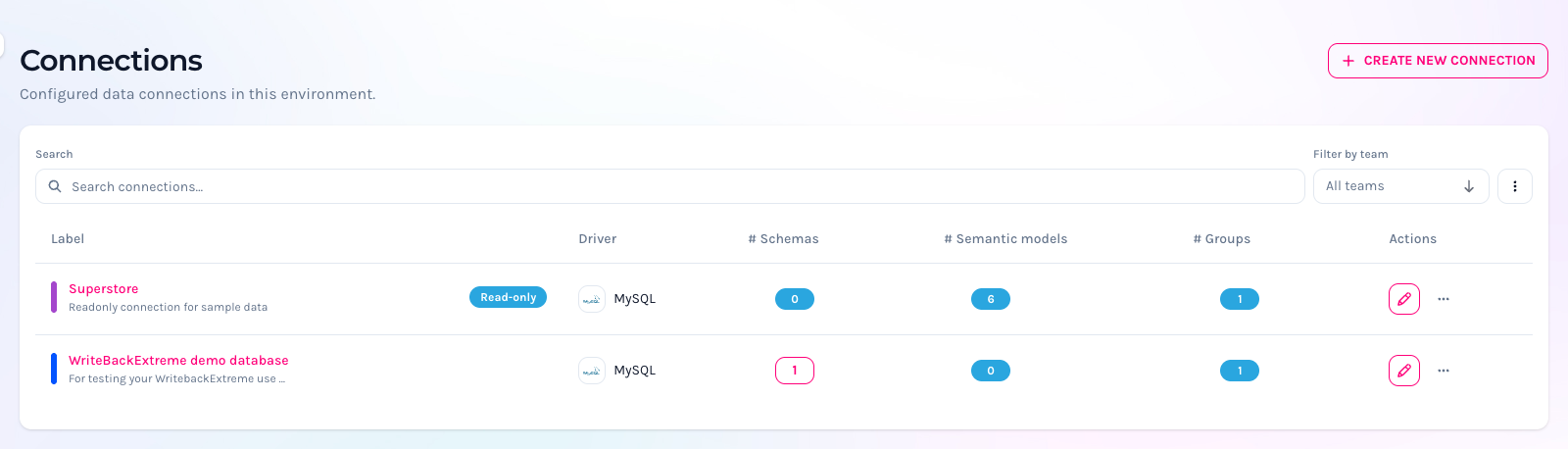
Data › Connections
The list shows, for every connection:
* **Label**, with its color and description. A **Read-only** badge marks connections that can't be used for writing data.
* **Driver**: the type of database.
* **# Schemas**: the WriteBackExtreme schemas that use this connection. Click the number to open them.
* **# Semantic models** and **# Groups**: the semantic models built on this connection, and the number of teams that can use it.
### Create a connection
{% stepper %}
{% step %}
### Describe the connection
Click **Create new connection** and fill in the **Connection details**:
* **Label**: a clear name, for example `Sales warehouse`.
* **Description (optional)**: what the connection is for.
* **Readonly connection**: turn this on if Trulyp should only read from this database. Readonly connections can run SELECT queries, but can't be used for WriteBackExtreme schemas.
* **Color (optional)**: the color of the connection in overviews and schemas. If you leave it empty, Trulyp picks one for you.
{% endstep %}
{% step %}
### Pick the driver
Choose the **Database driver**: MySQL, PostgreSQL, SQL Server, Redshift, Snowflake, Oracle, Azure Synapse, BigQuery, Databricks, Teradata, SAP HANA or IBM Db2. See [Supported databases](/trulyp/data/database-connections/supported-databases.md).
**Default casting** decides whether Trulyp writes table and column names in lowercase or uppercase. It's set for you when you pick a driver (uppercase for Snowflake, SAP HANA and IBM Db2, lowercase for the others), and you can't change it later, so leave it unless you know your database needs otherwise.
{% endstep %}
{% step %}
### Enter the credentials and test
Fill in the **Credentials**. The fields depend on the driver; for most databases that's a host, port, username, password and database. [Connection settings per database](/trulyp/data/database-connections/supported-databases/connection-settings.md) lists them all.
Then click **Test connection**. You must test successfully before you can create the connection; if you change a credential afterwards, test again.
A new PostgreSQL connection
{% endstep %}
{% step %}
### Choose who can use the connection
Under **Access control**, select the **Authorized teams**. Only members of these teams can use the connection, for example to build semantic models or schemas on it.
{% hint style="warning" %}
Access control is one of Trulyp's main security layers. Only add the teams that really need this data.
{% endhint %}
Click **Create connection**. Done!
{% endstep %}
{% endstepper %}
### Edit a connection
Click the pencil icon next to a connection to edit it. You can change everything except the driver and the default casting. You don't need to test again to save; leave the password empty to keep the current one.
{% hint style="warning" %}
Turning on **Readonly connection** for a connection that already has WriteBackExtreme schemas stops those schemas from working.
{% endhint %}
### More actions
Click **⋯** next to a connection for more actions:
* **Group membership**: change which teams can use the connection, without opening it.
* **Duplicate**: creates a copy called "*label* Copy" right away. Handy when you need a second connection to a similar database.
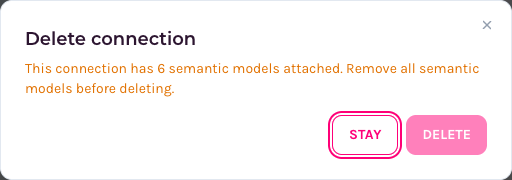
* **Delete**: removes the connection permanently. You can't delete a connection that still has schemas or semantic models; remove those first.
Group membership
A connection that still has semantic models can't be deleted
{% hint style="info" %}
Removing a team from a connection also removes that team's permissions on the WriteBackExtreme schemas that use the connection.
{% endhint %}
### Databases that need extra setup
* [Snowflake](/trulyp/data/database-connections/snowflake.md): DSN, OAuth and key pair authentication.
* [Oracle](/trulyp/data/database-connections/oracle.md): SSL and TNS configuration.
* **On-premises installations**: Databricks, Snowflake (ODBC), IBM Db2 and other ODBC databases need a driver on the server. See [On-premises installation](/trulyp/data/database-connections/on-premises-installation.md).
Once your connection is ready, [build a semantic model](/trulyp/data/semantic-modeling.md) on it!
---
# Agent Instructions
This documentation is published with GitBook. GitBook is the documentation platform designed so that both humans and AI agents can read, navigate, and reason over technical content effectively. Learn more at gitbook.com.
## Querying This Documentation
If you need additional information that is not directly available in this page, you can query the documentation by asking a question.
Perform an HTTP GET request on the following URL with the `ask` and `goal` query parameters:
```
GET https://docs.infotopics.com/trulyp/data/database-connections.md?ask=&goal=
```
`ask` is the immediate question: it should be specific, self-contained, and written in natural language.
`goal` is what the user is ultimately trying to achieve, the reason they need the answer. Sharing it helps GitBook give you a better, more relevant answer. A goal is most helpful when it describes the outcome the user wants rather than restating the question. For example, with `ask=how do I create an API token`, a goal like `automate deployments from our CI pipeline` lets GitBook tailor the answer to that use case.
The response will contain a direct answer to the question and relevant excerpts and sources from the documentation.
Use this mechanism when the answer is not explicitly present in the current page, you need clarification or additional context, or you want to retrieve related documentation sections.