> For the complete documentation index, see [llms.txt](https://docs.infotopics.com/llms.txt). Markdown versions of documentation pages are available by appending `.md` to page URLs; this page is available as [Markdown](https://docs.infotopics.com/trulyp/analytics/vizzy-ai-in-analytics.md).
# Vizzy AI in Analytics
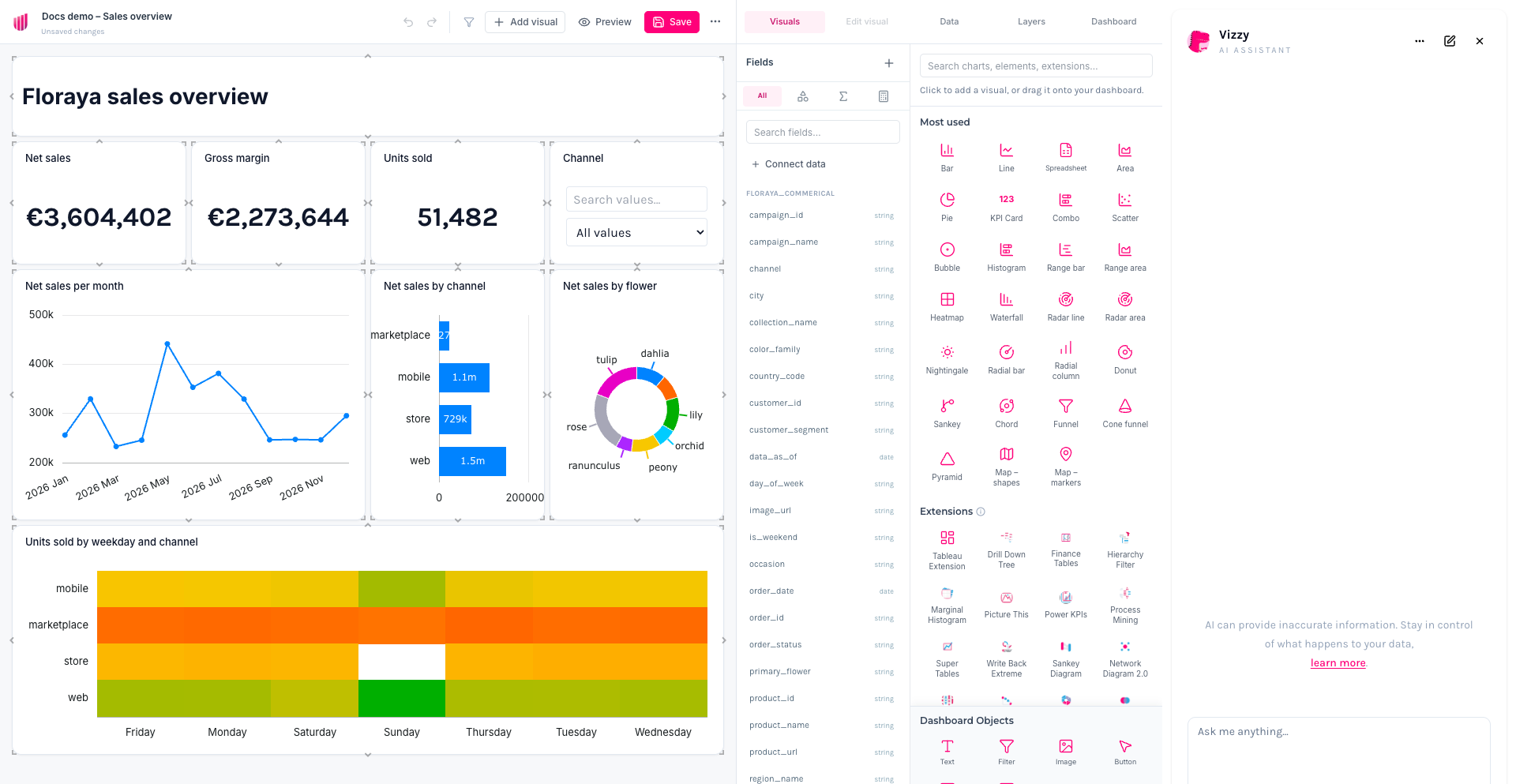
Vizzy, the AI assistant of Trulyp, is built into the Analytics editor. Ask it to build a complete app, add pages and charts, create calculations or review your layout. Vizzy works with the semantic models and fields of your app.
{% hint style="info" %}
Vizzy is available in the editor, not in view mode or in embedded apps. AI must be set up in your environment; see [Getting started with AI](/trulyp/ai/getting-started.md). An administrator can switch AI off for everyone with **Disable AI in Trulyp** in [Advanced settings](/trulyp/settings/advanced-settings.md). Vizzy is then no longer shown, and your apps keep working without it.
{% endhint %}
### Open Vizzy
* Click the pink **Ask Vizzy** button at the bottom right of the editor, or
* Click the sparkle icon at the bottom right of a visual (**Open in Vizzy AI**). The visual opens full screen next to Vizzy, so you can ask questions about it or change it.
The Vizzy panel can be resized by dragging its edge. Use **New chat** to start over; earlier chats are under **More options**.
### What you can ask
**Build a complete app**
> "Build a sales app with three pages: an overview with KPI cards for net sales, gross margin and units, a page per channel, and a product page. Add filters for year and country and navigation buttons between the pages."
For a request like this, Vizzy first works out a **plan** step by step. You see the progress in the chat: **Fetch columns**, **Plan visualizations**, **Create visual specs**, **Decide pages** and **Place on pages**. If Vizzy finds a problem in one of the steps, it fixes that step again by itself instead of starting over.
When the plan is ready, Vizzy shows the pages, visuals and filters it intends to build. Nothing changes until you click **Approve Plan**. Click **Revise Plan** to adjust your request. While building, Vizzy reports each step ("created page", "updated visual") and saves the app when it is done.
Vizzy picks a ready-made theme, light or dark, that fits the subject of your app. Colours that you name in your request take priority over the theme.
**Change what is there**
When your app already has pages and visuals, Vizzy treats your request as an edit and only changes the pages and visuals you ask for. It doesn't rebuild the whole app.
* "Add a line chart of net sales per month below the KPI cards."
* "Change the bar chart to horizontal and sort it from high to low."
* "Make the theme dark and use our brand colours #0f172a and #ec4899."
* "Move the heatmap to a new page called Details."
**Create calculations**
* "Create a calculation for gross margin percentage."
**Set up a spreadsheet for input**
* "Add an editable spreadsheet where I can enter a forecast per month and channel." Vizzy asks where the values should be stored.
**Add a form or a conversation**
* "Add a form where people can register a reorder level per supplier." Vizzy builds an [Add Data](/trulyp/analytics/visuals/add-data-and-comments.md#add-data) form.
* "Add a conversation per channel so my team can comment on the numbers." Vizzy builds a [Comments](/trulyp/analytics/visuals/add-data-and-comments.md#comments) visual.
**Review the layout**
Click **Review dashboard visuals** in the chat input. Vizzy takes a screenshot of your dashboard and gives feedback on spacing, overlap, alignment and contrast, without changing anything.
**Ask about the data**
* "Which channel grew the most this year?"
* "Explain this chart." (from **Open in Vizzy AI**)
Charts that Vizzy shows in the chat can be dragged onto the canvas. Such a chart is marked **Snapshot** when it uses static data that doesn't refresh with filters.
Visuals that Vizzy adds can have an info button explaining **Why this chart is here**: its purpose, the question it answers, and why it is placed there.
### Tips for good results
* Name your measures and dimensions clearly in the semantic model. Vizzy uses those names.
* Describe the **audience**, the **questions** the app should answer, and the **layout** you want (for example "executive", "dense" or "minimal").
* Mention the number and order of pages, and whether you want navigation buttons or a sidebar.
* Make one change at a time when refining, and check the result before the next request.
* Use [@ mentions](/trulyp/ai/ai-agents/using-an-ai-agent.md) to point Vizzy to a specific semantic model.
See also [Using AI responsibly](/trulyp/ai/using-ai-responsibly.md).
---
# Agent Instructions
This documentation is published with GitBook. GitBook is the documentation platform designed so that both humans and AI agents can read, navigate, and reason over technical content effectively. Learn more at gitbook.com.
## Querying This Documentation
If you need additional information that is not directly available in this page, you can query the documentation by asking a question.
Perform an HTTP GET request on the following URL with the `ask` and `goal` query parameters:
```
GET https://docs.infotopics.com/trulyp/analytics/vizzy-ai-in-analytics.md?ask=&goal=
```
`ask` is the immediate question: it should be specific, self-contained, and written in natural language.
`goal` is what the user is ultimately trying to achieve, the reason they need the answer. Sharing it helps GitBook give you a better, more relevant answer. A goal is most helpful when it describes the outcome the user wants rather than restating the question. For example, with `ask=how do I create an API token`, a goal like `automate deployments from our CI pipeline` lets GitBook tailor the answer to that use case.
The response will contain a direct answer to the question and relevant excerpts and sources from the documentation.
Use this mechanism when the answer is not explicitly present in the current page, you need clarification or additional context, or you want to retrieve related documentation sections.