> For the complete documentation index, see [llms.txt](https://docs.infotopics.com/llms.txt). Markdown versions of documentation pages are available by appending `.md` to page URLs; this page is available as [Markdown](https://docs.infotopics.com/trulyp/analytics/the-app-editor.md).
# The app editor
The editor is where you build and change an app: you add visuals, connect data, arrange the layout and set the look of every page. This page walks you through each part of the editor, so you know where to find every option.
To open the editor, open an app and click **Edit** at the top right. You can edit an app when you have the **Analytics Creator** role and the app is yours, was shared with you with **Can Edit**, or you are an administrator.
The editor: toolbar, canvas, Fields list and the Edit visual panel
The editor has four areas:
1. **The toolbar** at the top.
2. **The canvas** on the left, where you arrange your visuals.
3. **The Fields list**, with all fields of the connected data sources.
4. **The side panel** with five tabs: **Visuals**, **Edit visual**, **Data**, **Layers** and **Dashboard**.
### The toolbar
| Control | What it does |
| ------------------------- | --------------------------------------------------------------------------------------------------------------------------------- |
| **App name** | Click to rename the app. Below it you see the save status: **Unsaved changes**, **Saving…** or **Saved** with the time. |
| **Undo** / **Redo** | Undo or redo your last changes, on any page. |
| **Filters** (funnel icon) | Shows the active filters and the global filters. See [Filters and interactivity](/trulyp/analytics/filters-and-interactivity.md). |
| **+ Add visual** | Opens the **Visuals** tab. |
| **Preview** | Shows the app as viewers see it. In preview, the button changes to **Edit**. |
| **Save** | Saves the app. Trulyp also saves automatically every two minutes. |
| **…** | More actions, see below. |
The … menu
Dashboard details
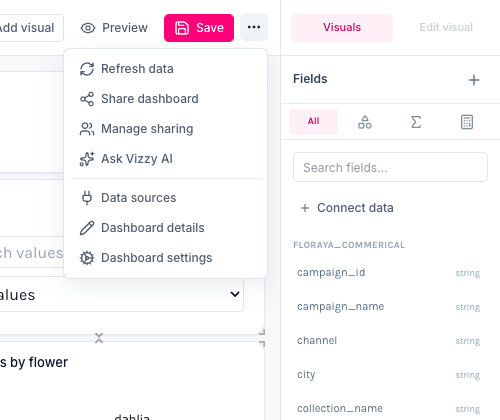
The **…** menu contains:
* **Refresh data**: runs the queries of the visuals on the current page again.
* **Share dashboard** and **Manage sharing**: see [Sharing and embedding](/trulyp/analytics/sharing-and-embedding.md).
* **Ask Vizzy AI**: opens the AI assistant. See [Vizzy AI in Analytics](/trulyp/analytics/vizzy-ai-in-analytics.md).
* **Data sources**: opens the **Data** tab.
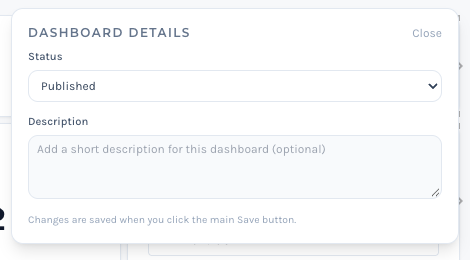
* **Dashboard details**: set the **Status** and a **Description**. The description is shown on the app card. Changes are stored when you click **Save**.
* **Dashboard settings**: opens the **Dashboard** tab.
### The side panel
| Tab | Use it to |
| --------------- | ------------------------------------------------------------------------------------------------------------------------------------------------------------------------------------------------------------------ |
| **Visuals** | Add charts, extensions and dashboard objects. Click a visual to add it, or drag it onto the canvas. Use the search box to find one quickly. See [Visuals](/trulyp/analytics/visuals.md). |
| **Edit visual** | Configure the selected visual: its fields, titles, options, interactions and styling. Opens automatically when you select a visual. See [Configuring a visual](/trulyp/analytics/visuals/configuring-a-visual.md). |
| **Data** | Connect and disconnect semantic models, or import a file. See [Data sources and fields](/trulyp/analytics/data-sources-and-fields.md). |
| **Layers** | See all visuals on the page, hide or lock them, and change their stacking order. See [Layers](#layers) below. |
| **Dashboard** | Change the layout, theme, colours and defaults of the whole app. See [Dashboard settings](/trulyp/analytics/global-chart-options.md). |
### The Fields list
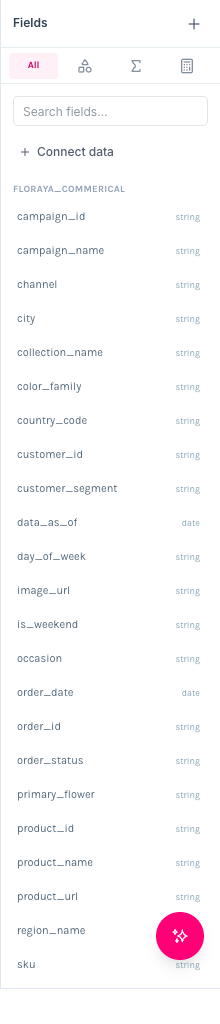
The **Fields** list shows the fields of every connected data source, grouped by source.
* Use the icons at the top to show **All** fields, only **Dimensions**, only **Measures** or only **Calculations**, or search with **Search fields…**.
* Click **+** to create a [calculation](/trulyp/analytics/calculations.md).
* With a visual selected, fields that are already used are shown in bold with a check mark, and fields from other data sources are greyed out (a visual uses one data source).
* **Drag** a field onto a slot in the **Edit visual** tab, or **double-click** it (or press **Enter**) to put it in the first slot that fits.
* **Drag a field onto an empty part of the canvas** to create a bar chart with that field straight away.
### Working on the canvas
* **Add**: click a visual in the **Visuals** tab, or drag it to the spot where you want it. New visuals are selected immediately so you can configure them.
* **Select**: click a visual. Click an empty part of the canvas, or press **Esc**, to deselect.
* **Move**: drag the visual.
* **Resize**: drag any of its edges or corners.
* **Copy and paste**: press **Ctrl+C** and **Ctrl+V** (**Cmd** on a Mac). The copy is called "*name* (copy)".
* **Delete**: press **Delete** or **Backspace**, or click **✕** on the visual. There is no confirmation, but you can **Undo**.
When you hover over or select a visual, a small toolbar appears:
* **✎ Edit** opens the **Edit visual** tab.
* **✕ Delete** removes the visual.
* The **sparkle** icon at the bottom right opens the visual in [Vizzy AI](/trulyp/analytics/vizzy-ai-in-analytics.md).
* A warning icon appears when the visual hit the limit of 250,000 rows. Add filters to reduce the data.
By default the canvas is a grid with 48 columns. You can change the number of columns, the row height and the spacing in the [Dashboard settings](/trulyp/analytics/global-chart-options.md#dashboard-layout). Press **G** to show or hide the gridlines while editing.
### Pages
Apps can have several pages, shown as tabs at the bottom of the canvas.
* **Add a page**: click **+** next to the tabs.
* **Rename**: double-click a tab, type the name and press **Enter**.
* **Reorder**: drag a tab to another position.
* **Right-click a tab** to **Duplicate** the page, give the tab a **Tab color**, or **Delete** the page.
In view mode, switch pages with the tabs, the arrow buttons, or the left and right arrow keys. You can also add a [button](/trulyp/analytics/visuals/dashboard-objects.md#button) that navigates to another page.
### Layers
The **Layers** tab lists all visuals on the current page, from front to back.
* **Layout mode**:
* **Grid**: visuals are arranged on the grid and never overlap. This is the default.
* **Freeform**: visuals can overlap, for example to place a chart on top of an image. They still snap to the grid.
* **Arrange buttons** (Freeform only): **Bring to front**, **Bring forward**, **Send backward** and **Send to back** for the selected visual. You can also drag rows in the list.
* **Transparent card background**: removes the background of the selected visual, which is useful in Freeform.
* **Eye icon**: hides or shows a visual.
* **Lock icon**: locks the position and size of a visual so it can't be moved, resized or deleted by accident.
### Keyboard shortcuts
| Shortcut | Action |
| ------------------------------------------------ | ------------------------------------------ |
| **Ctrl+S** / **Cmd+S** | Save |
| **Ctrl+Z** / **Cmd+Z** | Undo |
| **Ctrl+Shift+Z** / **Cmd+Shift+Z** or **Ctrl+Y** | Redo |
| **Ctrl+C** / **Cmd+C** | Copy the selected visual |
| **Ctrl+V** / **Cmd+V** | Paste the copied visual |
| **Delete** / **Backspace** | Delete the selected visual |
| **G** | Show or hide the gridlines |
| **Esc** | Deselect the visual and close its settings |
Shortcuts don't work while you are typing in a text field, except **Save**.
### Saving
* Click **Save** or press **Ctrl+S** / **Cmd+S**.
* Trulyp also saves automatically every two minutes while you edit.
* Only a manual save updates the thumbnail of the app on the Analytics home page.
* Every save creates a revision you can [roll back](/trulyp/analytics/managing-apps.md#my-apps-and-revisions) to.
* If you try to leave the editor with unsaved changes, Trulyp asks you to confirm.
---
# Agent Instructions
This documentation is published with GitBook. GitBook is the documentation platform designed so that both humans and AI agents can read, navigate, and reason over technical content effectively. Learn more at gitbook.com.
## Querying This Documentation
If you need additional information that is not directly available in this page, you can query the documentation by asking a question.
Perform an HTTP GET request on the following URL with the `ask` and `goal` query parameters:
```
GET https://docs.infotopics.com/trulyp/analytics/the-app-editor.md?ask=&goal=
```
`ask` is the immediate question: it should be specific, self-contained, and written in natural language.
`goal` is what the user is ultimately trying to achieve, the reason they need the answer. Sharing it helps GitBook give you a better, more relevant answer. A goal is most helpful when it describes the outcome the user wants rather than restating the question. For example, with `ask=how do I create an API token`, a goal like `automate deployments from our CI pipeline` lets GitBook tailor the answer to that use case.
The response will contain a direct answer to the question and relevant excerpts and sources from the documentation.
Use this mechanism when the answer is not explicitly present in the current page, you need clarification or additional context, or you want to retrieve related documentation sections.