> For the complete documentation index, see [llms.txt](https://docs.infotopics.com/llms.txt). Markdown versions of documentation pages are available by appending `.md` to page URLs; this page is available as [Markdown](https://docs.infotopics.com/trulyp/analytics/sharing-and-embedding.md).
# Sharing and embedding
You can give colleagues access to an app, share a link to it, embed it in a website or portal, or show it inside a Tableau dashboard.
### Give people access
Only the owner of an app and administrators can manage access.
1. Open the app and click **…** > **Manage sharing**.
2. Under **Add People**, search by name or username (type at least two characters).
3. Click **View** to give view access, or **Edit** to let the person edit the app too.
4. Under **People with access**, change a permission to **Can View** or **Can Edit**, or click the remove icon to revoke access.
5. Click **Done**.
{% hint style="info" %}
* Edit access requires the **Analytics Creator** role. For users without that role, the option is shown as **Can Edit (requires Analytics Creator)** and can't be selected.
* To view an app, people need the **Analytics Viewer** or **Analytics Creator** role, plus access to the data sources of the app.
* Apps are shared with individual users. Sharing with groups or teams is not available yet.
{% endhint %}
Shared apps appear on the recipient's **Home** page under **Shared with me**.
### Share a link
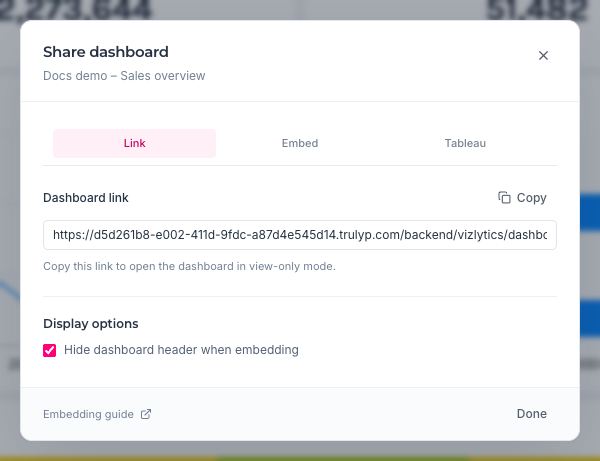
Click **Share** (or **…** > **Share dashboard**) and open the **Link** tab.
Click **Copy** to copy a link that opens the app in view-only mode. Under **Display options** you can:
* **Hide dashboard header when embedding**: hide the toolbar with the app name and buttons.
* **Include current filters**: add the current filter values to the link, so the app opens with the same selection. This option appears when filters are active.
{% hint style="warning" %}
The link is not public. Whoever opens it must log in to Trulyp and have access to the app.
{% endhint %}
### Embed in a website or portal
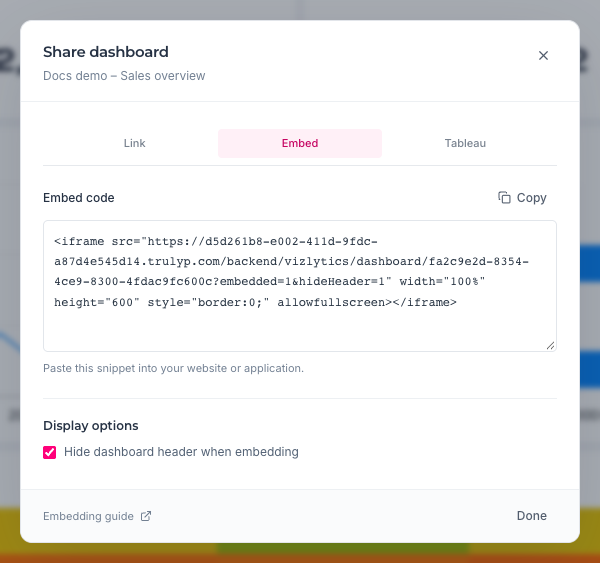
Open the **Embed** tab and click **Copy** to copy an iframe snippet, then paste it into the HTML of your website, intranet or application.
```html
```
Adjust the `width` and `height` to fit your page.
### Show it in Tableau
Open the **Tableau** tab and click **Download TREX**. Add the downloaded `.trex` file to a Tableau dashboard as an extension. It shows the app in view-only mode inside Tableau.
### URL parameters
| Parameter | Effect |
| ---------------------------------------------- | ------------------------------------------------------------------------------------------------ |
| `embedded=1` | Prepares the app for embedding: turns on the messaging API below and hides the Vizzy AI buttons. |
| `hideHeader=1` | Hides the toolbar. |
| Any other parameter, for example `channel=web` | Filters the app on that field. Use the exact field name. One value per field. |
### Control an embedded app from your page
An embedded app can talk to the page around it with `postMessage`. Use this to apply filters from your own website, for example when a user picks a customer in your portal. Click **Embedding guide** in the Share dialog for the full guide with code examples.
1. **Wait for the ready event.** When the app has loaded, it sends a `vizlytics:ready` message with the app id and a list of its visuals.
2. **Apply filters.** Send a `vizlytics:applyFilters` message with the values per field, and optionally a `sourceId`.
3. **Clear filters.** Send `vizlytics:clearFilters`.
```javascript
const frame = document.getElementById('trulyp-app');
window.addEventListener('message', (event) => {
if (event.data?.type === 'vizlytics:ready') {
frame.contentWindow.postMessage({
type: 'vizlytics:applyFilters',
dimensions: { channel: ['web'], country_code: ['NL', 'BE'] },
}, '*');
}
});
```
{% hint style="info" %}
Check the embedding guide in your environment for the exact message format of your version.
{% endhint %}
---
# Agent Instructions
This documentation is published with GitBook. GitBook is the documentation platform designed so that both humans and AI agents can read, navigate, and reason over technical content effectively. Learn more at gitbook.com.
## Querying This Documentation
If you need additional information that is not directly available in this page, you can query the documentation by asking a question.
Perform an HTTP GET request on the following URL with the `ask` and `goal` query parameters:
```
GET https://docs.infotopics.com/trulyp/analytics/sharing-and-embedding.md?ask=&goal=
```
`ask` is the immediate question: it should be specific, self-contained, and written in natural language.
`goal` is what the user is ultimately trying to achieve, the reason they need the answer. Sharing it helps GitBook give you a better, more relevant answer. A goal is most helpful when it describes the outcome the user wants rather than restating the question. For example, with `ask=how do I create an API token`, a goal like `automate deployments from our CI pipeline` lets GitBook tailor the answer to that use case.
The response will contain a direct answer to the question and relevant excerpts and sources from the documentation.
Use this mechanism when the answer is not explicitly present in the current page, you need clarification or additional context, or you want to retrieve related documentation sections.