> For the complete documentation index, see [llms.txt](https://docs.infotopics.com/llms.txt). Markdown versions of documentation pages are available by appending `.md` to page URLs; this page is available as [Markdown](https://docs.infotopics.com/trulyp/analytics/filters-and-interactivity.md).
# Filters and interactivity
Analytics apps are interactive. You can narrow down the data with filters, click a chart to filter the rest of the page, hover for details, and use buttons to move between pages.
Clicking "web" in the bar chart filters the KPI cards, the line chart and the donut
### Filters
A filter is a [dashboard object](/trulyp/analytics/visuals/dashboard-objects.md#filter) that you add from the **Visuals** tab. Pick one or more values, and the visuals you selected as targets update.
The whole page filtered on the "mobile" channel
**Set up a filter**
1. Add a **Filter** from **Dashboard Objects** in the **Visuals** tab.
2. Choose the **Data source** and the **Dimension**.
3. Set a **Label** and a **Placeholder**.
4. Choose the **Presentation**: a **Dropdown** or a **Radio list**.
5. Choose extra options:
* **Allow multiple selections** (dropdown only): tick several values, including **All values**.
* **Show search box**: adds a search field above the values.
* **Show value counts**: shows the number of rows next to each value.
6. Under **Filter target visuals**, choose which visuals respond to the filter. See [Choose which visuals respond](#choose-which-visuals-respond).
**Choose which visuals respond**
A new filter applies to **All visuals** on the page, including visuals you add later.
* Untick **All visuals** and tick the visuals that should respond. Visuals you add later are then not filtered, so tick them as well.
* If you untick **All visuals** and leave every visual unticked, the filter doesn't change anything.
* If you tick every visual one by one, Trulyp switches back to **All visuals**.
{% hint style="info" %}
Filters that you created in an earlier version with no targets still have no targets. Tick **All visuals** to make them respond again.
{% endhint %}
**Date filters**
When you filter on a date, choose a **Filter mode**:
| Filter mode | How it works |
| ----------------- | --------------------------------------------------------------------------------------------------------------------------------------------------------------------------------------------------------------------------------------------------------------------------------- |
| **Periods** | Pick from a list of periods. Set the **Granularity** (None, Year, Quarter, Month, Week or Day) and the **Date interpretation**: **Continuous (chronological)** keeps the year (September 2025), **Discrete (recurring)** combines the same period across years (every September). |
| **Date range** | Choose a **Start Date** and **End Date** and click **Apply Filter**. |
| **Relative date** | Choose **Today**, **Yesterday**, **Last 7 days**, **Last 30 days**, **This week**, **This month**, **This quarter** or **This year**. The period is recalculated every time the app loads, so "This month" always means the current month. |
### Cross-filtering
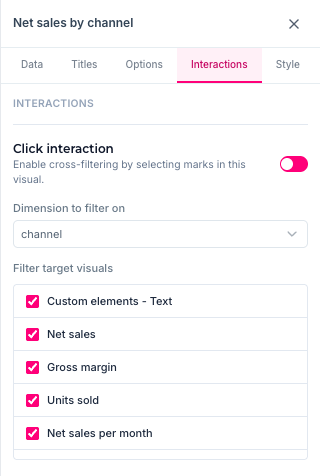
When **Click interaction** is on for a chart, you can click a bar, slice, point or cell to filter other visuals.
* **Click** a mark to filter on that value. The selected mark stays highlighted and the others fade.
* **Ctrl+click** (**Cmd+click** on a Mac) to add more values to the selection.
* **Click the same mark again**, double-click it, or click an empty part of the chart to clear the selection.
Set it up on the **Interactions** sub-tab of the chart:
* **Click interaction**: on or off.
* **Dimension to filter on**: the field used for the filter.
* **Filter target visuals**: the visuals that respond. Tick **All visuals** to filter every visual on the page, including visuals you add later, or untick it and tick the visuals you want. New visuals start with **All visuals** ticked.
### The Filters overview
The **Filters** icon in the toolbar shows a badge with the number of active filters. Click it to open **Dashboard filters**.
* **Active filter values** lists every active selection, from filters, charts and the URL. Click **✕** on a value to remove it, **Clear** to clear one source, or **Clear filters** to clear everything.
* **Global filters** shows the filters that live in the toolbar instead of on the canvas.
### Global filters
A filter can be placed on the canvas or in the toolbar's **Filters** menu. Filters in the menu are called **global filters**. They take no space on the canvas and are always one click away in the toolbar.
In the editor, open **Filters** > **Global filters** and click **Move to global filters** next to a canvas filter. Click **Move to canvas** to put it back.
### Lock a filter value
In the editor, you can fix a filter value so viewers can't change it, for example to make an app show only one country.
1. Select the value in the filter (in the editor).
2. Open **Filters** and click the lock icon next to the selection.
3. Save the app.
Viewers see the value as **Fixed**. They can't change or clear it, and the filter control on the canvas is disabled.
{% hint style="info" %}
Filter selections you make **in the editor** are saved with the app and are the starting point for every viewer. Selections viewers make are not saved.
{% endhint %}
### Filters in the URL
You can pass filter values in the address of an app. Every parameter that is not a setting is used as a filter on the field with that name:
```
https:///backend/vizlytics/dashboard/?channel=web&country_code=NL
```
These filters show up as **URL Filters** in the Filters overview. Use this to link from another system to a pre-filtered app. See also [Sharing and embedding](/trulyp/analytics/sharing-and-embedding.md).
### Tooltips
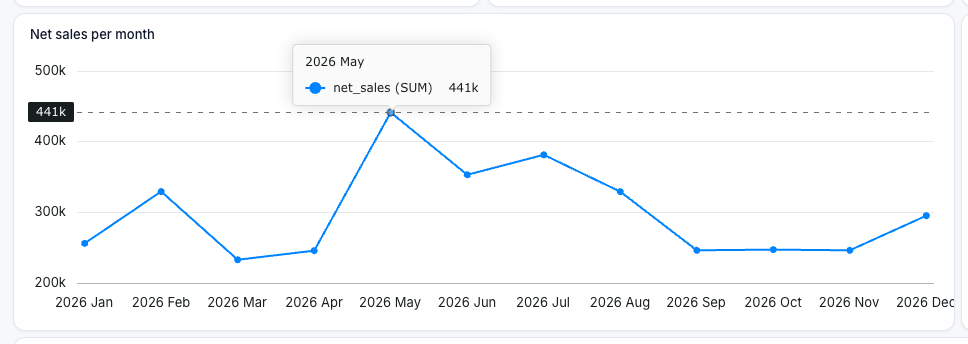
Hover over a chart to see the exact values. Tooltips are on by default; switch them off for one visual under **Styling** > **Interactions**, or for the whole app in the [Dashboard settings](/trulyp/analytics/global-chart-options.md#formatting-defaults).
### Buttons and page navigation
Add a [button](/trulyp/analytics/visuals/dashboard-objects.md#button) to:
* **Navigate to page**: build a menu or a "Back to overview" link.
* **Toggle layer**: show or hide another visual, for example a help panel.
* **Apply filter**: filter visuals on a fixed value with one click, for example "Show Europe".
* **Clear all filters**: reset the page.
* **Open URL / email**: link to a website or start an email.
Buttons only work in view mode and in **Preview**.
### Zoom and navigator
For charts with a lot of data over time, switch on **Zoom interactions** or the **Navigator** under **Styling** > **Interactions** (or in the Dashboard settings for all charts). You can then zoom in on a period.
---
# Agent Instructions
This documentation is published with GitBook. GitBook is the documentation platform designed so that both humans and AI agents can read, navigate, and reason over technical content effectively. Learn more at gitbook.com.
## Querying This Documentation
If you need additional information that is not directly available in this page, you can query the documentation by asking a question.
Perform an HTTP GET request on the following URL with the `ask` and `goal` query parameters:
```
GET https://docs.infotopics.com/trulyp/analytics/filters-and-interactivity.md?ask=&goal=
```
`ask` is the immediate question: it should be specific, self-contained, and written in natural language.
`goal` is what the user is ultimately trying to achieve, the reason they need the answer. Sharing it helps GitBook give you a better, more relevant answer. A goal is most helpful when it describes the outcome the user wants rather than restating the question. For example, with `ask=how do I create an API token`, a goal like `automate deployments from our CI pipeline` lets GitBook tailor the answer to that use case.
The response will contain a direct answer to the question and relevant excerpts and sources from the documentation.
Use this mechanism when the answer is not explicitly present in the current page, you need clarification or additional context, or you want to retrieve related documentation sections.