> For the complete documentation index, see [llms.txt](https://docs.infotopics.com/llms.txt). Markdown versions of documentation pages are available by appending `.md` to page URLs; this page is available as [Markdown](https://docs.infotopics.com/supertables/configuration/setting-up-supertables-with-data-service.md).
# Setting up SuperTables with Data Service
This guide lets you get started with SuperTables with server side processing for large data sets.
SuperTables primarily relies on the Tableau Extensions API to retrieve summary data. As a result, most processing occurs on the client side, and all data is loaded at once. To address performance limitations with large datasets, we are introducing a new approach that leverages server-side processing. This significantly reduces client-side load and improves scalability. To use this feature, users must be on **SuperTables version 6.x.x or later** and **WriteBackExtreme version 6.x.x or later**.
### Setting up a data source.
These steps require you to create a semantic model in the WriteBackExtreme environment. You can follow this guide here to create a semantic model in WriteBackExtreme [Semantic modeling](/writebackextreme/features/management-console/semantic-modeling.md)
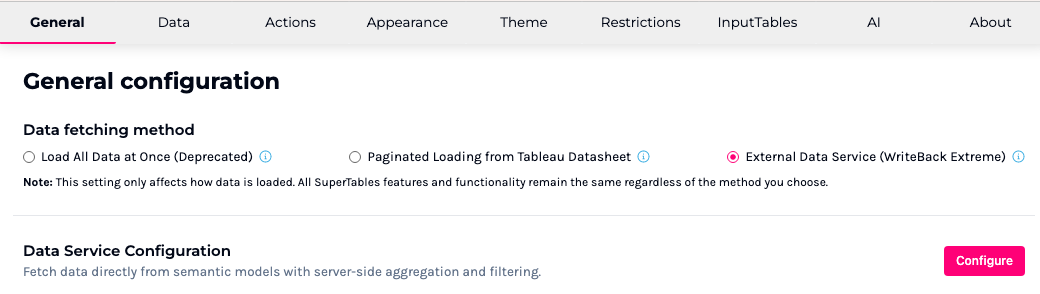
In the general tab, select **External Data Service** and then click on the **Configure** button to log into WriteBack Extreme, and connect to a data source.
Please contact your WriteBackExtreme administrator for the login URL and credentials.
#### Connecting to a Data Source
In this step, you can connect to a semantic model created in WriteBackExtreme. Click on the dropdown below, select the data source to connect to a Data Source.
Once a data source is connected, a list of all available columns is displayed. When the data source loads for the first time, all columns are disabled by default. Users can select only the columns they require, and this selection can be modified at any time from the Columns sidebar.
For very large datasets, loading all columns at once can negatively impact performance, so selecting only the necessary columns is recommended.
**Auto aggregation**
SuperTables with Data Service also support dynamic aggregation based on the visible columns in the table. This is a processing-intensive but very useful feature. When enabled, the data is aggregated based on the currently visible columns.
For example, if only **Category** and **Sales** are visible, the table displays unique categories with the sum of sales. If **Category**, **Region**, and **Sales** are visible, the table shows sales aggregated by category per region.
When this option is disabled, non-aggregated data is passed directly from the database to the grid.
#### Export limitations when using the External Data Service
When **External Data Service (WriteBackExtreme)** is selected as the data fetching method, **export options (CSV, XLS, PDF)** are intentionally disabled.
This behavior is **by design** for the following reasons:
**Performance**
* The External Data Service is typically used for **very large datasets**.
* Exporting large datasets directly from the extension could lead to **performance issues or very large file downloads**.
**Security**
* The data service provides **direct access to backend data sources**.
* Allowing unrestricted export could expose **large portions of the underlying dataset**, which may not be intended.
Because of this, export functionality is only available when using **Tableau Datasheet-based loading methods**, where Tableau controls the dataset size.
---
# Agent Instructions
This documentation is published with GitBook. GitBook is the documentation platform designed so that both humans and AI agents can read, navigate, and reason over technical content effectively. Learn more at gitbook.com.
## Querying This Documentation
If you need additional information that is not directly available in this page, you can query the documentation by asking a question.
Perform an HTTP GET request on the following URL with the `ask` and `goal` query parameters:
```
GET https://docs.infotopics.com/supertables/configuration/setting-up-supertables-with-data-service.md?ask=&goal=
```
`ask` is the immediate question: it should be specific, self-contained, and written in natural language.
`goal` is what the user is ultimately trying to achieve, the reason they need the answer. Sharing it helps GitBook give you a better, more relevant answer. A goal is most helpful when it describes the outcome the user wants rather than restating the question. For example, with `ask=how do I create an API token`, a goal like `automate deployments from our CI pipeline` lets GitBook tailor the answer to that use case.
The response will contain a direct answer to the question and relevant excerpts and sources from the documentation.
Use this mechanism when the answer is not explicitly present in the current page, you need clarification or additional context, or you want to retrieve related documentation sections.