> For the complete documentation index, see [llms.txt](https://docs.infotopics.com/llms.txt). Markdown versions of documentation pages are available by appending `.md` to page URLs; this page is available as [Markdown](https://docs.infotopics.com/supertables/configuration/configuration-screen/export-tab.md).
# Export Tab
Here you can decide what will be exported and how it will be formatted when exporting your SuperTable.
#### **Floating export buttons**
Add buttons to the bottom section of SuperTables that allow for easy exporting of the current view to Excel, CSV or PDF.
#### Export button display type
Select the way you want the export buttons to be displayed in the table, either in a drop down menu or as an icon.
{% tabs %}
{% tab title="Show button as icon" %}
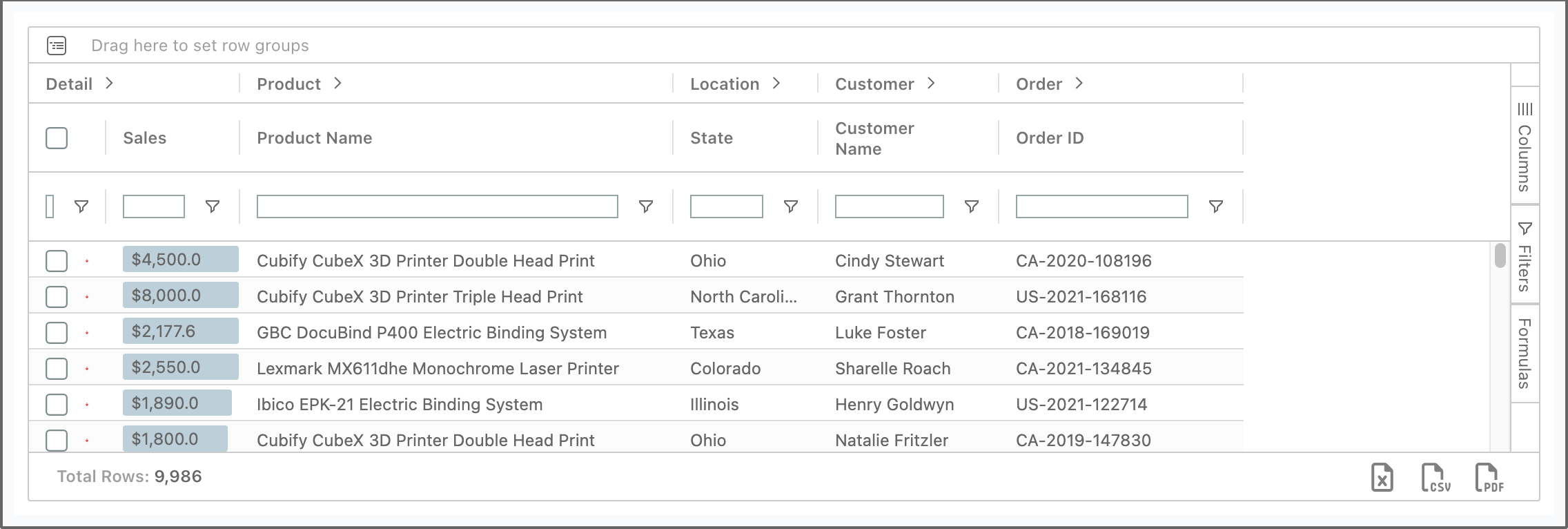
This displays the export buttons as icons.
Icon mode for export buttons
{% endtab %}
{% tab title="Show button in dropdown menu" %}
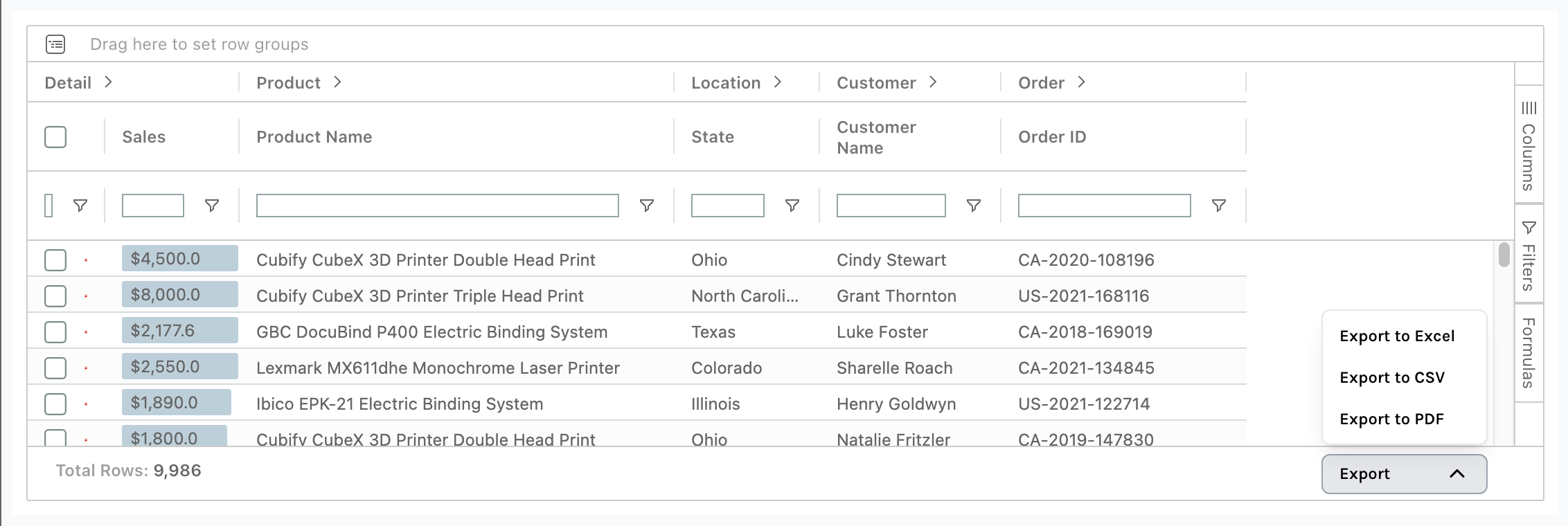
This displays the export button in a dropdown menu.
Dropdown menu mode for export buttons
{% endtab %}
{% endtabs %}
#### **Export without SuperTable/dashboard styling (clean, neutral output)**
Enable this option to export the table without the styling applied in SuperTables or inherited from the Tableau dashboard. The export uses a clean, neutral appearance instead.
Use this when the exported file should contain the table structure and data without dashboard-specific colors and styling.
#### **Differentiate between even and odd rows**
Use the row banding when you do an export to Excel.
#### **The first line are column header names**
Export the column header names as a first row in the export.
#### **Include header column grouping**
If you use grouping, you can choose to include the header of the column grouping in your export.
#### **Include group rows**
When using the grouping option, you can decide if you want to include grouped rows as well in your export.
#### **Export visible columns only**
In SuperTables you can show/hide columns, this option allows you to export visible columns only or use all available columns.
#### **Export all rows except last level**
If you want your users to prevent to export the lowest member of your groupings, you can use this option. The row level data will not be exported because the export only contains the aggregated data of your grouping structure.
#### **Format exported values (CSV files)**
In the DATA tab of configuration you can set the formatting of your measures. This option allows you to include this formatting in your export, or use the raw data without the formatting on the Configuration | DATA pane. SuperTables will not export the formatting of the table in your dashboard because this is only about the formatted values in the export.
#### **Include formatting in copied values**
In the DATA tab of configuration you can set the formatting of your measures. This option allows you to include or exclude this formatting when you copy selected cells (or rows) to the clipboard using the context menu (context menu can be accessed by using a right mouse click)
#### **Export Name**
Change the default file name when exporting to CSV or Excel. By default (no changes), the extension will be “export.xlsx” for Excel and “export.csv” for CSV exports. You can change the default filename and the file extension. For example, Newfilename – Newfilename.txt. If you want a dynamic export name, you can store the export filename in a parameter in Tableau and use the "Use parameter value" option to choose a parameter as the export value.
#### **Limit Exporting**
Limit the amount of rows allowed exporting. This will export only the top amount of rows you decide on.
## Enterprise Only
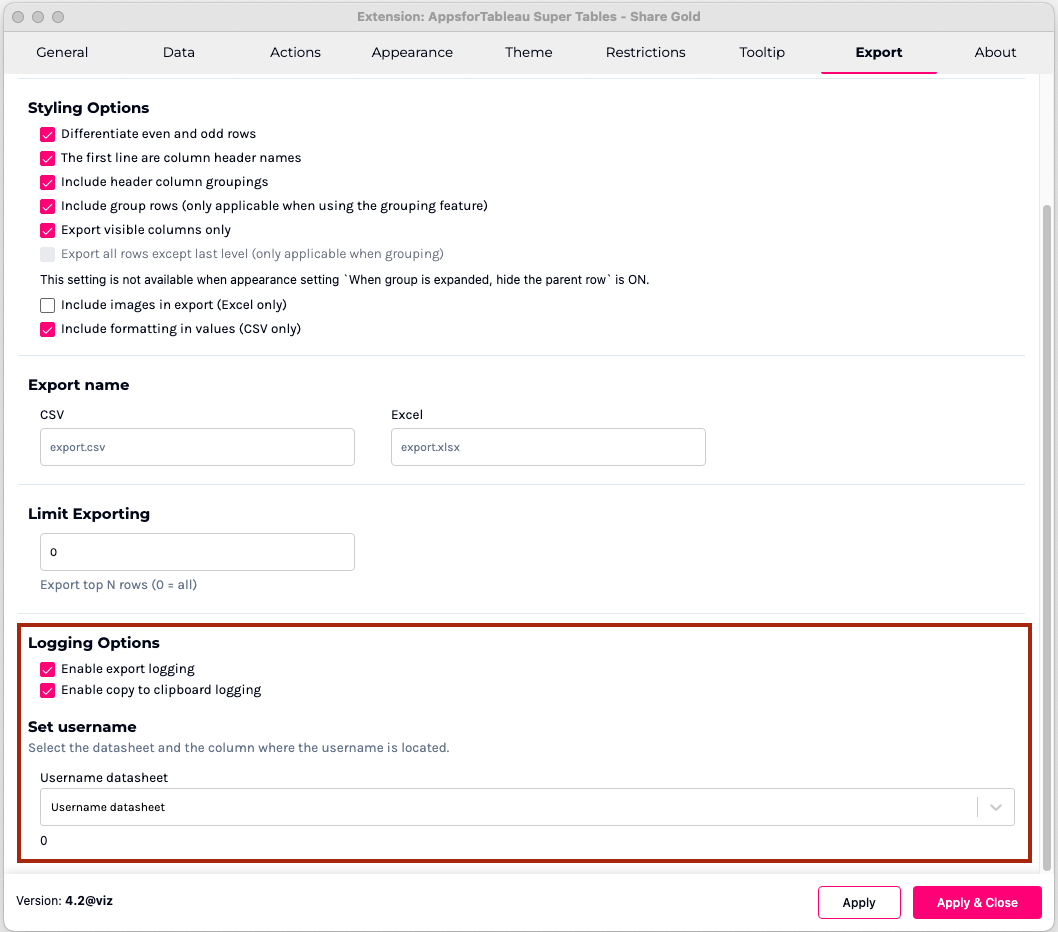
#### **Logging Options(Enterprise Only)**
Audit export and copy actions in SuperTables in a log file on the server where SuperTables is hosted. The log file will be found in the folder where the SuperTables binary is running. Log rows exist out of: Who, When, What (Number of Rows, Number of Columns), Type (Export, Copy), Dashboard, Workbook.
#### **Set usernames(Enterprise Only)**
Select a worksheet and column containing the username(). enable/disable audit on export and audit on copy. To create the user name you can create a calculated field and name it ‘Username’ with the calculation ‘USERNAME()’ Drag this to the marks pane of your datasheet.
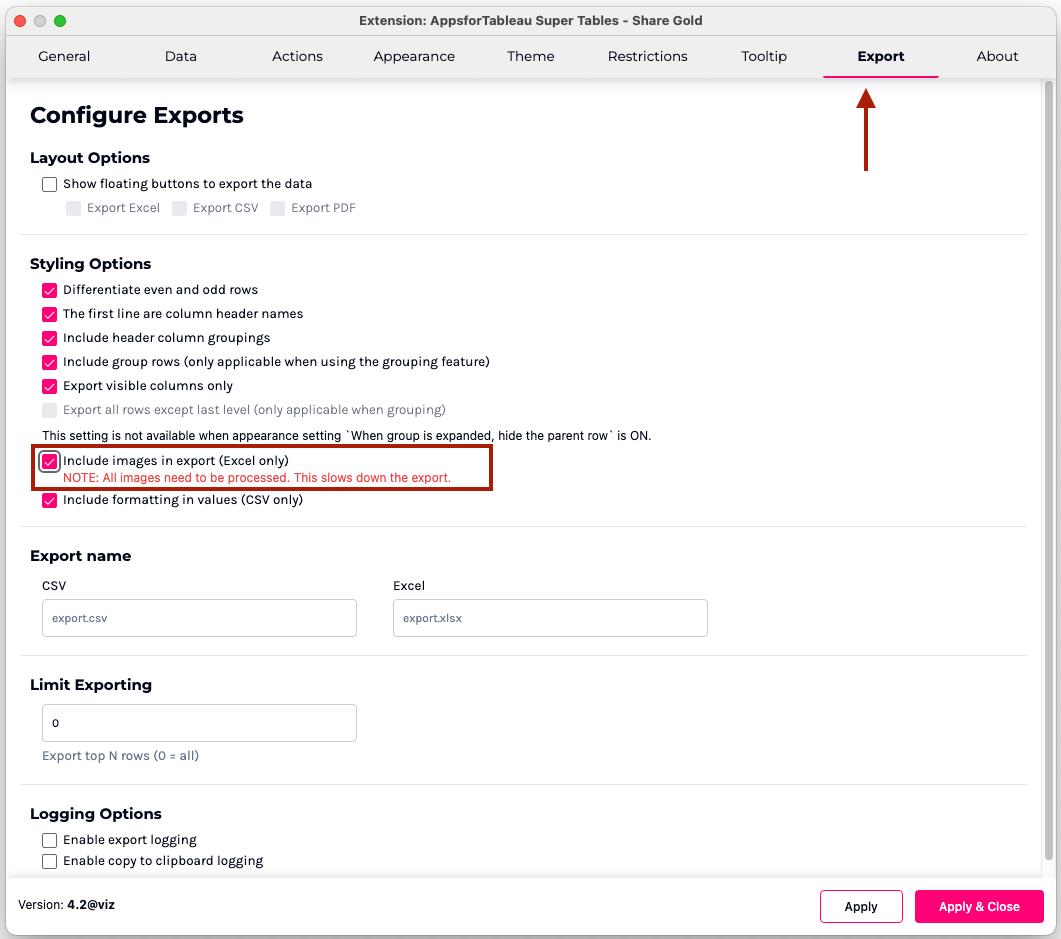
#### Export Image
SuperTables enterprise enables you to export images that are present in your table to Excel. Click the include images in export option to enable this functionality.
**Note: Only PDF does not support text styles. This means any text styles set for both the column header and column values such as BOLD, ITALICS etc in the SUperTables view will not be included in the PDF export.**
---
# Agent Instructions
This documentation is published with GitBook. GitBook is the documentation platform designed so that both humans and AI agents can read, navigate, and reason over technical content effectively. Learn more at gitbook.com.
## Querying This Documentation
If you need additional information that is not directly available in this page, you can query the documentation by asking a question.
Perform an HTTP GET request on the following URL with the `ask` and `goal` query parameters:
```
GET https://docs.infotopics.com/supertables/configuration/configuration-screen/export-tab.md?ask=&goal=
```
`ask` is the immediate question: it should be specific, self-contained, and written in natural language.
`goal` is what the user is ultimately trying to achieve, the reason they need the answer. Sharing it helps GitBook give you a better, more relevant answer. A goal is most helpful when it describes the outcome the user wants rather than restating the question. For example, with `ask=how do I create an API token`, a goal like `automate deployments from our CI pipeline` lets GitBook tailor the answer to that use case.
The response will contain a direct answer to the question and relevant excerpts and sources from the documentation.
Use this mechanism when the answer is not explicitly present in the current page, you need clarification or additional context, or you want to retrieve related documentation sections.