> For the complete documentation index, see [llms.txt](https://docs.infotopics.com/llms.txt). Markdown versions of documentation pages are available by appending `.md` to page URLs; this page is available as [Markdown](https://docs.infotopics.com/supertables/configuration/configuration-screen/actions-tab.md).
# Actions Tab
{% hint style="info" %}
This guide is for **Tableau** only.
{% endhint %}
{% hint style="info" %}
To use Actions with the External Data service, an additional step is needed, which you can read about here: [Dashboard Actions and Mapping](/supertables/configuration/setting-up-supertables-with-data-service/dashboard-actions-and-mapping.md)
{% endhint %}
Configuring actions
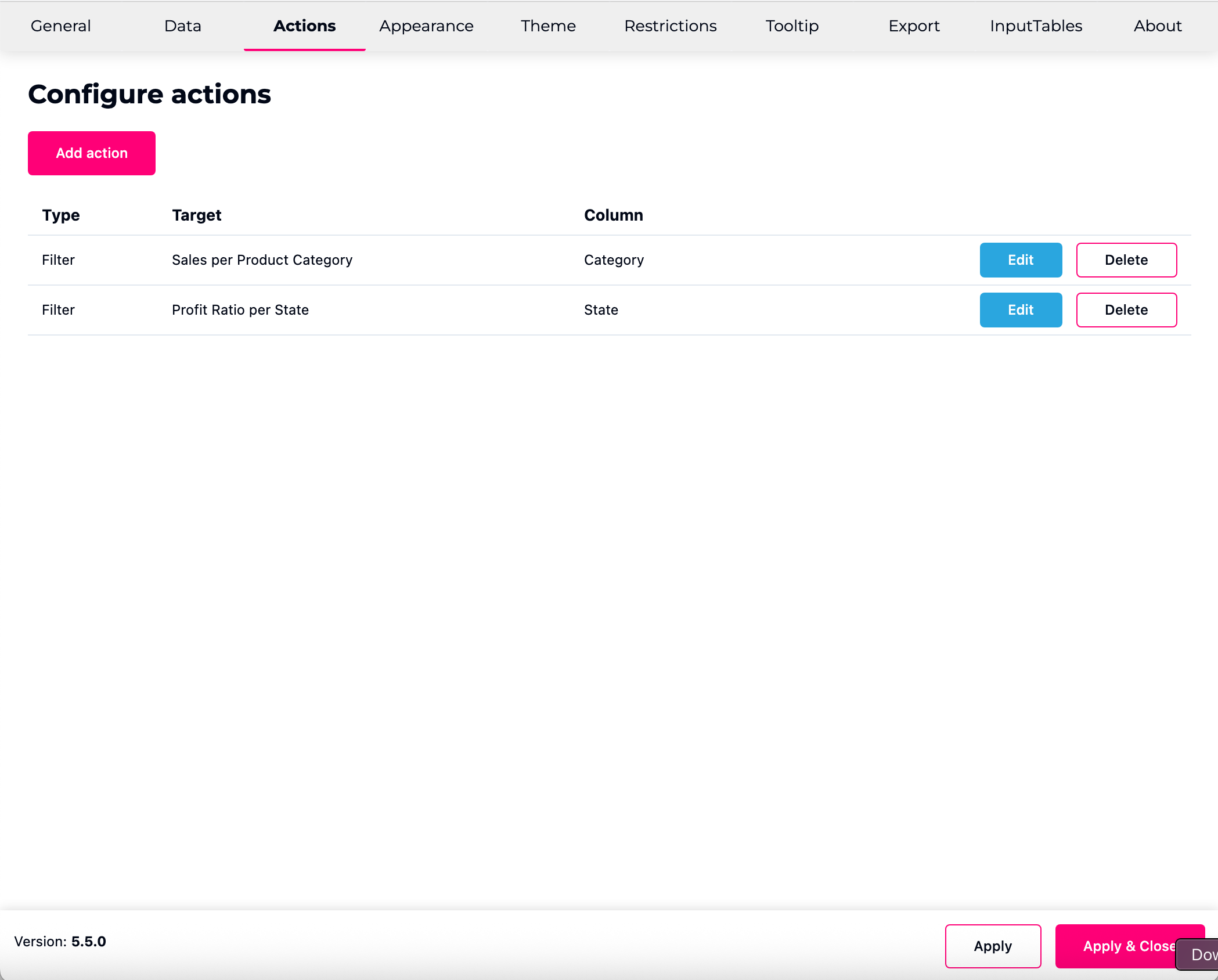
Interaction between visualizations and sheets in your dashboard is an important aspect of Tableau. SuperTables supports a high degree of interactivity by using a “Dashboard actions” like mechanism. Actions in SuperTables are based on row selection. You can either select one or multiple rows which will trigger your Dashboard Action. To start configuring the Dashboard Actions by SuperTables, click the “Actions” tab in the configure screen. In this screen you can either edit an existing action (by default, no actions are present) or create a new action. To create a new action click the pink “**Add action**” button. You will be presented a modal popup where you can configure your action.
Creating/Editing an action
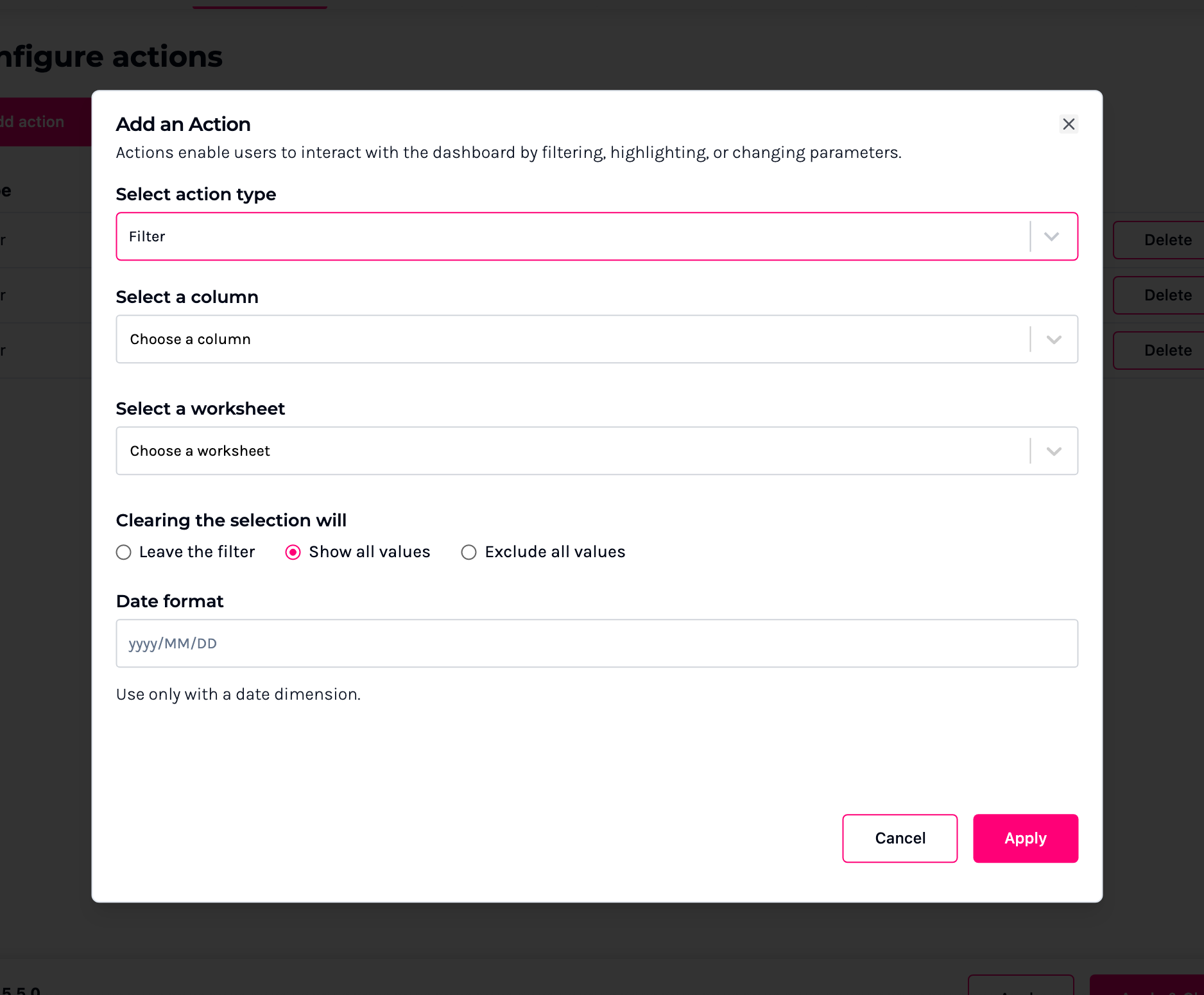
**Select action type**
SuperTables supports three types of action:
1. Filter action: This allows you to use one column value of the selected row to filter upon another sheet of your dashboard.
2. Parameter action: This will allow you to fill a parameter with the value of a column of one (or more) selected rows.
3. Highlight Action: This action allows you to highlight the value of a column of your selected row(s) in another sheet of your dashboard.
4. Hide/Show elements action: This action allows you to hide/show a floating container when selecting/deselecting a row in SuperTables. Combine it with a Filter / Parameter action to show a filtered graph when clicking on a row in SuperTables.
**Select a column**
Choose which column will be used to execute the action. This is not the column that will trigger the execution of the action but this is the value that will be used as a filter, parameter value or highlight value in this specific action.
**Select a worksheet**
Choose the target worksheet you wish your action to trigger, SuperTables actions can be applied to one single target sheet only.
**Clearing the selection will**
Select how you want your action to behave when the (row) selection is undone. You can choose to leave the filter, show all values again or exclude all values.
**Data format**
If you use a date field as a column value to be used in your action, you can set what format you want to use as a filter value.
#### Dashboard actions with the Data Service
In the data service, you will need to select the **mapping** you made when setting up dashboard actions. This field determines which mapping is used when the action is triggered. Since a dashboard can contain multiple mappings, explicitly selecting the correct one ensures that the action corresponds to the intended data and behaves as expected.
To set up the mapping, you can read the instructions here:
{% content-ref url="/pages/wurhi6UBXnnkYPm9fKZk" %}
[Dashboard Actions and Mapping](/supertables/configuration/setting-up-supertables-with-data-service/dashboard-actions-and-mapping.md)
{% endcontent-ref %}
---
# Agent Instructions
This documentation is published with GitBook. GitBook is the documentation platform designed so that both humans and AI agents can read, navigate, and reason over technical content effectively. Learn more at gitbook.com.
## Querying This Documentation
If you need additional information that is not directly available in this page, you can query the documentation by asking a question.
Perform an HTTP GET request on the following URL with the `ask` and `goal` query parameters:
```
GET https://docs.infotopics.com/supertables/configuration/configuration-screen/actions-tab.md?ask=&goal=
```
`ask` is the immediate question: it should be specific, self-contained, and written in natural language.
`goal` is what the user is ultimately trying to achieve, the reason they need the answer. Sharing it helps GitBook give you a better, more relevant answer. A goal is most helpful when it describes the outcome the user wants rather than restating the question. For example, with `ask=how do I create an API token`, a goal like `automate deployments from our CI pipeline` lets GitBook tailor the answer to that use case.
The response will contain a direct answer to the question and relevant excerpts and sources from the documentation.
Use this mechanism when the answer is not explicitly present in the current page, you need clarification or additional context, or you want to retrieve related documentation sections.