> For the complete documentation index, see [llms.txt](https://docs.infotopics.com/llms.txt). Markdown versions of documentation pages are available by appending `.md` to page URLs; this page is available as [Markdown](https://docs.infotopics.com/showmemore/features/source-target-sankey-diagram/dashboard-actions.md).
# Dashboard actions
Dashboard actions are available within your Source Target Sankey Diagram! Use the ‘New Action’ to begin setting up the dashboard action.
[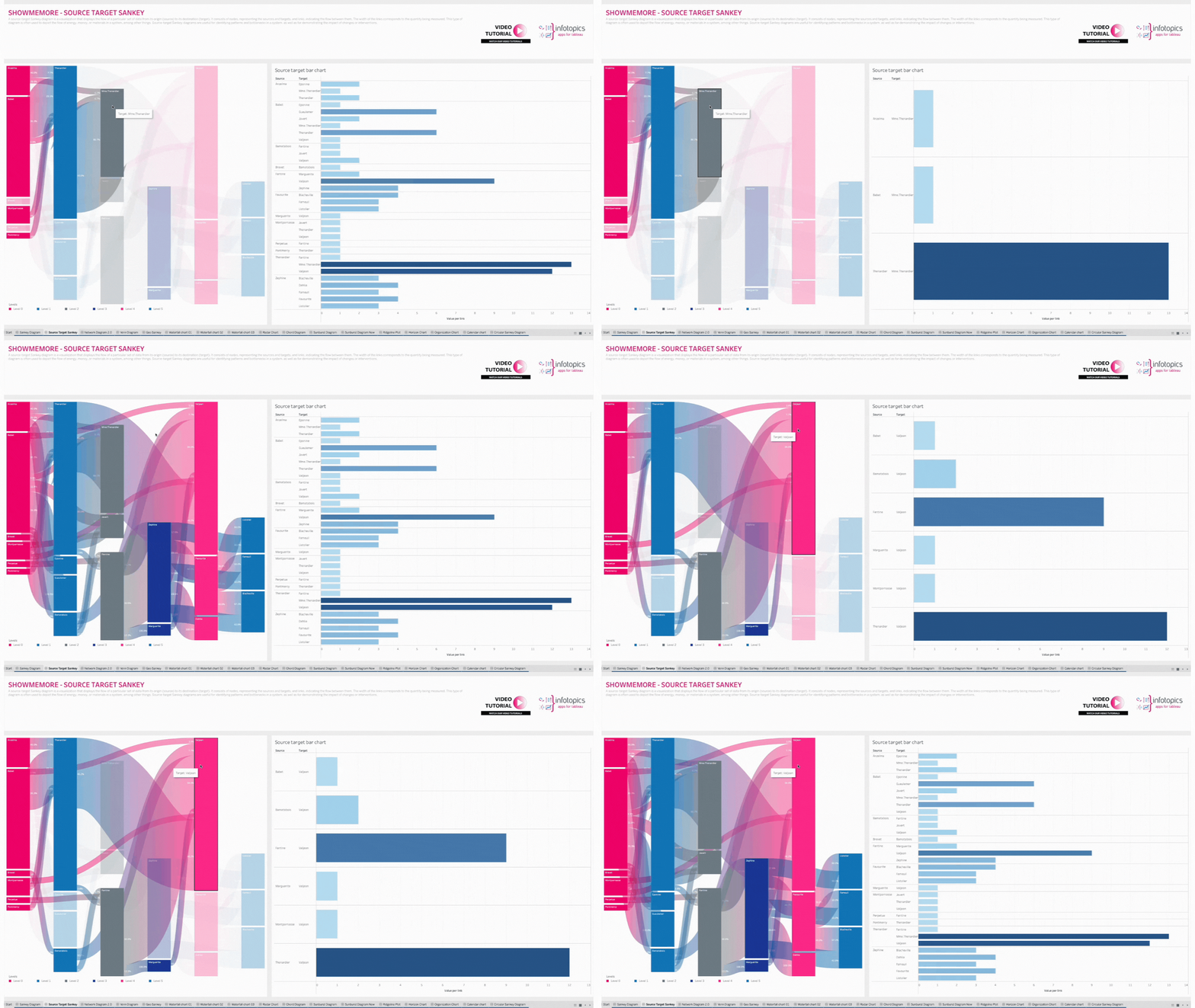](https://appsfortableau.infotopics.com/wp-content/uploads/2023/03/ShowMeMore-Dashboard-Actions.gif)
#### Action type
Set up your dashboard action using a **filter** or a **parameter** from the dropdown menu. With the filter option you can trigger a dashboard action that filters on other sheets in your dashboard. A parameter action will change the value of a parameter to the node or link you selected in the Sankey. Very powerful features to control interactivity and usability!
#### Trigger on
Decide whether to trigger the dashboard action when you click on a **node** or a **link** from your Sankey Diagram.
#### Target sheet
Here you can select the sheet(s) you want to be the target of your dashboard action. Beware that you do not set your datasheet as a target sheet for the actions otherwise it will be hard to reset your filters!
#### Deselecting will
This powerful feature will give you control of your configured dashboard action. Use the dropdown to decide what you wish to happen once you’ve deselected your mark(s) in the Sankey. You can choose to show all data again in the target sheet(s), show no data at all or leave the filter as it was.
#### Advanced filtering
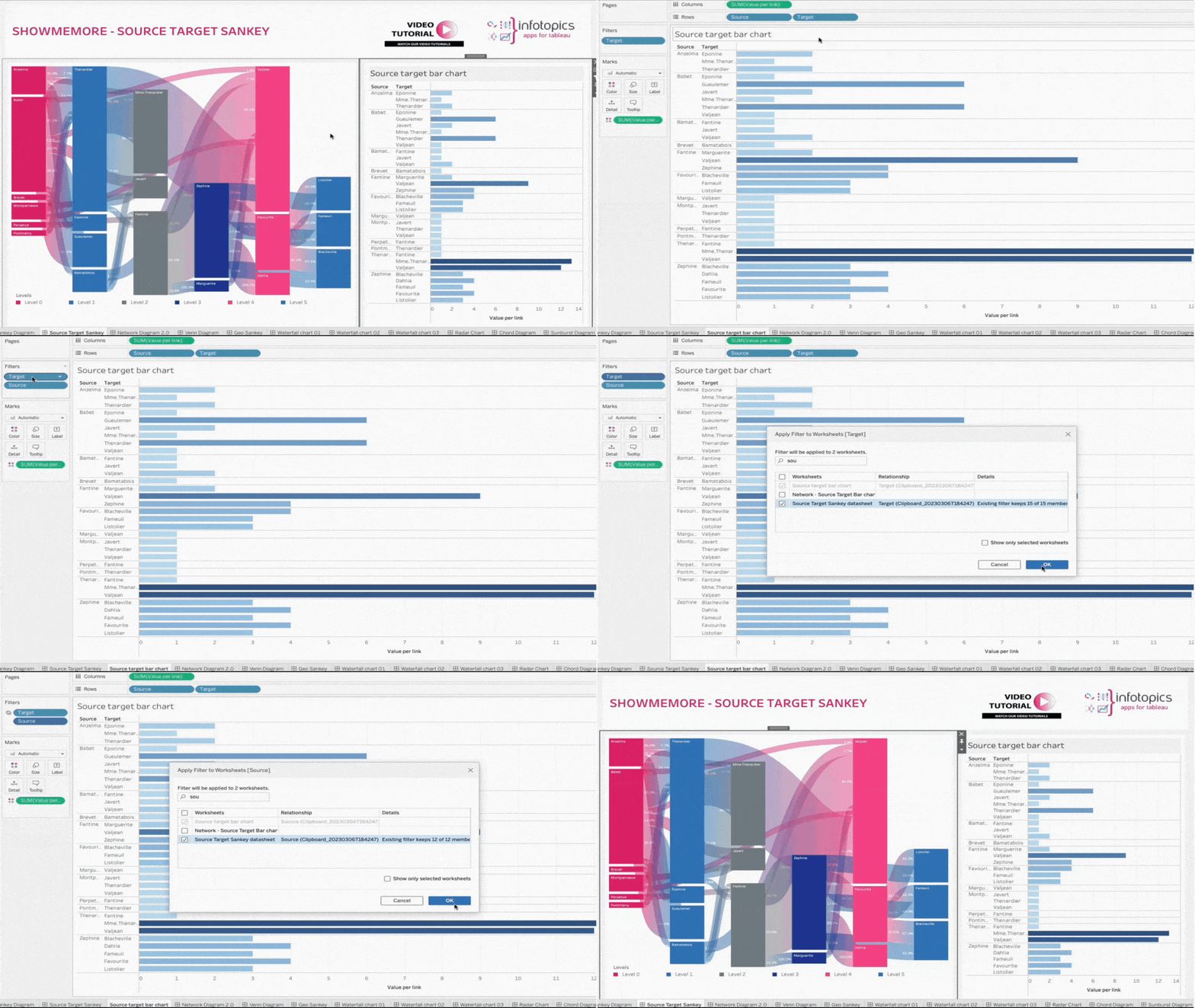
Using the Filter Type option in the configuration, it is possible to set the filter to apply to all nodes connected to a selected node. This filter can then be applied to the Sankey Diagram as well, allowing users to zoom into their selection on both connected sheets and the Sankey sheet with a single click! To set this up, follow these steps:
1. Set the Filter Type to “All nodes connected to the selected node will be used as a filter”
2. Create a dashboard action targeting a second data sheet in your dashboard (in the example below, the action targets the Bar Chart for filtering)
3. Go to the second sheet and add 2 filters; the source and target dimensions
4. Set the filters to “Use all”, then right click to apply the filters to selected worksheets and select the data source sheet for ShowMeMore
---
# Agent Instructions
This documentation is published with GitBook. GitBook is the documentation platform designed so that both humans and AI agents can read, navigate, and reason over technical content effectively. Learn more at gitbook.com.
## Querying This Documentation
If you need additional information that is not directly available in this page, you can query the documentation by asking a question.
Perform an HTTP GET request on the following URL with the `ask` and `goal` query parameters:
```
GET https://docs.infotopics.com/showmemore/features/source-target-sankey-diagram/dashboard-actions.md?ask=&goal=
```
`ask` is the immediate question: it should be specific, self-contained, and written in natural language.
`goal` is what the user is ultimately trying to achieve, the reason they need the answer. Sharing it helps GitBook give you a better, more relevant answer. A goal is most helpful when it describes the outcome the user wants rather than restating the question. For example, with `ask=how do I create an API token`, a goal like `automate deployments from our CI pipeline` lets GitBook tailor the answer to that use case.
The response will contain a direct answer to the question and relevant excerpts and sources from the documentation.
Use this mechanism when the answer is not explicitly present in the current page, you need clarification or additional context, or you want to retrieve related documentation sections.