> For the complete documentation index, see [llms.txt](https://docs.infotopics.com/llms.txt). Markdown versions of documentation pages are available by appending `.md` to page URLs; this page is available as [Markdown](https://docs.infotopics.com/scrollytelling/configuration/header-configuration.md).
# Header configuration
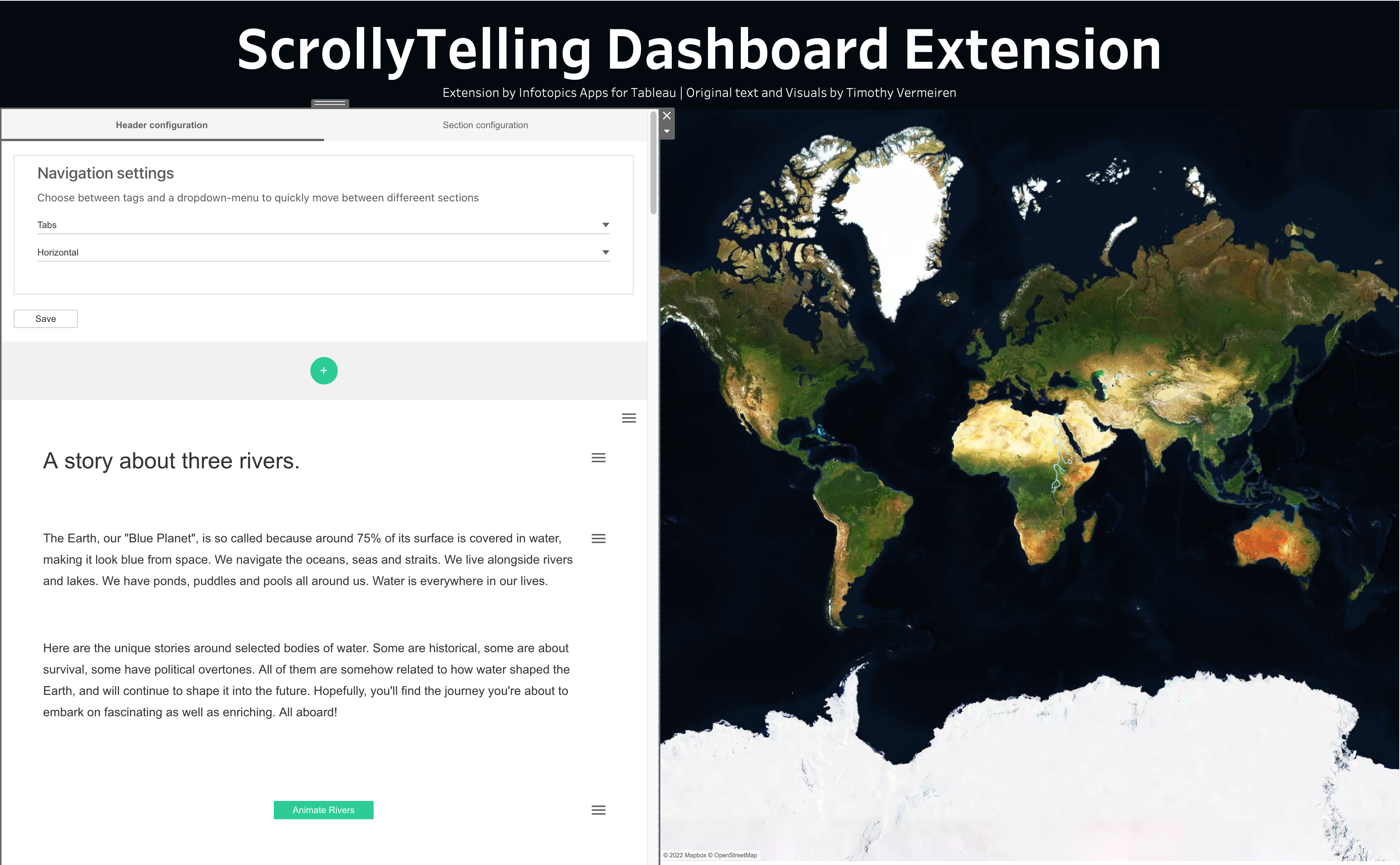
Header configuration lets you choose navigation options for your story. For example, if you are a great storyteller with over 50 sections, scrolling or navigating through the story will be difficult for the reader especially if the reader wants to jump between sections.
To make the navigation in your story easier, there are two types of headers that can be used, dropdowns or tabs. You can position the Dropdown menu on any corner of the extension. By default the section name will be auto-generated (section + section number), you can also choose to have custom text which you can configure while creating the sections. This option can be found if you click the section settings.
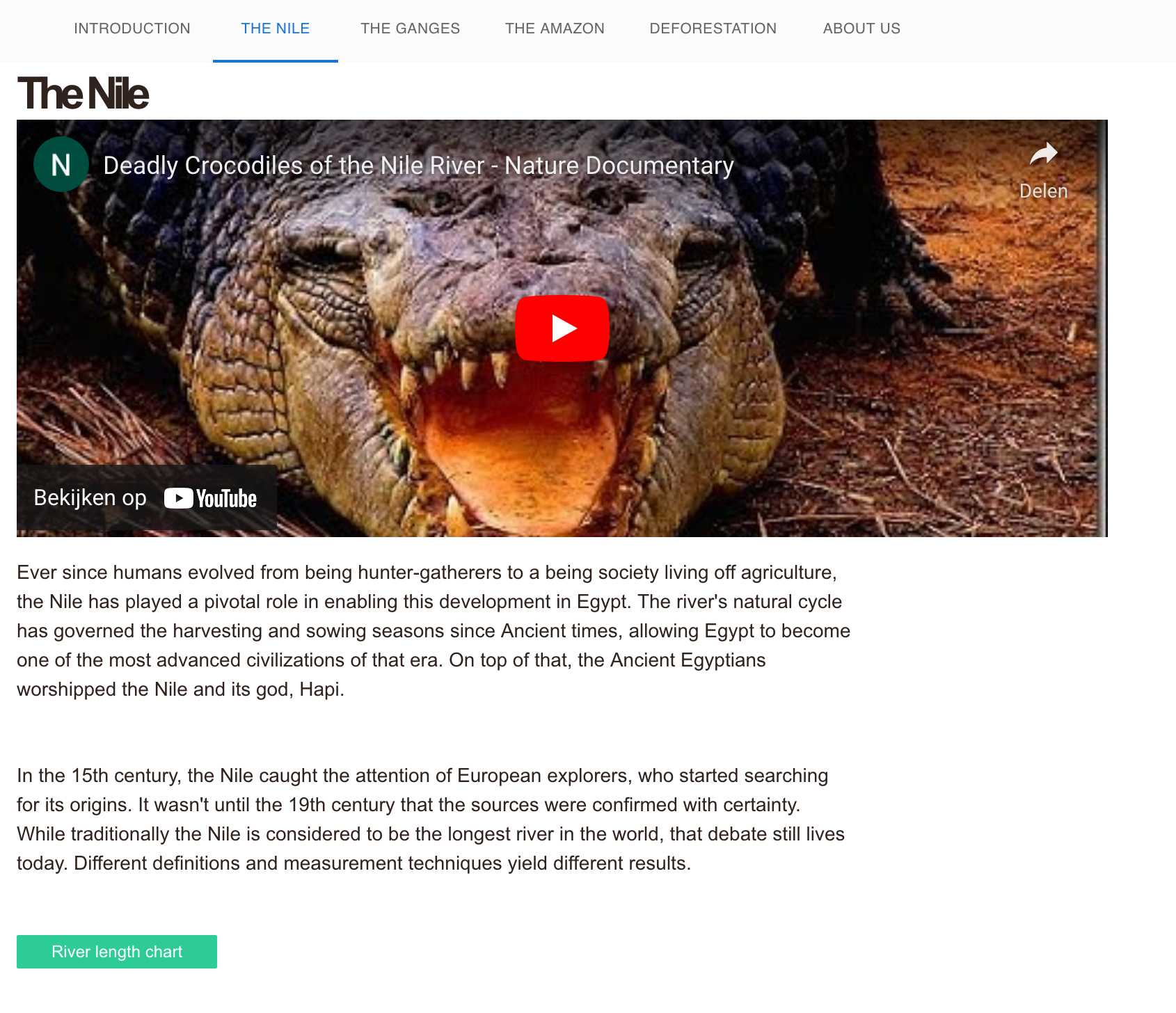
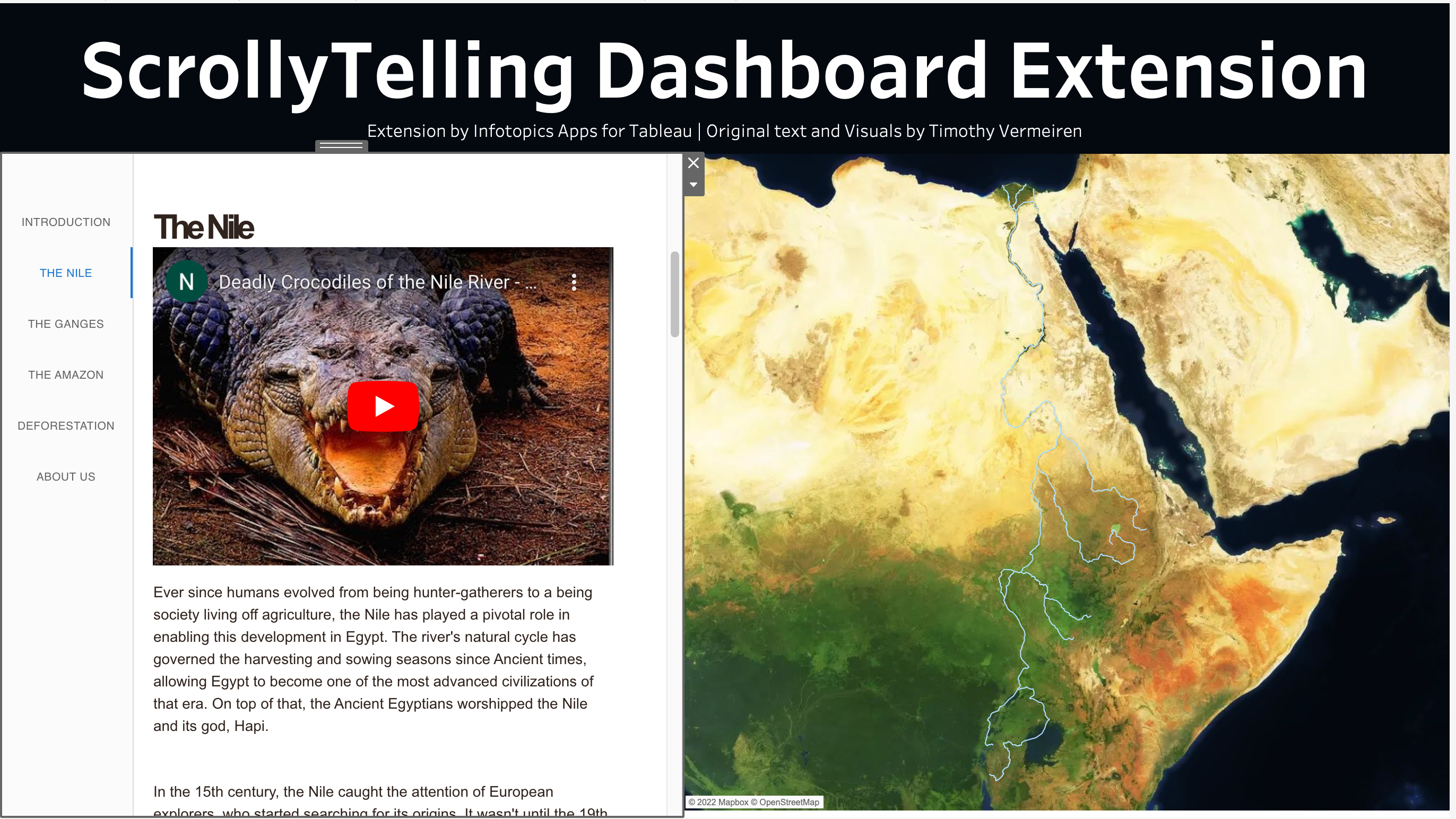
You can configure the tabs also in a similar way with the option to position the tabs at the top or at the left side of the screen. The selection highlighter in tabs moves automatically when you scroll through the story.
#### Tabs
Using the tab view will allow you to click on the tab to the section you wish to show in your view. The tabs will stay at the top or to the left of the pane the whole time. When scrolling through your story the tabs will update to show you which section you’re currently visualizing. We recommend using tabs when you have a considerable amount of sections in your story. If you have a larger number of sections an arrow will appear at the end of tabs with which you can scroll through available tabs.
#### Dropdown
When your story has many sections, using a drop-down menu will best suit your story. Decide where on your viz you’d like to place it in the configuration screen and jump to any section.
---
# Agent Instructions
This documentation is published with GitBook. GitBook is the documentation platform designed so that both humans and AI agents can read, navigate, and reason over technical content effectively. Learn more at gitbook.com.
## Querying This Documentation
If you need additional information that is not directly available in this page, you can query the documentation by asking a question.
Perform an HTTP GET request on the following URL with the `ask` and `goal` query parameters:
```
GET https://docs.infotopics.com/scrollytelling/configuration/header-configuration.md?ask=&goal=
```
`ask` is the immediate question: it should be specific, self-contained, and written in natural language.
`goal` is what the user is ultimately trying to achieve, the reason they need the answer. Sharing it helps GitBook give you a better, more relevant answer. A goal is most helpful when it describes the outcome the user wants rather than restating the question. For example, with `ask=how do I create an API token`, a goal like `automate deployments from our CI pipeline` lets GitBook tailor the answer to that use case.
The response will contain a direct answer to the question and relevant excerpts and sources from the documentation.
Use this mechanism when the answer is not explicitly present in the current page, you need clarification or additional context, or you want to retrieve related documentation sections.