> For the complete documentation index, see [llms.txt](https://docs.infotopics.com/llms.txt). Markdown versions of documentation pages are available by appending `.md` to page URLs; this page is available as [Markdown](https://docs.infotopics.com/processmining/configuration/configure-the-processmining-extension/format-path.md).
# Format path
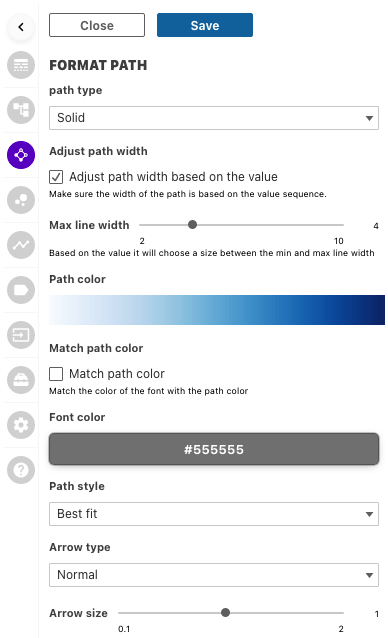
Have the ability to format your paths to give yourself the most effective visualisation. Color, sizing and styles can all be changed here.
#### Path type
Change the style of your path using the dropdown menu. We all like choices so go ahead and choose which best suits your use case.
#### Adjust path width
Check the tick box to allow the width of the path be based on the value of the selected KPI. This can give you extra value on your viz by seeing at a glance the value of each link. A path will be bigger when the KPI has a larger value.
#### Max line width
Use the scroll bar to change the maximum width of the line. It may not be of benefit to have huge lines throughout your process, keeping this low may give a nicer overall look, setting the value higher will differentiate more between lower and higher KPI values.
#### Path color
Click on the color gradient to change the color of the path shown in your viz. Once popped up click again to see the list of colors available for you. Select the color shades of your liking.
#### Match path color
Before deciding on your font color, have the option to match the color of the path you’ve chosen. The Path labels will be shown in the same color as the path will be shown. So coloring of the labels will be depending on the KPI values for the links
#### Font color
Pick your font color using the color palette as well as RGB, HEX and HSL. This will set a fixed font color for the labels on Paths in your Process Map.
#### Path style
Allow the algorithm to choose the path style by selecting best fit or choose from the other options below. You can choose to have straight lines, curved lines, polygon lines etc. By default the style is set to “Best Fit”
#### Arrow types
Choose from the selection of arrow types and use the slider to change the arrows size. Nice and simple.
---
# Agent Instructions
This documentation is published with GitBook. GitBook is the documentation platform designed so that both humans and AI agents can read, navigate, and reason over technical content effectively. Learn more at gitbook.com.
## Querying This Documentation
If you need additional information that is not directly available in this page, you can query the documentation dynamically by asking a question.
Perform an HTTP GET request on the current page URL with the `ask` query parameter, and the optional `goal` query parameter:
```
GET https://docs.infotopics.com/processmining/configuration/configure-the-processmining-extension/format-path.md?ask=&goal=
```
`ask` is the immediate question: it should be specific, self-contained, and written in natural language.
`goal` is optional and describes the broader end goal you are ultimately trying to accomplish on behalf of the user. GitBook uses it to tailor the answer towards what is most useful for that goal.
The response will contain a direct answer to the question and relevant excerpts and sources from the documentation.
Use this mechanism when the answer is not explicitly present in the current page, you need clarification or additional context, or you want to retrieve related documentation sections.