> For the complete documentation index, see [llms.txt](https://docs.infotopics.com/llms.txt). Markdown versions of documentation pages are available by appending `.md` to page URLs; this page is available as [Markdown](https://docs.infotopics.com/processmining/configuration/configure-the-processmining-extension/format-activities.md).
# Format activities
### Format Activities
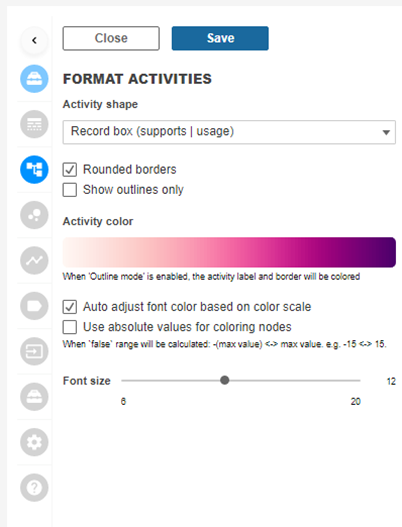
Here you can change the look and feel of activities in your ProcessMining visualisation. Format your activities to give the best looks to your dashboard with respect to yout use case.
#### Activity shape
Change the shape of your activities in your process map. Select a shape you like to visualize the nodes in the process map. By default the ‘Record box’ is used. This is the most common activity shape used in Process Maps. Here you have the option to have rounded edges turned on or off on your nodes. Change the whole look of your viz by having the nodes outlined only. This will trigger below the option to change the style of your outlines.
#### Activity color
Click on the gradient to choose from the selection of colors for your viz. This may effect the visibility of the font color to be sure check the ‘Auto adjust font color based on color scale’ for the extension work out the best color balance. This option sets the default color of activities in your Process Map. In a later step we tell you how to set the color of activities that reside in your Happy Path. The ‘outliers’ of your happy path will have the default color that is set with this option. So if you plan on using and visualizeing a happy path, it might be wise to select a signaling color as default color…
#### Use absolute values for coloring nodes
The values will round to the nearest absolute node and then be colored by that value. It often results in wider color variations in your process map, just try and see what best fits your use case.
#### Font size
Use the scroller to change the font size within your activities.
---
# Agent Instructions
This documentation is published with GitBook. GitBook is the documentation platform designed so that both humans and AI agents can read, navigate, and reason over technical content effectively. Learn more at gitbook.com.
## Querying This Documentation
If you need additional information that is not directly available in this page, you can query the documentation dynamically by asking a question.
Perform an HTTP GET request on the current page URL with the `ask` query parameter, and the optional `goal` query parameter:
```
GET https://docs.infotopics.com/processmining/configuration/configure-the-processmining-extension/format-activities.md?ask=&goal=
```
`ask` is the immediate question: it should be specific, self-contained, and written in natural language.
`goal` is optional and describes the broader end goal you are ultimately trying to accomplish on behalf of the user. GitBook uses it to tailor the answer towards what is most useful for that goal.
The response will contain a direct answer to the question and relevant excerpts and sources from the documentation.
Use this mechanism when the answer is not explicitly present in the current page, you need clarification or additional context, or you want to retrieve related documentation sections.