> For the complete documentation index, see [llms.txt](https://docs.infotopics.com/llms.txt). Markdown versions of documentation pages are available by appending `.md` to page URLs; this page is available as [Markdown](https://docs.infotopics.com/picturethis/configuration/configuration-screen/layout/grouped-layout-table.md).
# Grouped Layout Table
#### Columns
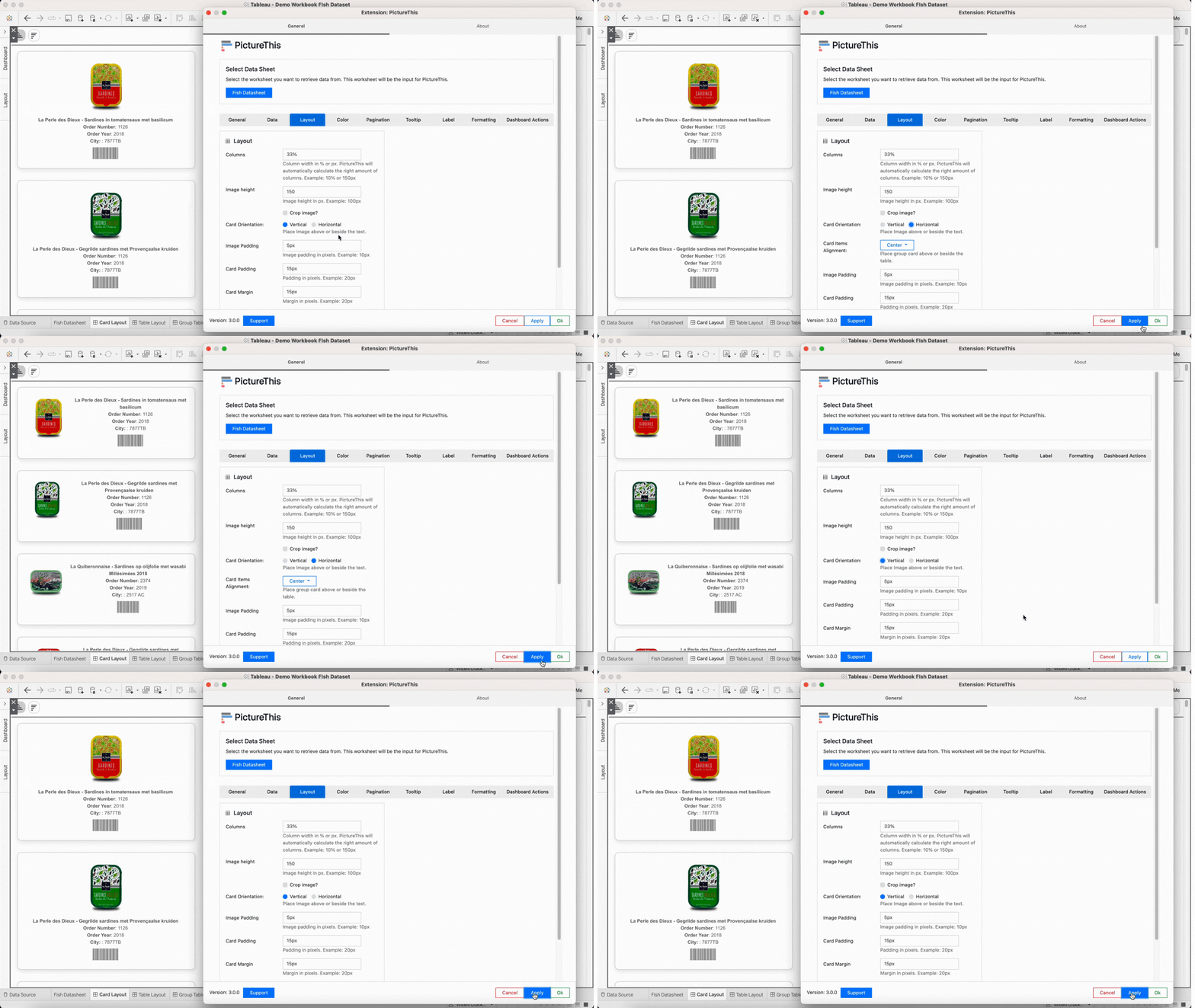
When there’s a grouped layout as part of your view, these will be the available options.
#### Group Image Height
This option is only available in the Cards Layout and allows you to set the width of the (grouped) cards columns. The best option is to use percentages like 50% to show to columns in your PictureThis container.
#### Crop Image?
Cropping the image will fill the area, keeping the image in proportion. This option makes sure all images fill the same space in your Image Table which usually results in a consistent clean view. Part of the image can be invisible since that will be cropped if the image does not exactly meet the crop aspect ratio.
#### Image Height
Enter the height you would like the image to be in your PictureThis Image Table. Use a number of pixels, for example: 100px
#### Card/Table Orientation
Change the orientation of where you image should sit, either above the text or beside.
#### Image Padding
This setting (padding) determines the space between the edge of the Table cell and the image. This will make sure that your mages are not glued together in your Image Table. Choose the image padding range within your Table cell using pixels. For example: 4px to generate 4 pixels of whitespace around the image
#### Row Padding
Here you can set the padding (whitespace) between the rows of your PictureThis Image Table. Set the row padding using a number of pixels. For example: 10px
#### Card Margin
The Card Margin is the space between each of the cards in your layout, to add more space between each card add enter that here in pixels.
#### Border Radius
You can show your cards with a slightly rounded border. Using % or px enter your Cards border radius.
#### Card Shadow
Enable or Disable the backdrop shadow effect to match the desired look.
#### Table Width
Enter the width you would like the table to be in pixels. Leave this field empty for auto width settings (100%).
#### Headers
Click to turn on or off the display of Column headers in your Table view. The Headers will be ‘sticky’ headers and they will keep their position even when you use the scroll bar.
#### Sticky
Sticky headers will freeze the header names in your table so they’re always shown in view.
#### Header Font
Adjust the Font size and color of the Table Header to fit your company style.
#### Column Width In Percentage Or Pixels
Fix the size of each column by an exact size using pixels or as a percentage of the width of the viz.
---
# Agent Instructions
This documentation is published with GitBook. GitBook is the documentation platform designed so that both humans and AI agents can read, navigate, and reason over technical content effectively. Learn more at gitbook.com.
## Querying This Documentation
If you need additional information that is not directly available in this page, you can query the documentation by asking a question.
Perform an HTTP GET request on the following URL with the `ask` and `goal` query parameters:
```
GET https://docs.infotopics.com/picturethis/configuration/configuration-screen/layout/grouped-layout-table.md?ask=&goal=
```
`ask` is the immediate question: it should be specific, self-contained, and written in natural language.
`goal` is what the user is ultimately trying to achieve, the reason they need the answer. Sharing it helps GitBook give you a better, more relevant answer. A goal is most helpful when it describes the outcome the user wants rather than restating the question. For example, with `ask=how do I create an API token`, a goal like `automate deployments from our CI pipeline` lets GitBook tailor the answer to that use case.
The response will contain a direct answer to the question and relevant excerpts and sources from the documentation.
Use this mechanism when the answer is not explicitly present in the current page, you need clarification or additional context, or you want to retrieve related documentation sections.