> For the complete documentation index, see [llms.txt](https://docs.infotopics.com/llms.txt). Markdown versions of documentation pages are available by appending `.md` to page URLs; this page is available as [Markdown](https://docs.infotopics.com/picturethis/configuration/configuration-screen/general/print-and-export.md).
# Print & Export
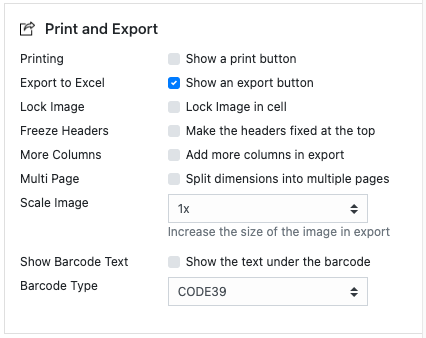
Printing is for Tableau Cloud and Tableau Server environments, installing on premise (enterprise) will allow your pictures to be printed too. Due to technical reasons, exporting images to excel is only available within the enterprise version of PictureThis. Export to excel will always be in table layout even if you try to export with cards layout.
In the layout configuration pane, you can configure what the export should look like. The scale image option lets you configure if the image in Excel should be magnified x-times. The “Show Barcode Text” options lets you put the actual text below the barcode image in Excel if you used the barcodes in your PictureThis extension. Make sure you select the proper matching Barcode font if you use this option.
Instead of images exported as images overlaying cells in excel, you can lock images with a cell using the “lock image” option. You can export your data to multiple excel sheets, splitting them based on the different values within a dimension (I.E. one page per category). Freezing the headers will allow you to scroll through your exported data with the headers permanently visible. If required, you can even add extra columns from your datasource (that aren’t visible in the dashboard) to your export.
Once the configuration part is done you can use the export button in the toolbar to export the instance of the PictureThis to excel format.
---
# Agent Instructions
This documentation is published with GitBook. GitBook is the documentation platform designed so that both humans and AI agents can read, navigate, and reason over technical content effectively. Learn more at gitbook.com.
## Querying This Documentation
If you need additional information that is not directly available in this page, you can query the documentation dynamically by asking a question.
Perform an HTTP GET request on the current page URL with the `ask` query parameter, and the optional `goal` query parameter:
```
GET https://docs.infotopics.com/picturethis/configuration/configuration-screen/general/print-and-export.md?ask=&goal=
```
`ask` is the immediate question: it should be specific, self-contained, and written in natural language.
`goal` is optional and describes the broader end goal you are ultimately trying to accomplish on behalf of the user. GitBook uses it to tailor the answer towards what is most useful for that goal.
The response will contain a direct answer to the question and relevant excerpts and sources from the documentation.
Use this mechanism when the answer is not explicitly present in the current page, you need clarification or additional context, or you want to retrieve related documentation sections.