> For the complete documentation index, see [llms.txt](https://docs.infotopics.com/llms.txt). Markdown versions of documentation pages are available by appending `.md` to page URLs; this page is available as [Markdown](https://docs.infotopics.com/mailscheduler/features/slack-and-teams/using-external-messaging.md).
# Using external messaging
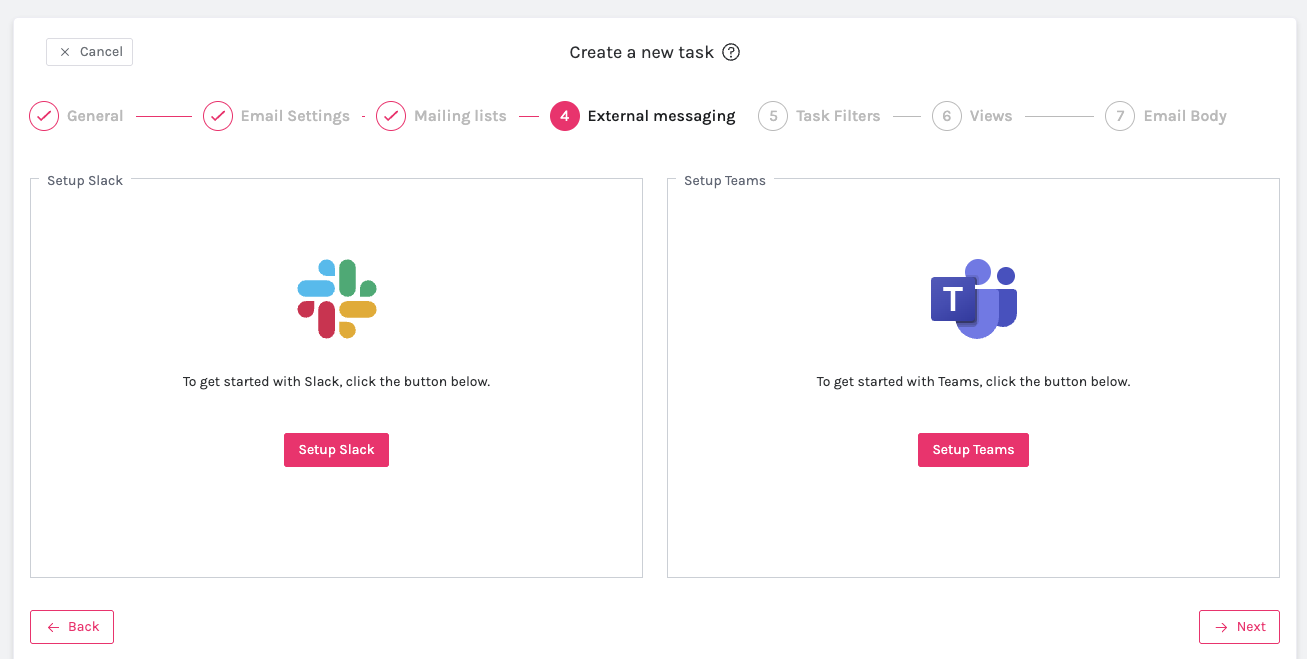
The first time you will see the external messaging tab, it will look like this:
Pressing either of the buttons will take you to the [Slack Setup](/mailscheduler/features/slack-and-teams/slack-setup.md)or the [Teams setup](/mailscheduler/features/slack-and-teams/teams-setup.md) in the MailScheduler application. When your setup is finished, you can continue with selecting your recipients, and composing the message.
### Selecting recipients
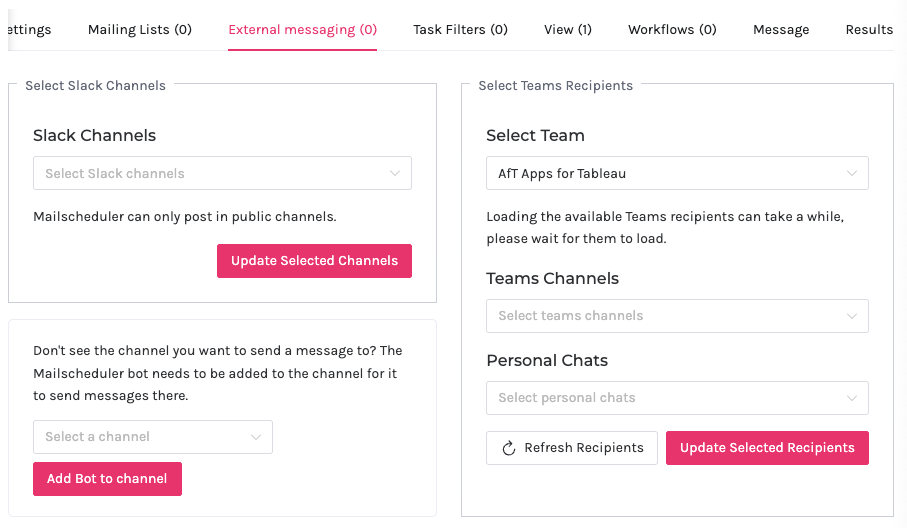
Here, you can select the recipients for your messages.
#### Slack
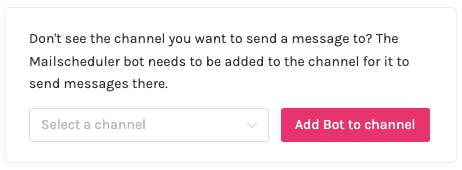
For slack, all you need to do is select the channels where you want to send messages to. To send messages, the bot needs to be in the channel. If it isn't yet, you will see an additional box like this:
Simply select the desired channel, press 'Add Bot to channel', and then select it in the list of channels.
#### Teams
For Teams, you will first need to select the Team that your channels and personal chats are in. This can be one per Task, so if you want to send a message across multiple different teams, you will need to add additional tasks.
After the Team is selected, the connected channels and chats that the logged in user has access to, will be shown. Because it can take long to load these from the graph API, they are saved using a cache. To refresh the cache, in case you are looking for a new entry but do not see it, you can press the 'Refresh Recipients' button.
### Composing the message
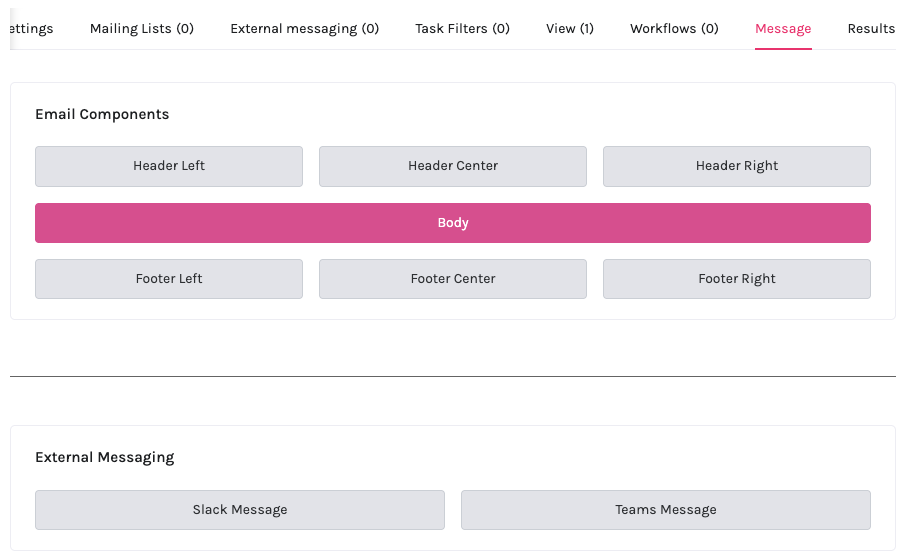
Because Teams and Slack messages can't be sent with a template like emails, a new section to choose a Slack and Teams message can be found under the Message tab.
For each, you can choose and compose a message just like you are used to doing in the email body.
---
# Agent Instructions
This documentation is published with GitBook. GitBook is the documentation platform designed so that both humans and AI agents can read, navigate, and reason over technical content effectively. Learn more at gitbook.com.
## Querying This Documentation
If you need additional information that is not directly available in this page, you can query the documentation dynamically by asking a question.
Perform an HTTP GET request on the current page URL with the `ask` query parameter, and the optional `goal` query parameter:
```
GET https://docs.infotopics.com/mailscheduler/features/slack-and-teams/using-external-messaging.md?ask=&goal=
```
`ask` is the immediate question: it should be specific, self-contained, and written in natural language.
`goal` is optional and describes the broader end goal you are ultimately trying to accomplish on behalf of the user. GitBook uses it to tailor the answer towards what is most useful for that goal.
The response will contain a direct answer to the question and relevant excerpts and sources from the documentation.
Use this mechanism when the answer is not explicitly present in the current page, you need clarification or additional context, or you want to retrieve related documentation sections.