> For the complete documentation index, see [llms.txt](https://docs.infotopics.com/llms.txt). Markdown versions of documentation pages are available by appending `.md` to page URLs; this page is available as [Markdown](https://docs.infotopics.com/hierarchyfilter/configuration/aggregation.md).
# Aggregation
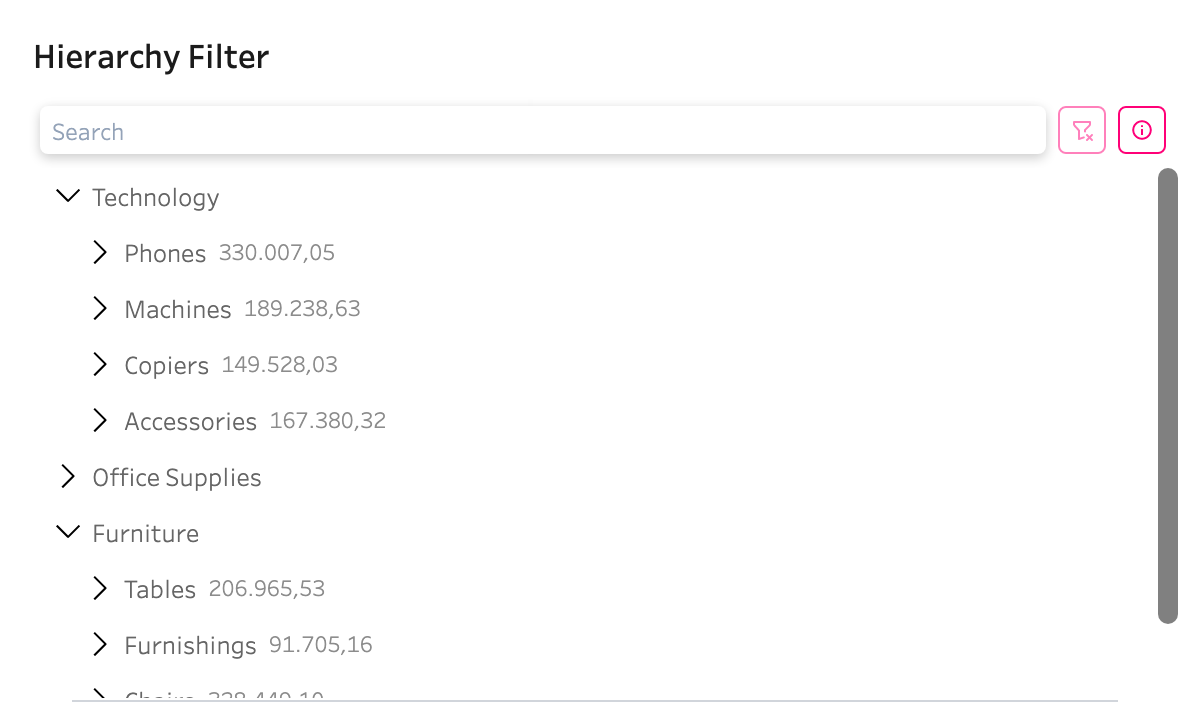
Aggregation can be used to show measures aggregated next to items in the hierarchy tree to have a quick overview of underlaying data. In the image below, aggregation is used to show the sum of all product sales next te each Sub-category in the superstore sample data.
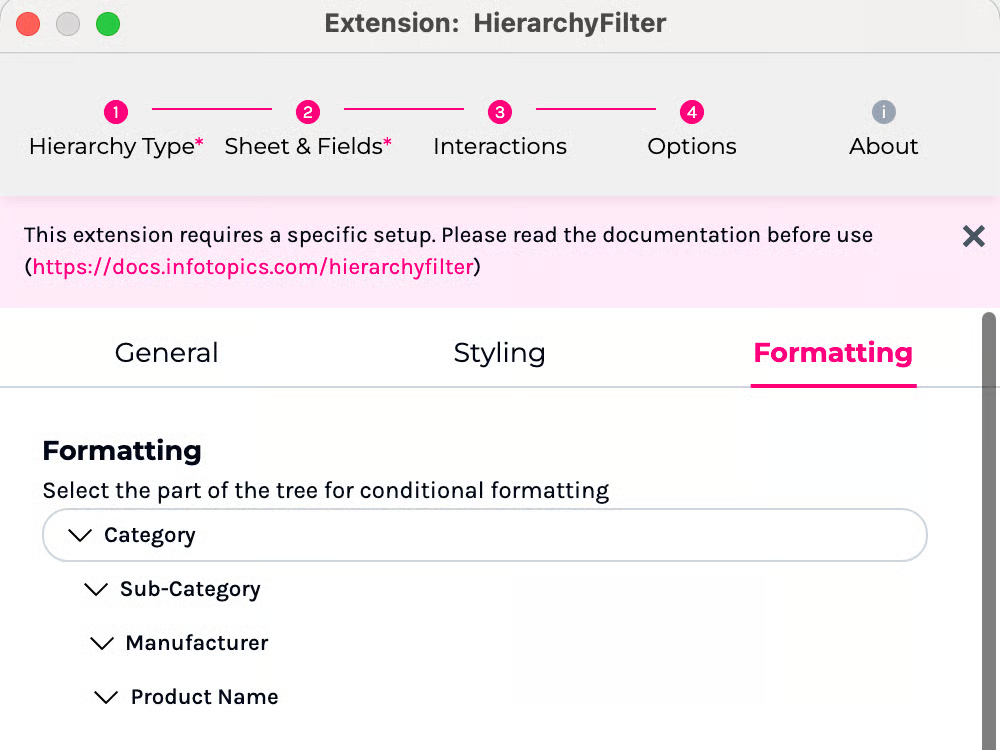
To enable this feature, first drag the desired measure or dimension to aggregate on onto the details mark in the datasheet. Secondly, go to the "Formatting" tab in the "Options" page in the configuration, where you need to select the column/level you want to apply aggregation on.
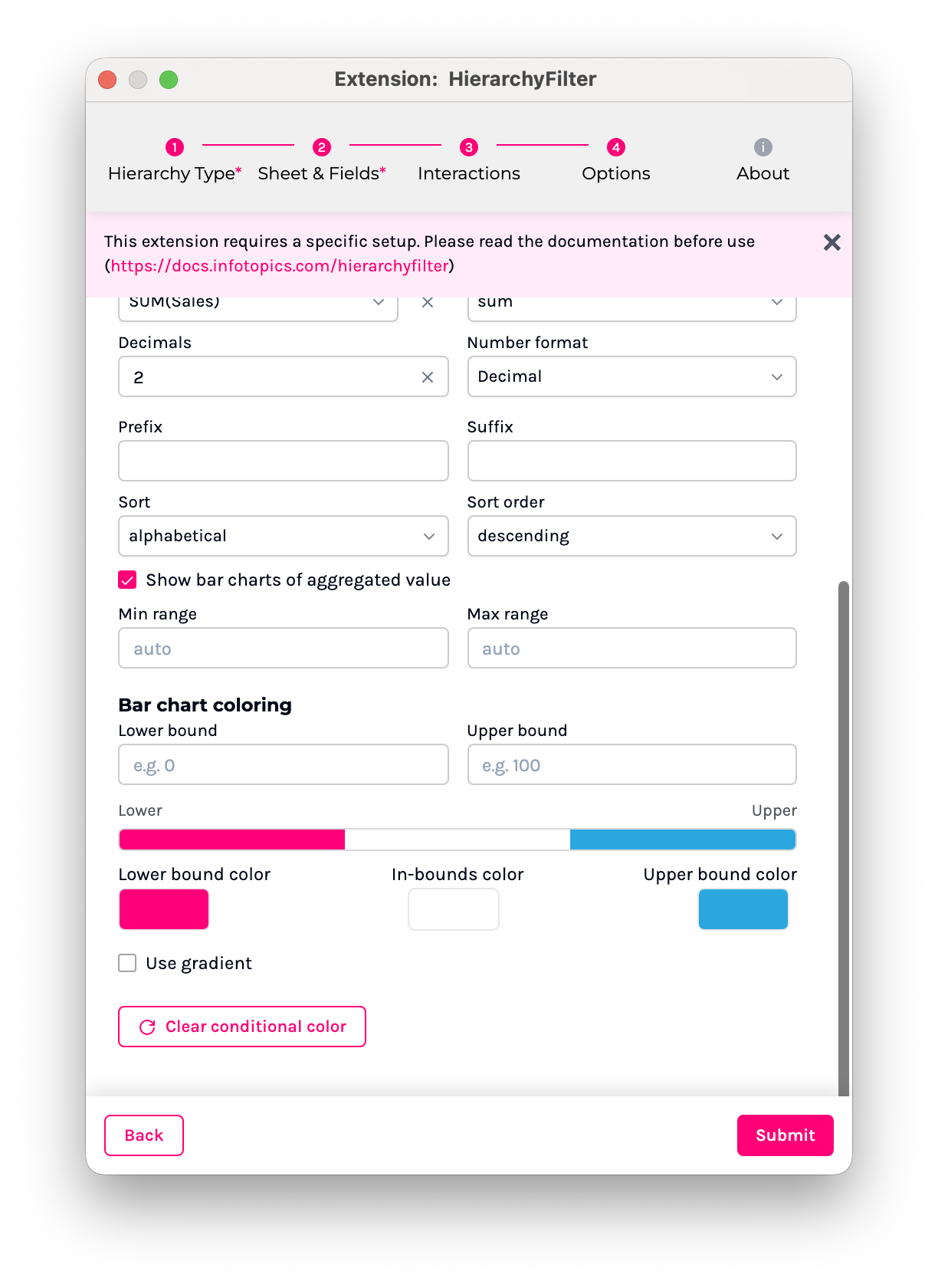
After which, you need to select on what measure you want to aggregate on. in the example, we used the sales measure. Right next to the measure selection, you need to specify what type of aggregation should be used to combine multiple values.
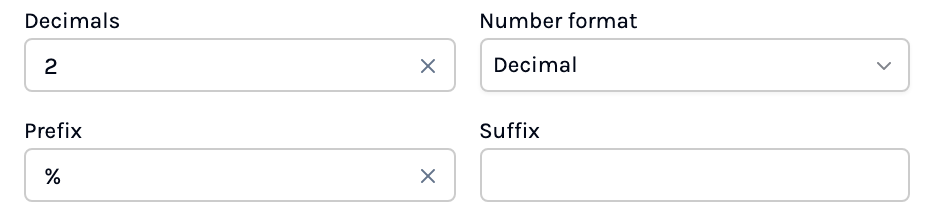
The number formatting options can be used to customize the decimal point and possible suffix and prefix. Using the percentage number format option automatically calculates the value of the measure time 100. In out example, we used the $ prefix for the sum of sales.
Clicking submit will show the selected aggregation in the hierarchy tree.
### Bar charts
The bar chart option can be selected to quickly compare different items in the tree based on their aggregation.
Enable the "Bar chart" checkbox in the Formatting tab to enable this option.
The ranges are automatically set to the minimum and maximum value of all aggregated numbers in the same level, but these can be adjusted. The bar chart coloring can be used to better differentiate different values based on predefined bounds.
Lastly, the gradient option can be used to color the bar charts in a color range from the lowest to the highest number in the set.
---
# Agent Instructions
This documentation is published with GitBook. GitBook is the documentation platform designed so that both humans and AI agents can read, navigate, and reason over technical content effectively. Learn more at gitbook.com.
## Querying This Documentation
If you need additional information that is not directly available in this page, you can query the documentation by asking a question.
Perform an HTTP GET request on the following URL with the `ask` and `goal` query parameters:
```
GET https://docs.infotopics.com/hierarchyfilter/configuration/aggregation.md?ask=&goal=
```
`ask` is the immediate question: it should be specific, self-contained, and written in natural language.
`goal` is what the user is ultimately trying to achieve, the reason they need the answer. Sharing it helps GitBook give you a better, more relevant answer. A goal is most helpful when it describes the outcome the user wants rather than restating the question. For example, with `ask=how do I create an API token`, a goal like `automate deployments from our CI pipeline` lets GitBook tailor the answer to that use case.
The response will contain a direct answer to the question and relevant excerpts and sources from the documentation.
Use this mechanism when the answer is not explicitly present in the current page, you need clarification or additional context, or you want to retrieve related documentation sections.