> For the complete documentation index, see [llms.txt](https://docs.infotopics.com/llms.txt). Markdown versions of documentation pages are available by appending `.md` to page URLs; this page is available as [Markdown](https://docs.infotopics.com/features/tableau-extension/configuration/schemas/general-configuration.md).
# General configuration
The **General** tab holds the behaviour of one worksheet-schema: what the overview shows, what happens when the selection changes, when data is refreshed, and who may add or edit a row.
Every module type has its own set of inner tabs, because the options differ per module. Pick your schema in the **Worksheet-schema** side menu, then work through the tabs that apply to it:
| Module | Inner tabs |
| --------------------------------- | ----------------------------------------------------------------------------- |
| Add data (Collaboration included) | **General**, **Refresh**, **Mark Selection**, **Rules**, **Overview Message** |
| Data correction | **General**, **Refresh**, **Advanced**, **Rules**, **Overview Message** |
| Data helper | **General**, **Refresh**, **Rules**, **Overview Message** |
Nothing is stored until you click **Save** in the configuration toolbar. A blue dot on the button means you still have unsaved changes.
## Shared options
These appear on more than one module, with the same meaning everywhere.
#### Show title / Show description
Switches off the schema's title and description above the overview. Both are on by default. Available on all three modules.
#### Clearing the selection will
Decides what the overview shows when no mark is selected in the connected worksheet: **Show all data** or **Exclude all data**. On Add data and Data helper this is a pair of radio buttons; Data correction uses a **Show all data** switch instead. In Power BI the heading reads **When no cross-filter is active**.
#### Order by
Sorts the overview. Pick a column under **Fields** — leave it empty for **Default data** — and choose **Order ascending** or **Order descending**. Data correction schemas that were created from the management console also offer **Created at** and **Updated at**.
#### Use Import as start page
**Show Import as start page** opens the extension on the bulk import screen instead of the overview. Available on all three modules.
#### Always show search bar
**Always show search bar** keeps the search bar permanently visible instead of hidden behind its button. Add data and Data helper only.
#### Select datasources to refresh
On the **Refresh** tab of every module. Choose which Tableau datasources are refreshed after a save or a click on the refresh button. Leave **Datasources** empty to refresh every datasource used by the connected worksheet.
## Add data
### General
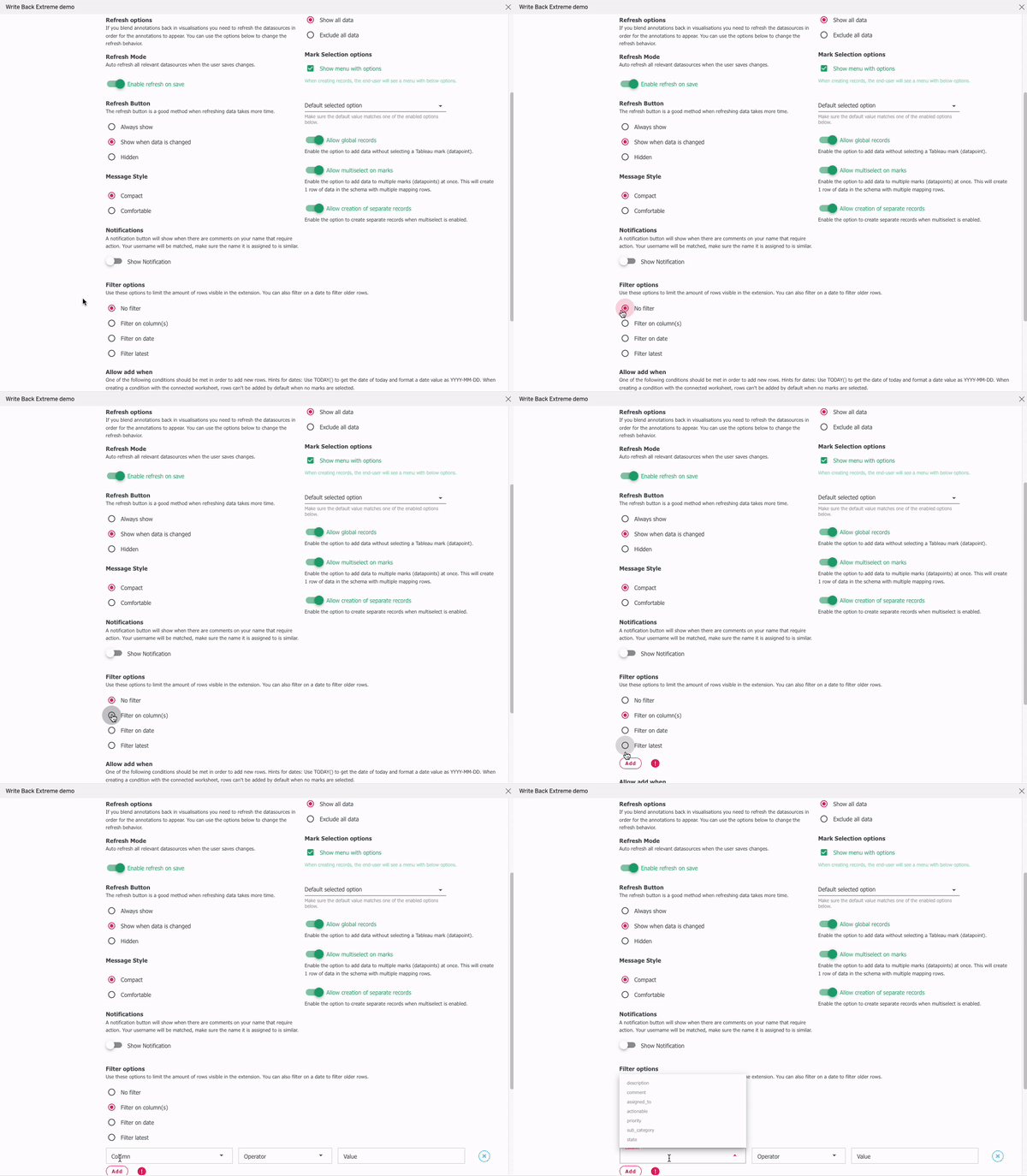
Left column: **Show title** and **Show description**, **Quick Add Mode**, **Use Import as start page** and **Always show search bar**.
**Enable Quick Add Mode** sends your users straight to the create form when they select a datapoint, instead of showing the overview first.
Collaboration schemas add two blocks of their own:
* **Message Style** — **Compact** or **Comfortable**, the density of the message list.
* **Notifications** — **Show Notification** adds a notification button that lights up when there are comments awaiting the logged-in user. Matching is on the username, so the name a comment is assigned to has to match the name the user logs in with.
Right column: **Filter options**, then the shared **Clearing the selection will** and **Order by**.
#### Filter options
Limits how many rows reach the extension. Choose one of:
* **No filter** — every row in the schema.
* **Filter on column(s)** — add rows of **Column**, **Operator** (`=`, `>`, `<`, `>=`, `<=`, `!=`) and **Value**, with **Add** for each extra condition.
* **Filter on date** — **Last** *n* **days**.
* **Filter latest** — **Top** *n* **rows**.
{% hint style="warning" %}
Be careful with column filters. A filter can exclude rows the moment they are added, so your users save a record and then watch it disappear from the overview.
{% endhint %}
### Refresh
* **Refresh Mode** — **Enable refresh on save** refreshes all relevant datasources whenever a user saves.
* **Refresh Button** — **Always show**, **Show when data is changed** (the default) or **Hidden**. A visible button helps when a refresh takes a while.
* **Select datasources to refresh**.
### Mark Selection
{% content-ref url="/pages/GeSbsy5k2wkL9BuLRD11" %}
[Mark selection](https://docs.infotopics.com/features/tableau-extension/configuration/schemas/general-configuration/mark-selection.md)
{% endcontent-ref %}
### Rules and Overview Message
{% content-ref url="/pages/lN6Yi7QxTcZ5utL8oQvY" %}
[Editable conditions](https://docs.infotopics.com/features/tableau-extension/configuration/schemas/general-configuration/editable-conditions.md)
{% endcontent-ref %}
{% content-ref url="/pages/OXTiWNPc4akvmN2tyBds" %}
[Overview message](https://docs.infotopics.com/features/tableau-extension/configuration/schemas/general-configuration/overview-message.md)
{% endcontent-ref %}
## Data correction
### General
Left column:
* **Show title** and **Show description**.
* **Layout** — **Use vertical layout** turns the horizontal table into a form-like, one-record-at-a-time screen.
* **Show add row button** — lets users with write permission add a row without selecting a mark first. Write permission is granted per schema in the management console.
* **Unsaved Changes** — **Enable unsaved changes** (on by default) collects every edit and saves them in one go. Switch it off and edits are discarded as soon as the user deselects the datapoint.
* **Use Import as start page**.
Right column starts with **Clearing the selection will** as a single **Show all data** switch, and what you get next depends on it:
* **Show all data** on — **Show only relevant values** filters the loaded data down to the datapoints in the connected worksheet.
* **Show all data** off — **Enable On-demand loading** delays loading until a mark is selected. That cuts startup time on large schemas at the cost of a short wait per selection.
Switching **Show all data** on turns on-demand loading off; the two are mutually exclusive. Below that sits the shared **Order by**.
Data correction paginates: 10 rows per page in vertical layout, 50 in the horizontal table.
### Refresh
**Enable refresh on save** (on by default) and **Select datasources to refresh**. Data correction has no refresh-button option.
### Advanced
{% content-ref url="/pages/1aeBpONqj9rAVGlEoLpw" %}
[Advanced (Data correction)](https://docs.infotopics.com/features/tableau-extension/configuration/schemas/general-configuration/data-correct-advanced.md)
{% endcontent-ref %}
### Rules and Overview Message
{% content-ref url="/pages/lN6Yi7QxTcZ5utL8oQvY" %}
[Editable conditions](https://docs.infotopics.com/features/tableau-extension/configuration/schemas/general-configuration/editable-conditions.md)
{% endcontent-ref %}
{% content-ref url="/pages/OXTiWNPc4akvmN2tyBds" %}
[Overview message](https://docs.infotopics.com/features/tableau-extension/configuration/schemas/general-configuration/overview-message.md)
{% endcontent-ref %}
## Data helper
### General
**Show title** and **Show description**, **Clearing the selection will** and **Order by** on the left; **Use Import as start page** and **Always show search bar** on the right. A Data helper schema does not need a connected worksheet — without one, the overview of the data is shown straight away.
### Refresh
* **Refresh Mode** — **Enable refresh on save**.
* **Refresh Button** — **Always show**, **Show when data is changed** or **Hidden**.
* **Select datasources to refresh**.
Refreshing only works when the schema is connected to a worksheet, or when you select one or more datasources yourself. The extension tells you so on the tab when neither is set.
### Rules and Overview Message
{% content-ref url="/pages/lN6Yi7QxTcZ5utL8oQvY" %}
[Editable conditions](https://docs.infotopics.com/features/tableau-extension/configuration/schemas/general-configuration/editable-conditions.md)
{% endcontent-ref %}
{% content-ref url="/pages/OXTiWNPc4akvmN2tyBds" %}
[Overview message](https://docs.infotopics.com/features/tableau-extension/configuration/schemas/general-configuration/overview-message.md)
{% endcontent-ref %}
---
# Agent Instructions
This documentation is published with GitBook. GitBook is the documentation platform designed so that both humans and AI agents can read, navigate, and reason over technical content effectively. Learn more at gitbook.com.
## Querying This Documentation
If you need additional information that is not directly available in this page, you can query the documentation by asking a question.
Perform an HTTP GET request on the following URL with the `ask` and `goal` query parameters:
```
GET https://docs.infotopics.com/features/tableau-extension/configuration/schemas/general-configuration.md?ask=&goal=
```
`ask` is the immediate question: it should be specific, self-contained, and written in natural language.
`goal` is what the user is ultimately trying to achieve, the reason they need the answer. Sharing it helps GitBook give you a better, more relevant answer. A goal is most helpful when it describes the outcome the user wants rather than restating the question. For example, with `ask=how do I create an API token`, a goal like `automate deployments from our CI pipeline` lets GitBook tailor the answer to that use case.
The response will contain a direct answer to the question and relevant excerpts and sources from the documentation.
Use this mechanism when the answer is not explicitly present in the current page, you need clarification or additional context, or you want to retrieve related documentation sections.