> For the complete documentation index, see [llms.txt](https://docs.infotopics.com/llms.txt). Markdown versions of documentation pages are available by appending `.md` to page URLs; this page is available as [Markdown](https://docs.infotopics.com/drilldowntree/getting-started/getting-started-with-drilldowntree/getting-started-with-dashboard-extension.md).
# Getting started with dashboard extension
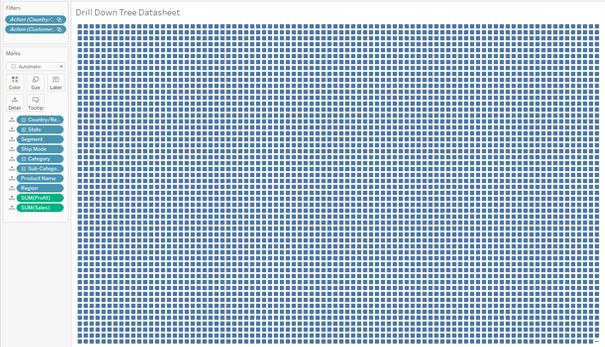
The datasheet needs to be on the dashboard. It is not the most beautiful visualization, so it is best to hide it for your dashboard users. To achieve this:
1. **Add the worksheet to your dashboard as a 'floating' container.**
2. **Edit the size to 1x1 pixels and set the position to 1,1 (x,y coordinates).** This will make your datasheet active on the dashboard without being visible to users.
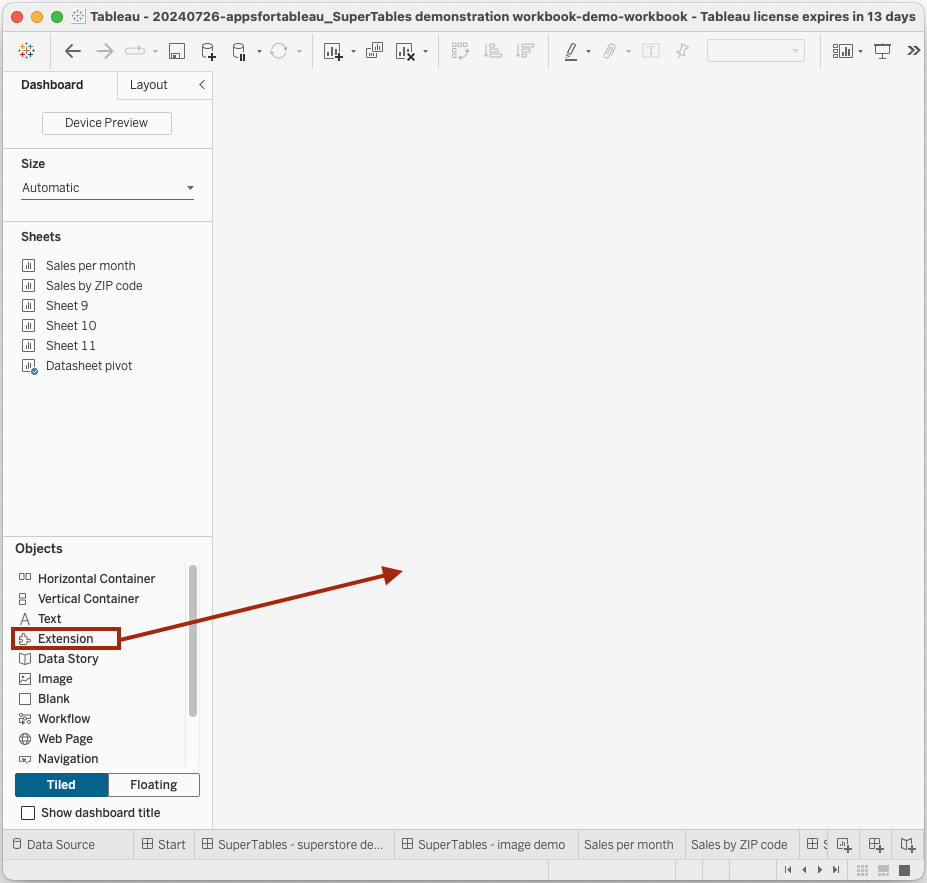
Load extension to the dashboard
**Import DrillDownTree:**
* If you have a TREX file:
* Click on 'Access Local Extensions'.
* Navigate to the TREX file and select the TREX file.
* Alternatively:
* Search for DrillDownTree in the Tableau Exchange.
* Click Add to the dashboard.
**Authorize extension**: Click ‘OK’ to allow the extension to run in your dashboard.
For best practices and optimal performance on your dashboard, we recommend the following steps:
* Drop the measure(s) and dimensions onto the detail of your marks card on a separate or new worksheet. This setup allows DrillDownTree to perform at its best and ensures greater flexibility for dashboard actions.
* Make sure all dimensions you wish to use in the Drill Down path are included on the datasheet.
By following these tips, you ensure that DrillDownTree performs efficiently and enhances the user experience.
**Configuration**
After loading the extension click on the bright pink icon which says "\`Start configuring" to get started with the Drill down tree. You can then follow the tutorial which should lead you to this page in the sidebar:
On this page, select a worksheet which you have created in the previous step, and click "Save" to start creating the diagram.
After creating the diagram, you can further customize it by selecting different nodes and edges to reveal additional layers of data.
---
# Agent Instructions
This documentation is published with GitBook. GitBook is the documentation platform designed so that both humans and AI agents can read, navigate, and reason over technical content effectively. Learn more at gitbook.com.
## Querying This Documentation
If you need additional information that is not directly available in this page, you can query the documentation by asking a question.
Perform an HTTP GET request on the following URL with the `ask` and `goal` query parameters:
```
GET https://docs.infotopics.com/drilldowntree/getting-started/getting-started-with-drilldowntree/getting-started-with-dashboard-extension.md?ask=&goal=
```
`ask` is the immediate question: it should be specific, self-contained, and written in natural language.
`goal` is what the user is ultimately trying to achieve, the reason they need the answer. Sharing it helps GitBook give you a better, more relevant answer. A goal is most helpful when it describes the outcome the user wants rather than restating the question. For example, with `ask=how do I create an API token`, a goal like `automate deployments from our CI pipeline` lets GitBook tailor the answer to that use case.
The response will contain a direct answer to the question and relevant excerpts and sources from the documentation.
Use this mechanism when the answer is not explicitly present in the current page, you need clarification or additional context, or you want to retrieve related documentation sections.